Adding API connections to ChannelDock *Seller*
Last updated
Sales Channels
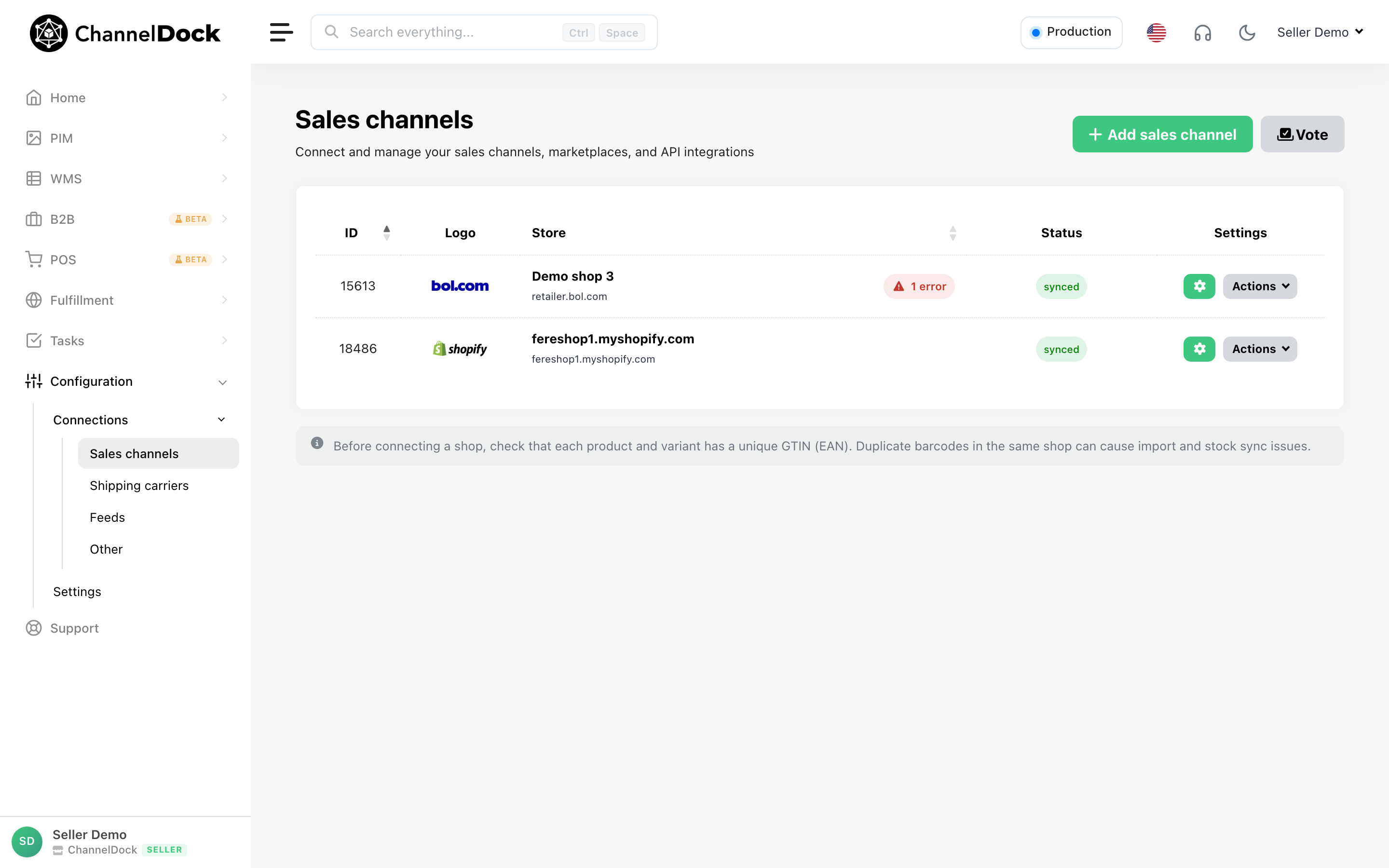
You can add sales channels by following the steps bellow:
-
Go to ‘Connections’ -> ‘Sales channels’ in your side menu
-
You can now click on the ‘+ Add sales channel’ button.

-
Here you can either search for the right sales channel, or scroll down to find it yourself.

If you want to know how to specifically connect the different sales channels you can find all the articles about our sales channels here
Shipping carriers
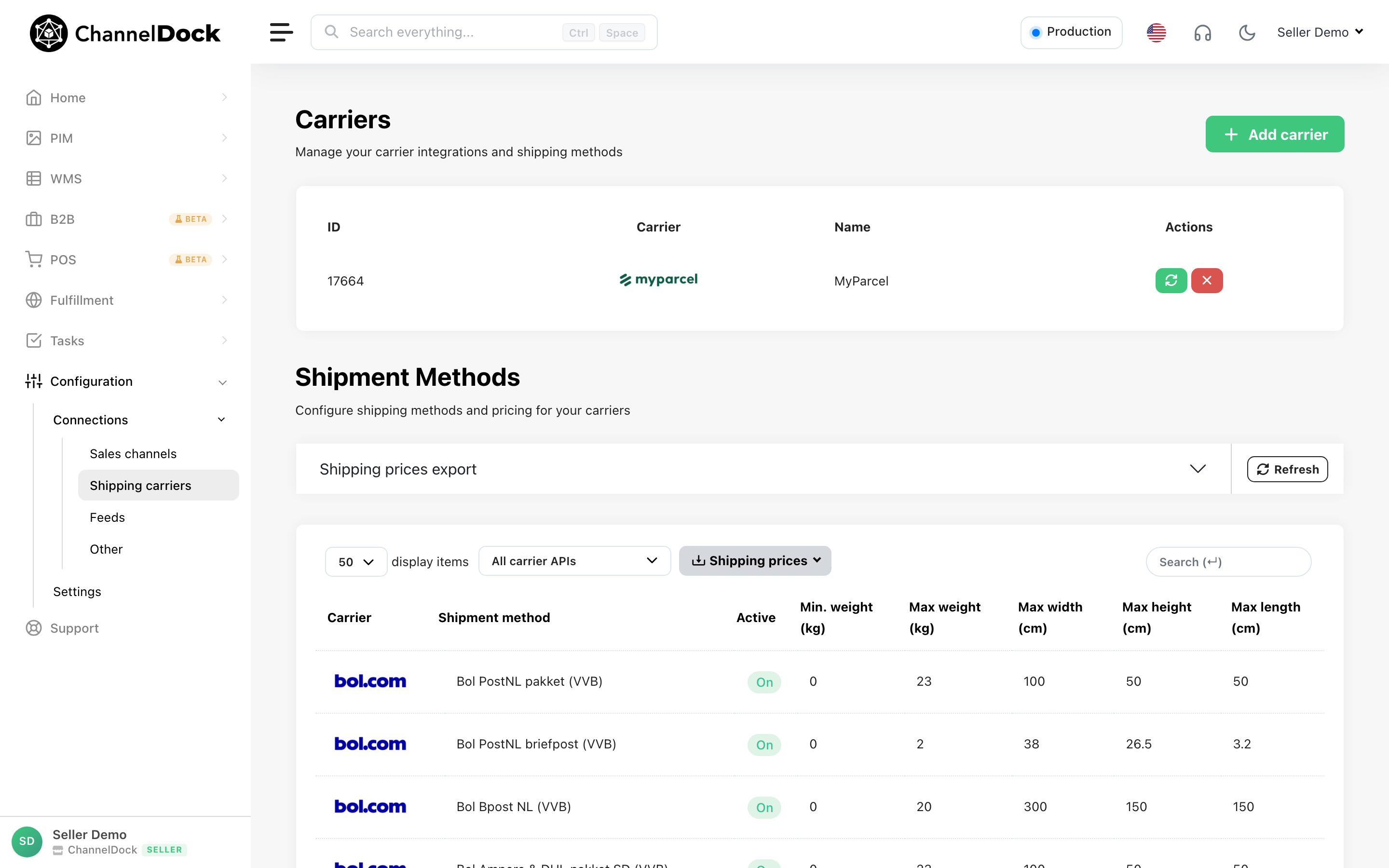
You can add carrier channels by following the steps bellow:
-
Go to ‘Connections’ -> ‘Shipping carriers’ in your side menu
-
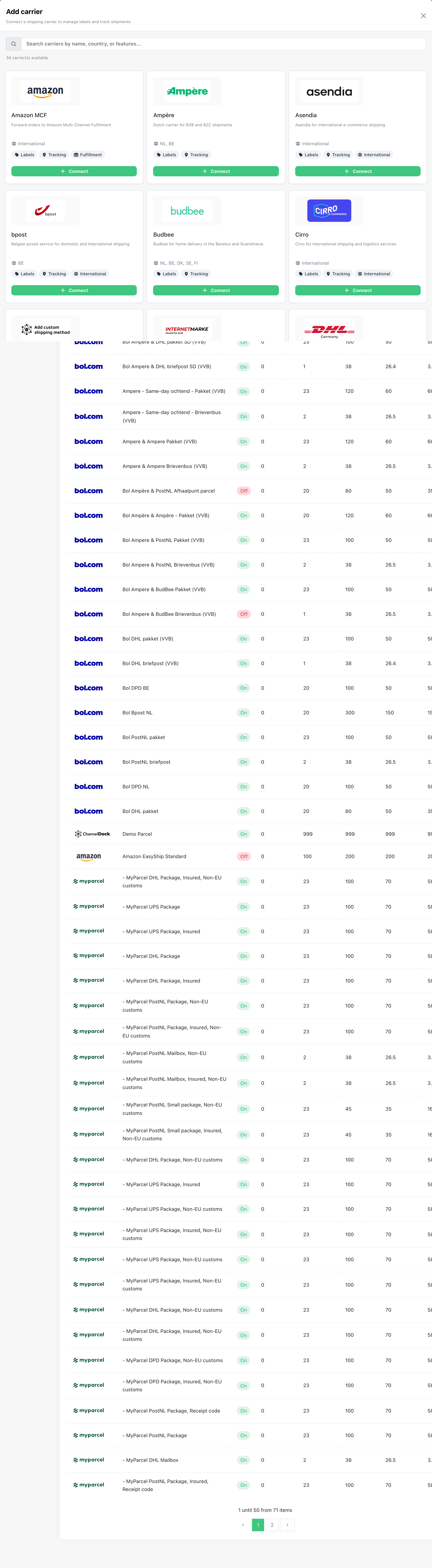
You can now click on the ‘+ Add carrier’ button.

-
Here you can either search for the right sales channel, or scroll down to find it yourself.
If you want to know how to specifically connect the different sales channels you can find all the articles about our sales channels here
Printers
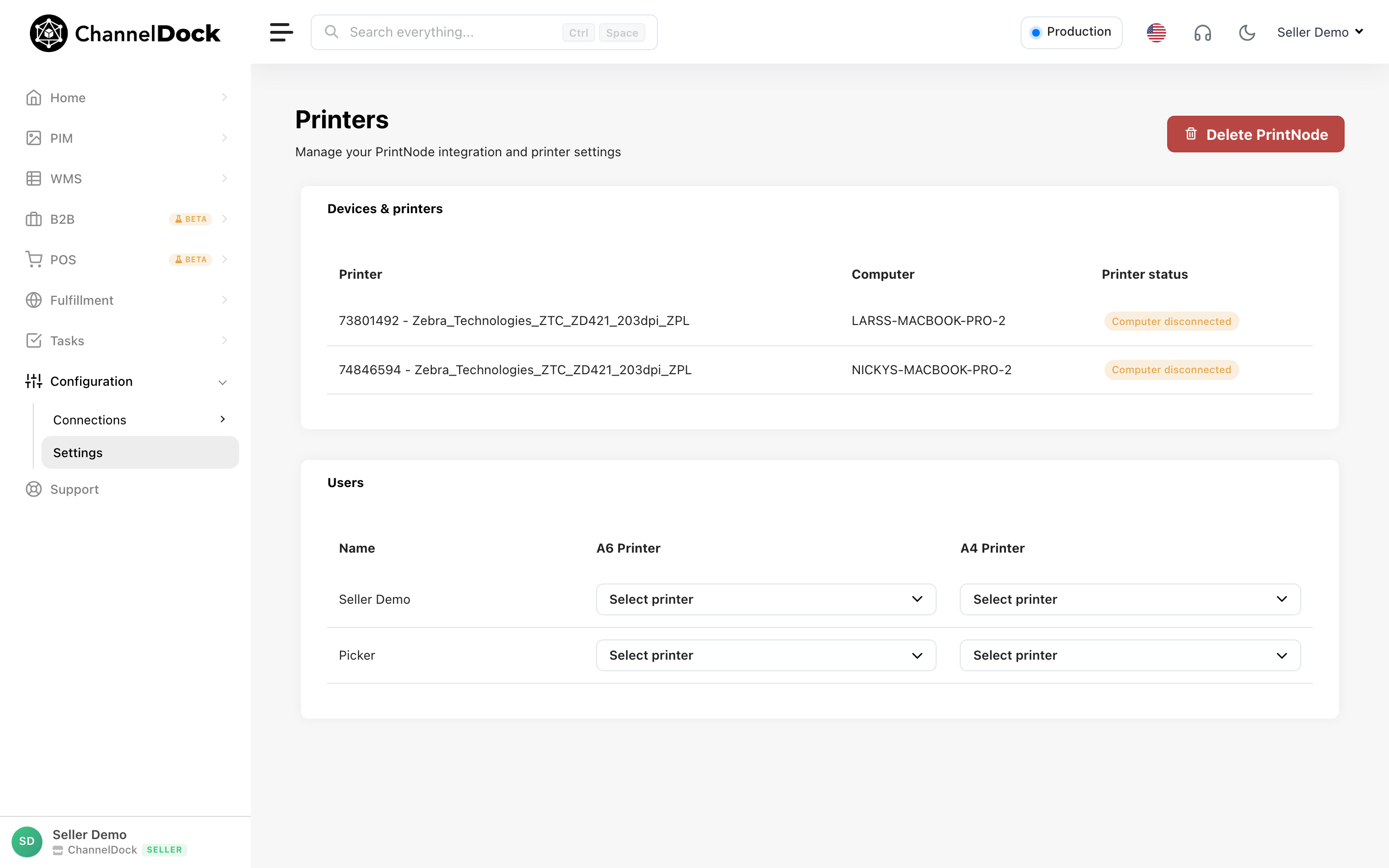
You can add printers by following the steps bellow:
-
Go to ‘Settings’ -> ‘printers’ in your side menu
-
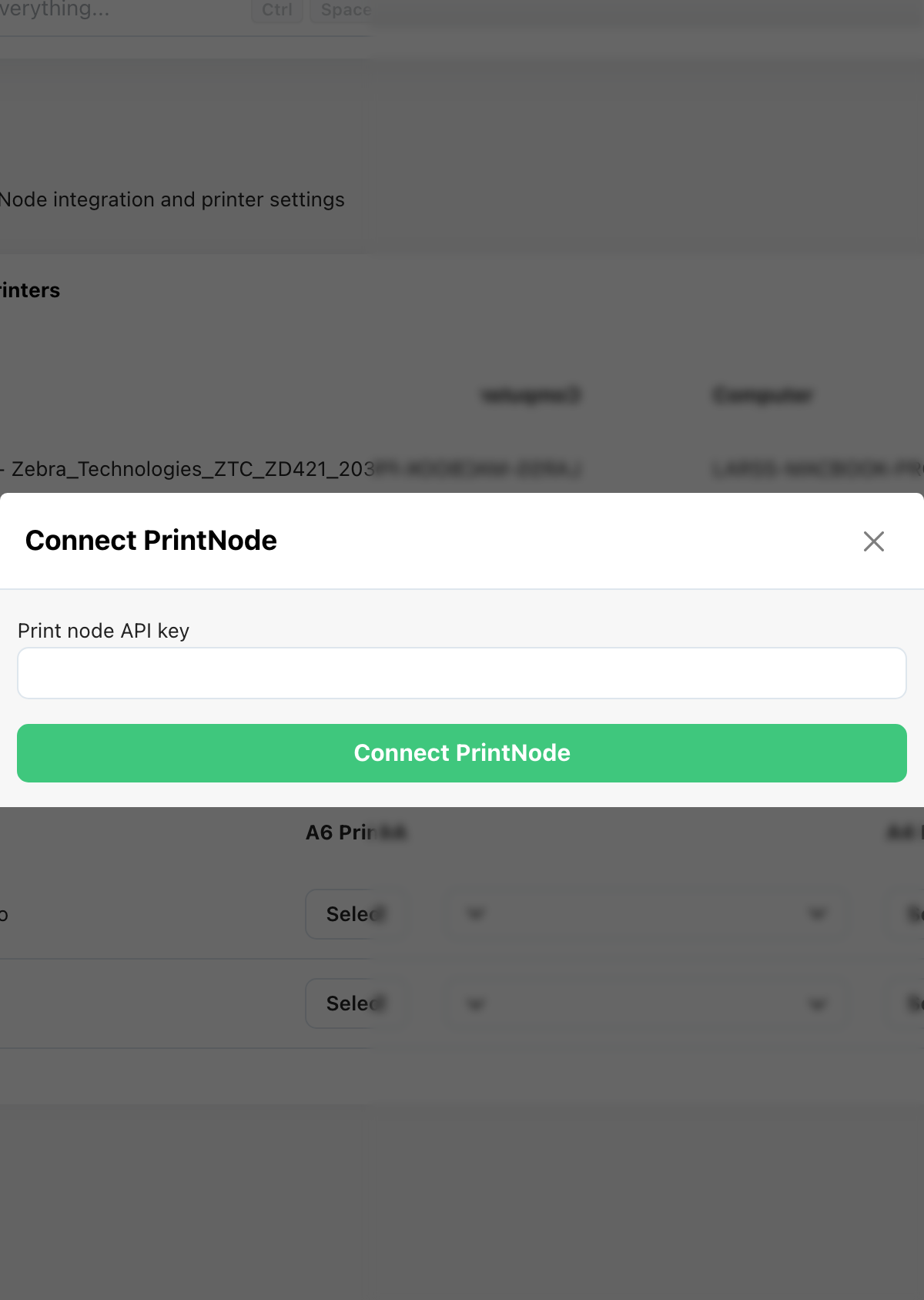
You can now click on the ‘+ Connect PrintNode’ button.
-
Here you can input your API key
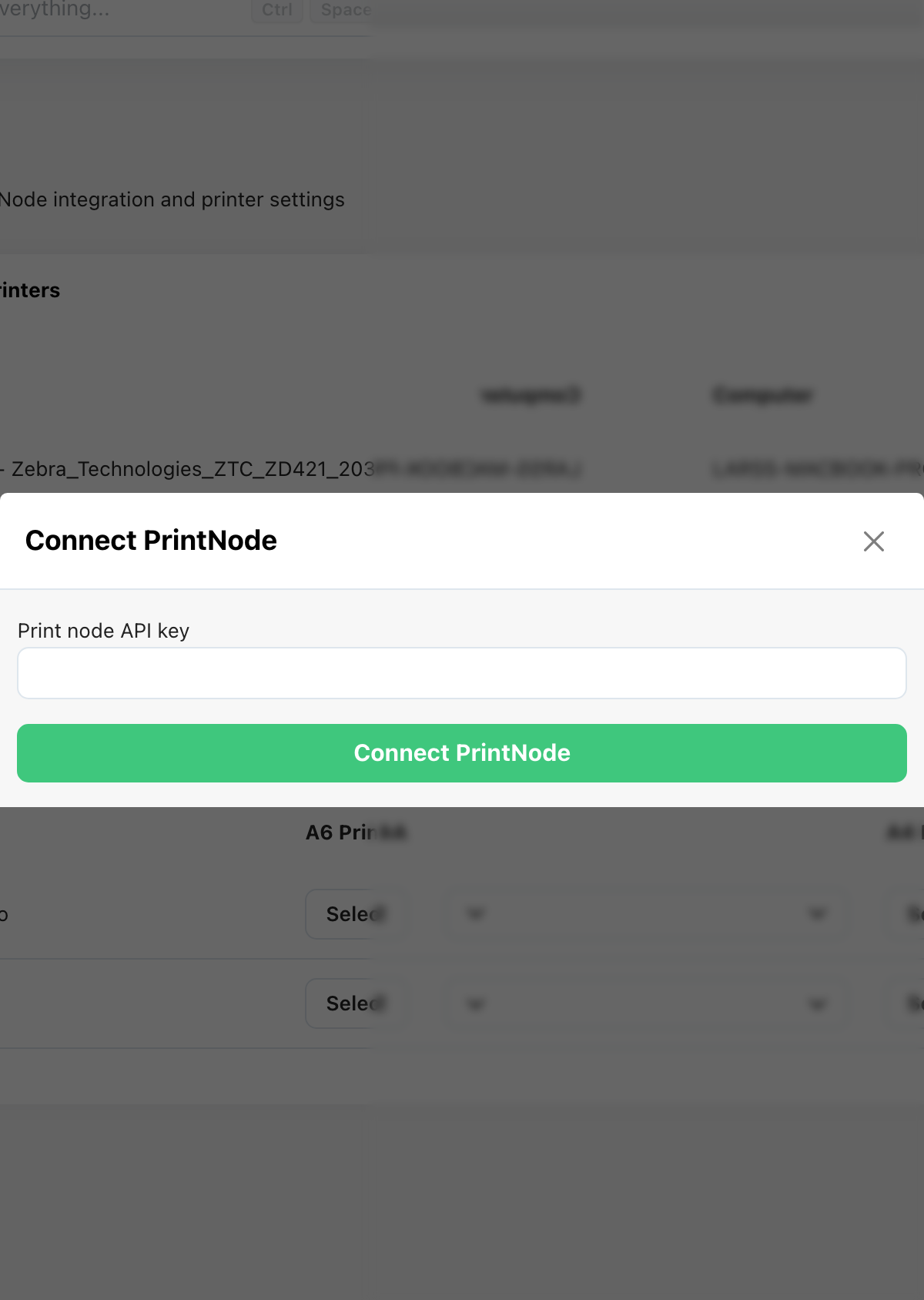
If you want to know how to get your API key from PrintNode, you can read this article here
Other integrations
If you want to know how to connect other integrations like FiveX, you can go to Integrations & API.
Was this helpful?