Connecting Billbee
Last updated
Connect Billbee to ChannelDock
Billbee is a multichannel order-management platform used by many sellers in Germany, Austria, and Switzerland. The ChannelDock integration (currently in Beta) lets you push orders from ChannelDock to Billbee for fulfillment, optionally import stock and products from Billbee, and receive shipment tracking back into ChannelDock.
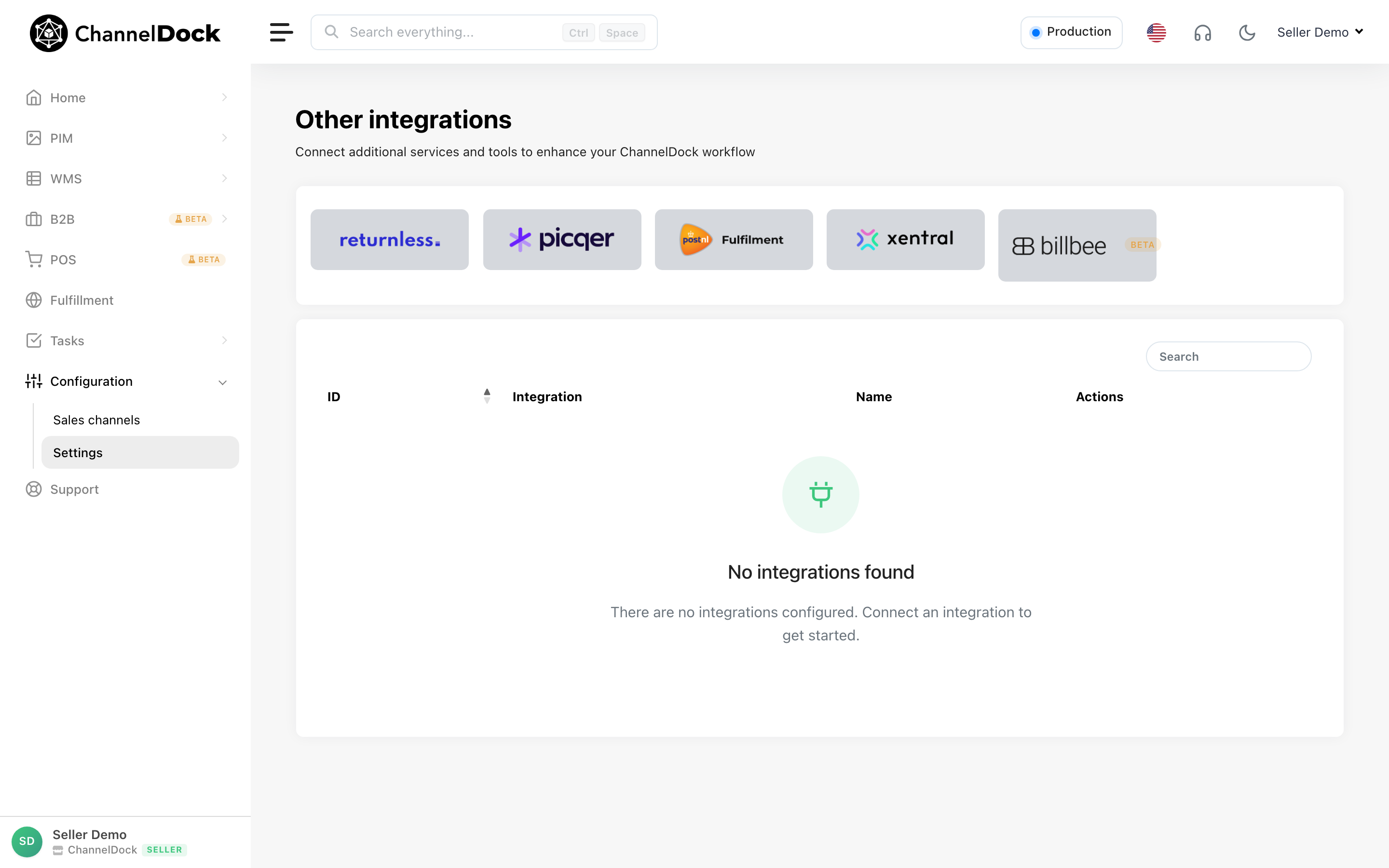
This integration is available under Connections → Other — not under Sales channels.
How this connection works
- Orders with status
orderorbackorderin ChannelDock are synced to Billbee. - ChannelDock creates orders in Billbee using your ChannelDock order number as the external reference.
- When an order is shipped in Billbee, tracking is synced back to ChannelDock and the order is completed in the original sales channel.
- When an order is cancelled in Billbee, it is cancelled in ChannelDock.
- Stock levels can optionally be synced from Billbee to ChannelDock (off by default).
- New products can be imported from Billbee to ChannelDock based on EAN.
Before you connect
You need the following in Billbee and ChannelDock:
In Billbee
- Log in to Billbee.
- Go to Settings → Billbee API (or Settings → System → Billbee API).
- Enable API access on the General settings tab.
- Set an API password. Billbee requires a strong password:
- At least 12 characters
- At least one uppercase letter, one lowercase letter, one number, and one special character (
!@$%^&*+#) - Do not use a colon (
:) in the password — this causes authentication errors
- Save your settings.
You also need a Billbee API Key for the application. This is sent as the HTTP header X-Billbee-Api-Key. Request one from Billbee if you do not have it yet — see Billbee’s API documentation.
Username for the connection
- For the main account, use the email address your Billbee account is registered with.
- For a staff account, use that staff member’s Billbee username.
In ChannelDock
- Connect your sales channels first (Shopify, bol.com, Amazon, etc.) so orders can flow into ChannelDock before being pushed to Billbee.
Connect Billbee to ChannelDock
-
Log in to your ChannelDock account.
-
Navigate to Connections → Other.
-
Click the Billbee logo (marked as Beta).
-
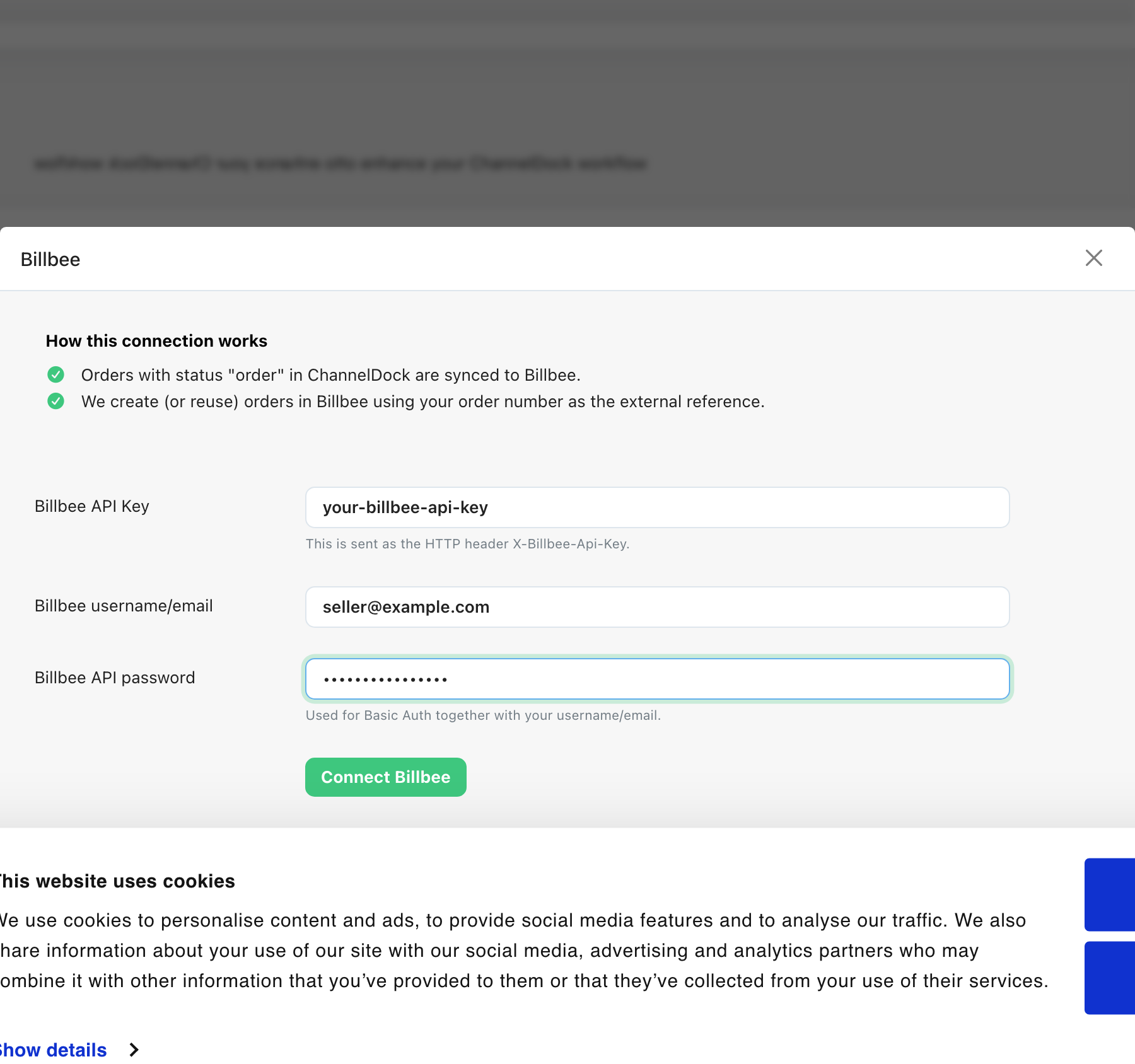
Fill in the connection form:
- Billbee API Key — your application API key (sent as
X-Billbee-Api-Key). - Billbee username/email — your Billbee login email or staff username.
- Billbee API password — the API password you set in Billbee (not your regular login password).
- Billbee API Key — your application API key (sent as
-
Click Connect Billbee.
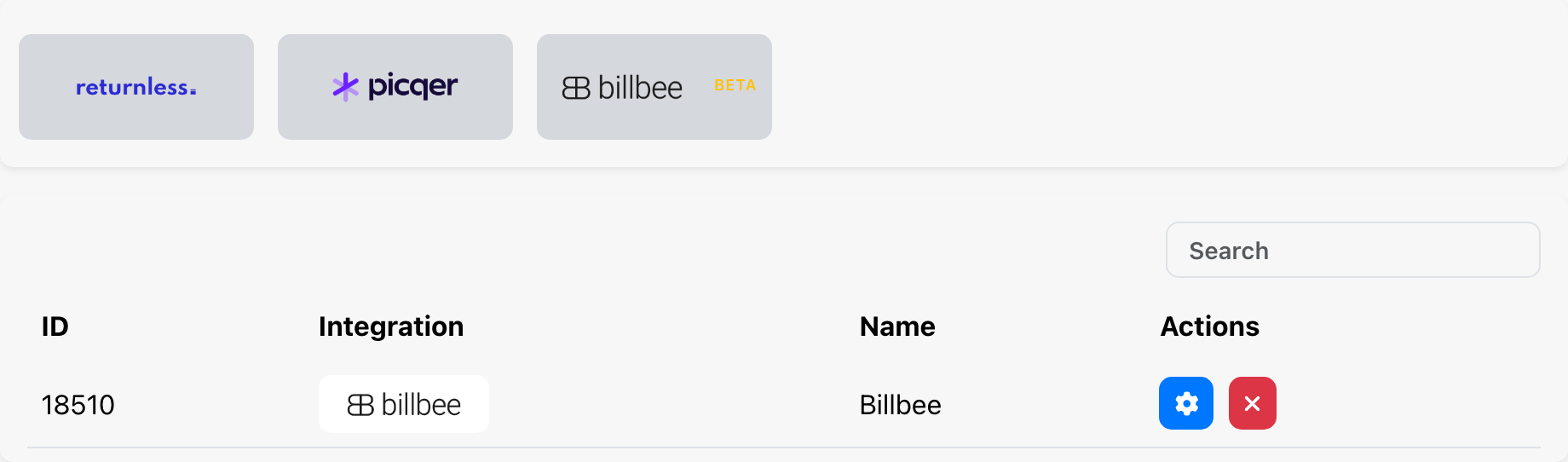
ChannelDock validates your credentials against the Billbee API. If the connection succeeds, Billbee appears in your Other integrations list.
Configure API settings
After connecting, click the settings (gear) icon on the Billbee row to open Edit API settings:
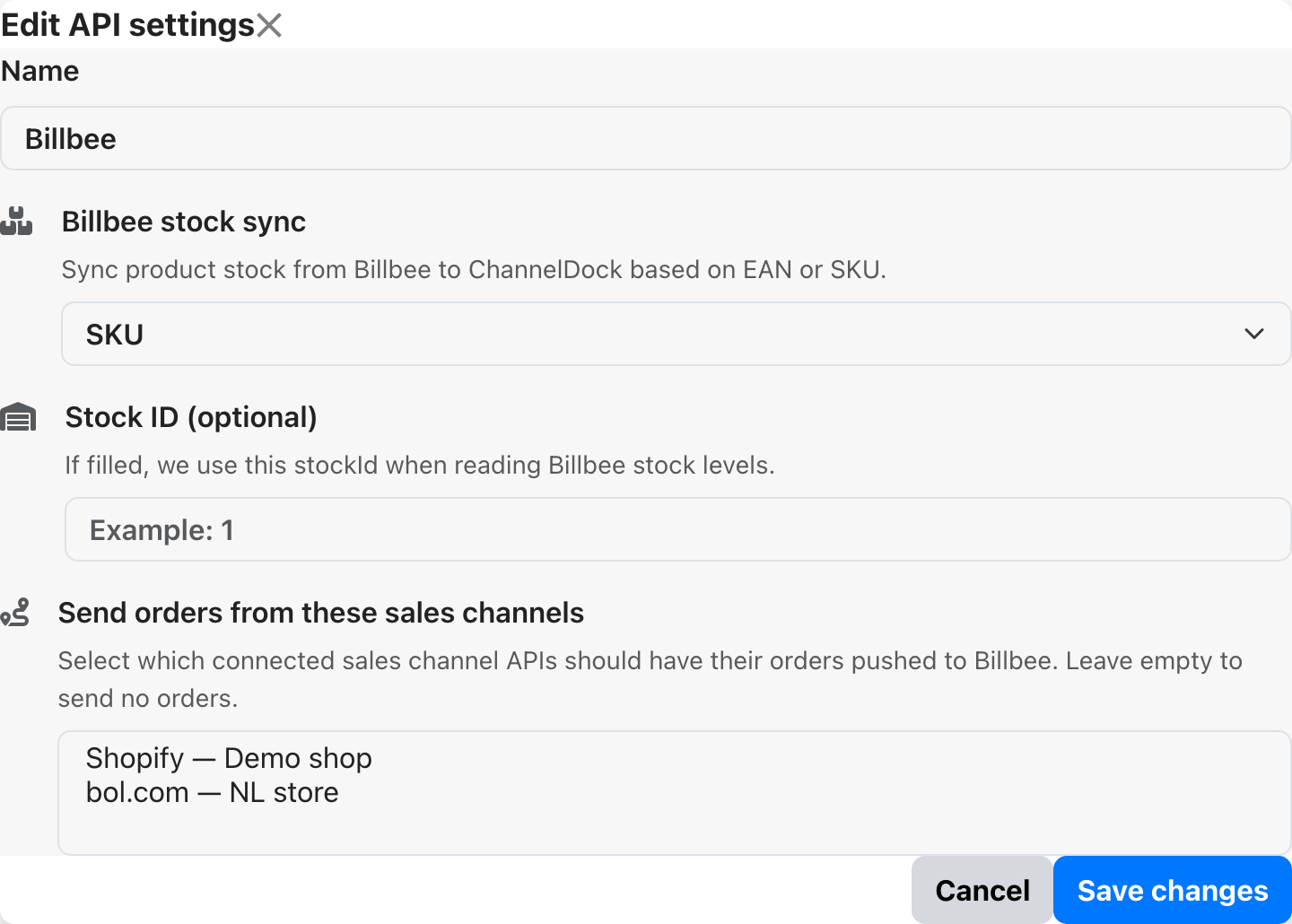
Review and configure:
| Setting | Description |
|---|---|
| Billbee stock sync | Off (default), EAN, or SKU. When enabled, stock levels are read from Billbee and updated in ChannelDock for matching products. |
| Stock ID (optional) | If filled, ChannelDock reads stock from this specific Billbee stock location instead of the default. |
| Send orders from these sales channels | Select which connected sales channels should have their orders pushed to Billbee. Leave empty to send no orders. |
Save your settings after making changes.
Order flow
The typical workflow looks like this:
- A customer places an order on a connected sales channel (for example, Shopify or bol.com).
- The order is imported into ChannelDock with status
order. - If the order’s sales channel is selected under Send orders from these sales channels, ChannelDock pushes the order to Billbee.
- ChannelDock uses your ChannelDock order number as the order reference in Billbee.
- You fulfill the order in Billbee (pick, pack, ship).
- When the order is shipped in Billbee, ChannelDock receives the tracking number and marks the order complete in the original sales channel.
- If the order is cancelled in Billbee, it is also cancelled in ChannelDock.
Only orders with status order or backorder are pushed to Billbee. Orders that have already been synced are not sent again.
Stock sync (optional)
Stock sync is disabled by default. To enable it:
- Open the Billbee integration settings in ChannelDock.
- Set Billbee stock sync to EAN or SKU.
- Optionally set a Stock ID if you use multiple stock locations in Billbee.
- Save your settings.
ChannelDock matches products between Billbee and ChannelDock using the selected field (EAN or SKU). Only products with a matching identifier in both systems are updated.
Stock changes appear in ChannelDock’s inventory log as Billbee stock update events.
Product import
ChannelDock can import new products from Billbee that do not yet exist in ChannelDock. Products are matched and created by EAN. Existing products with the same EAN are skipped.
Imported products include title, SKU, EAN, stock, price, image URL, and dimensions where available in Billbee.
Troubleshooting
Connection fails or credentials are rejected
- Confirm API access is enabled in Billbee under Settings → Billbee API.
- Enter all three fields: API Key, username/email, and API password.
- Use your API password, not your regular Billbee login password.
- Check that your API password meets Billbee’s requirements and does not contain a colon (
:). - Verify your Billbee API Key is valid and active.
Orders are not being sent to Billbee
- Open the Billbee integration settings and check Send orders from these sales channels. You must select at least one sales channel — if the list is empty, no orders are pushed.
- Confirm the order status in ChannelDock is
orderorbackorder. - Check that the order has not already been synced to Billbee (look for Billbee-related entries in the order log).
Stock is not syncing from Billbee
- Make sure Billbee stock sync is set to EAN or SKU — it is off by default.
- Verify matching EANs or SKUs exist on products in both Billbee and ChannelDock.
- If you use multiple stock locations in Billbee, try setting the correct Stock ID.
Tracking is not syncing back to ChannelDock
- Confirm the order was shipped in Billbee and has a tracking number or tracking URL.
- Check the order log in ChannelDock for Billbee shipment events.
- Allow time for the sync job to run — status updates are pulled from Billbee periodically.
Need help?
If you run into issues with the Billbee integration, contact our support team via the support page in your ChannelDock account. Include your Billbee connection name, a description of the problem, and any error messages shown during connection or sync.
Was this helpful?