Picqer Integration
Last updated
Streamline Your Warehouse Operations with ChannelDock & Picqer Integration
ChannelDock integrates seamlessly with Picqer to optimize your warehouse management and order fulfillment. This integration enables you to:
- Sync stock levels between Picqer, ChannelDock, and your connected sales channels.
- Automatically send orders from ChannelDock to Picqer.
- Retrieve tracking information from Picqer and update order statuses across your sales channels.
Requirements
- A Picqer account with API access.
- Matching SKUs between your ChannelDock and Picqer product listings.
Integration Guide
1. Generate Your Picqer API Key
- Log in to your Picqer dashboard.
- Go to Settings > API Keys.
- Click “Add new API key”, name it (e.g., ChannelDock), and copy the generated key.
2. Connect Picqer to ChannelDock
-
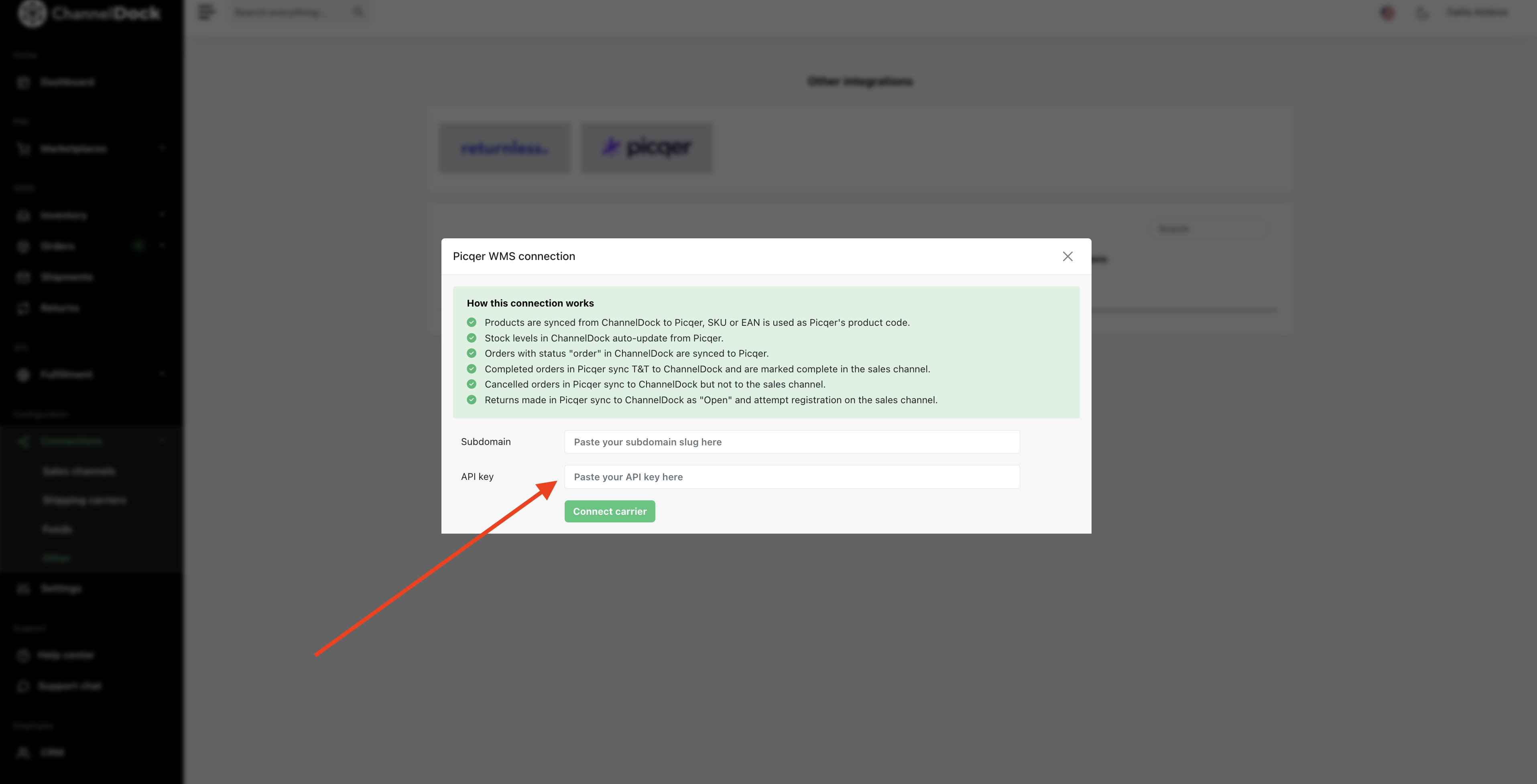
In ChannelDock, go to Connection > Other > Picqer
-
Select Picqer and paste your API key, and click on Connect Carrier.
Product Syncing
- Ensure SKUs in ChannelDock match the product codes in Picqer.
- Product data and stock levels will sync automatically, keeping your sales channels up to date.
Order Fulfillment
- When an order is placed, it is automatically sent to Picqer.
- Once fulfilled, ChannelDock retrieves the tracking code from Picqer and updates the corresponding sales channel.
How to Set a Custom Shipping Method for Picqer
-
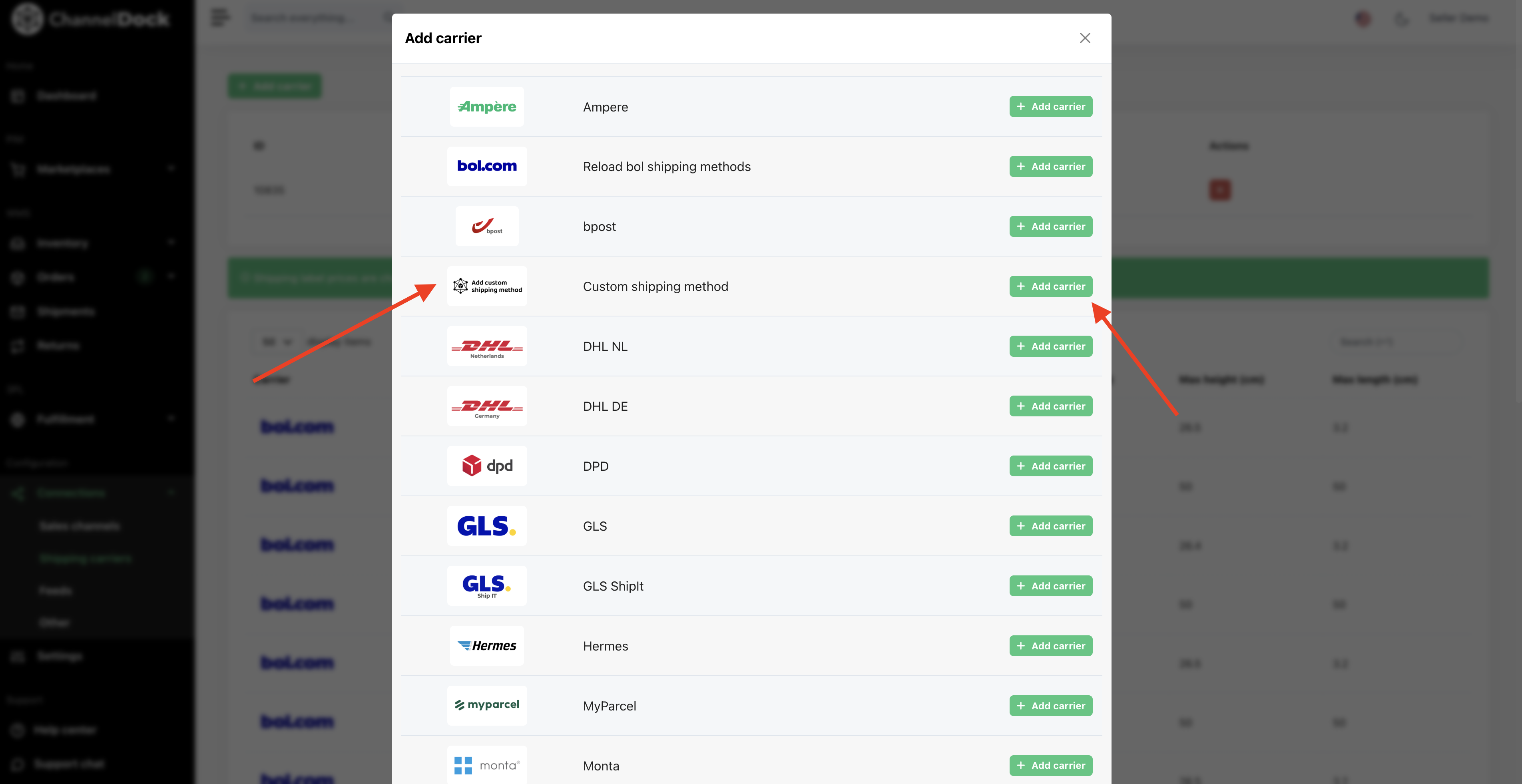
Go to Connections > Shipping Carriers, click Add New Shipping Carrier, and select Custom Shipping Method.
-
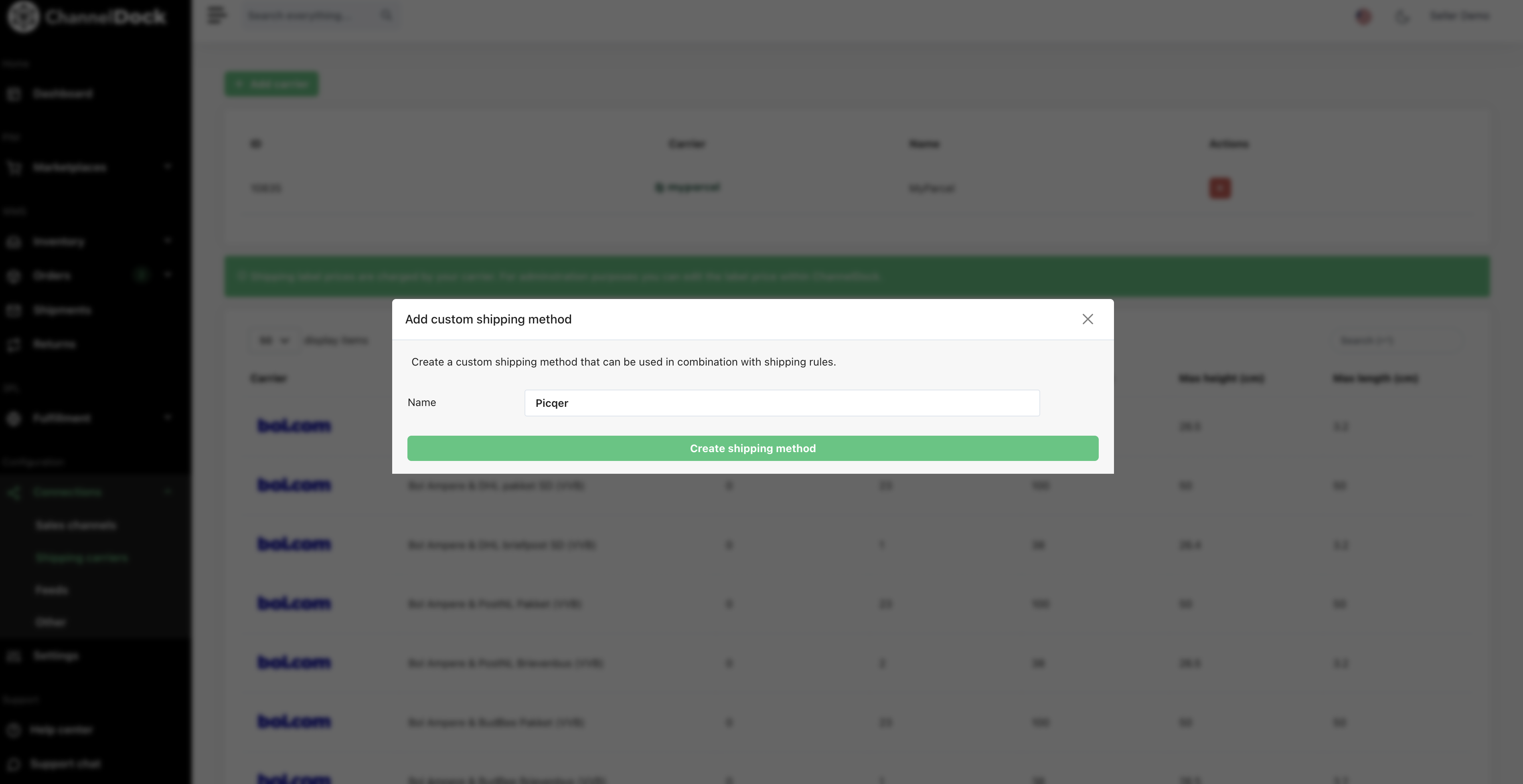
Name it Picqer and click Create Shipping Method.
-
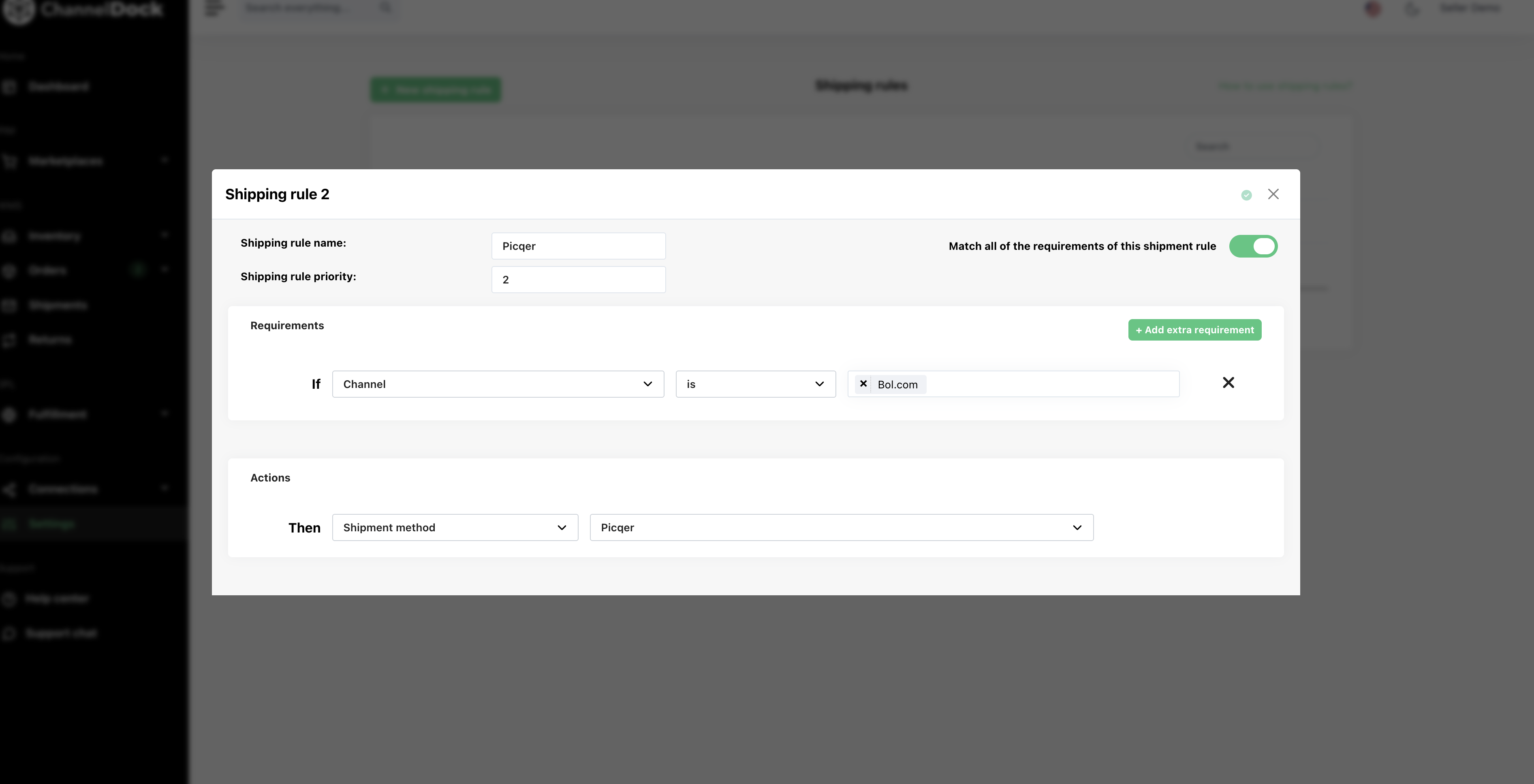
Then go to Settings > Shipping Rules.
-
Create a new shipping rule and assign the Picqer shipping method to it.
Was this helpful?