Import & export product data *Seller*
Last updated
Use import and export on Inventory → All products to bulk-update product details, manage bundles, control channel stock sync, and download stock or traceability reports.
Open Import or Export
- Go to Inventory → All products.
- Click More actions in the top right.
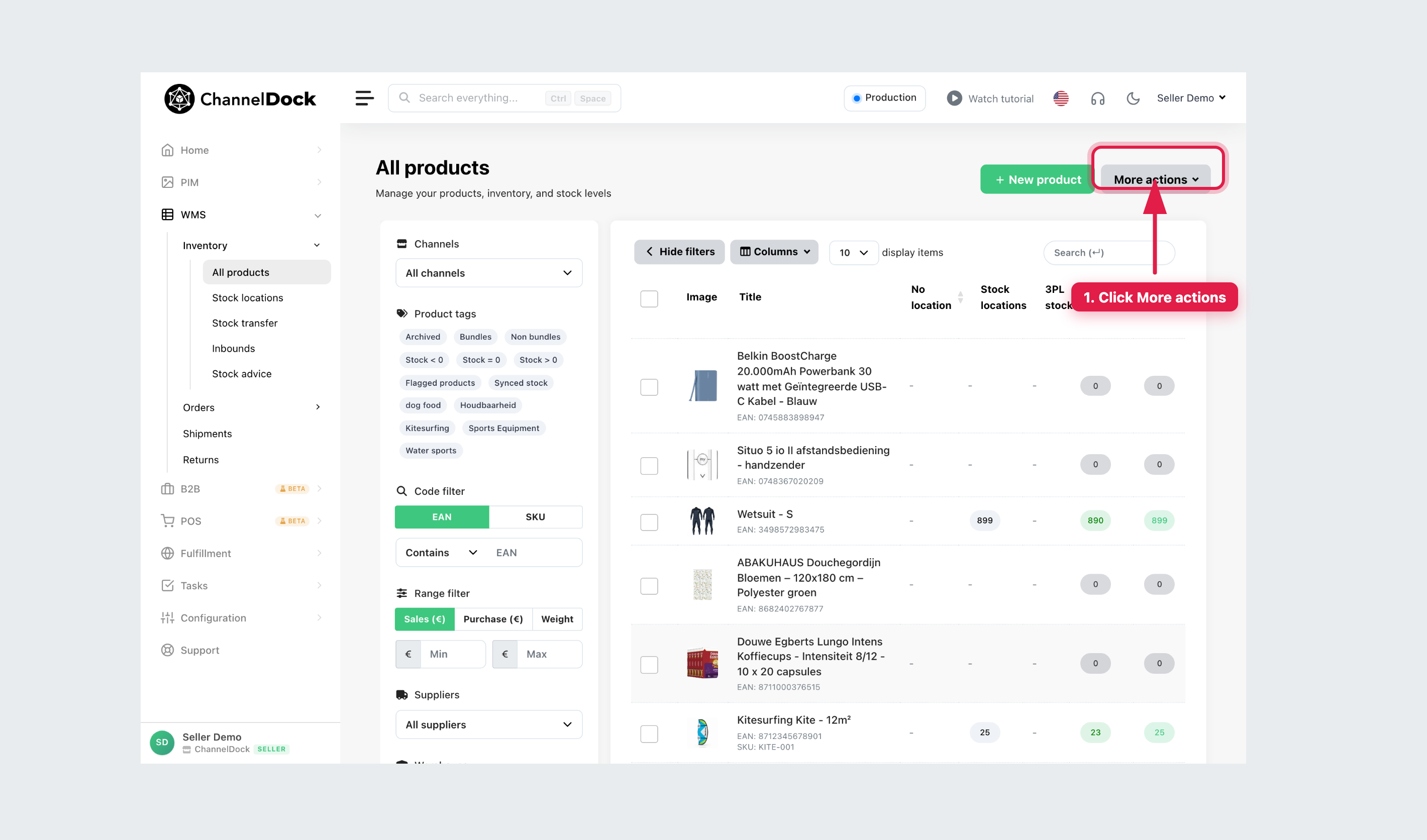
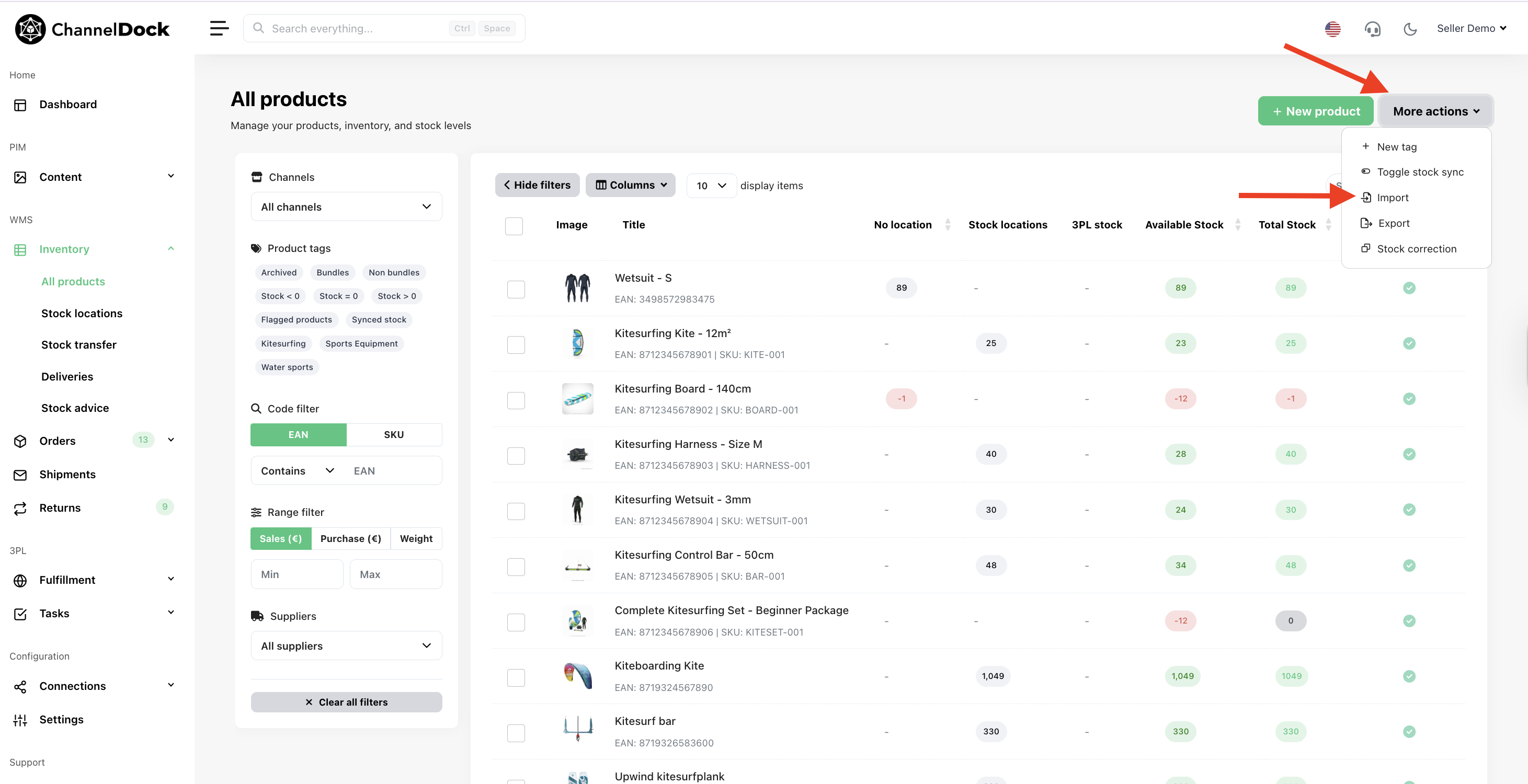
- Choose Export or Import.
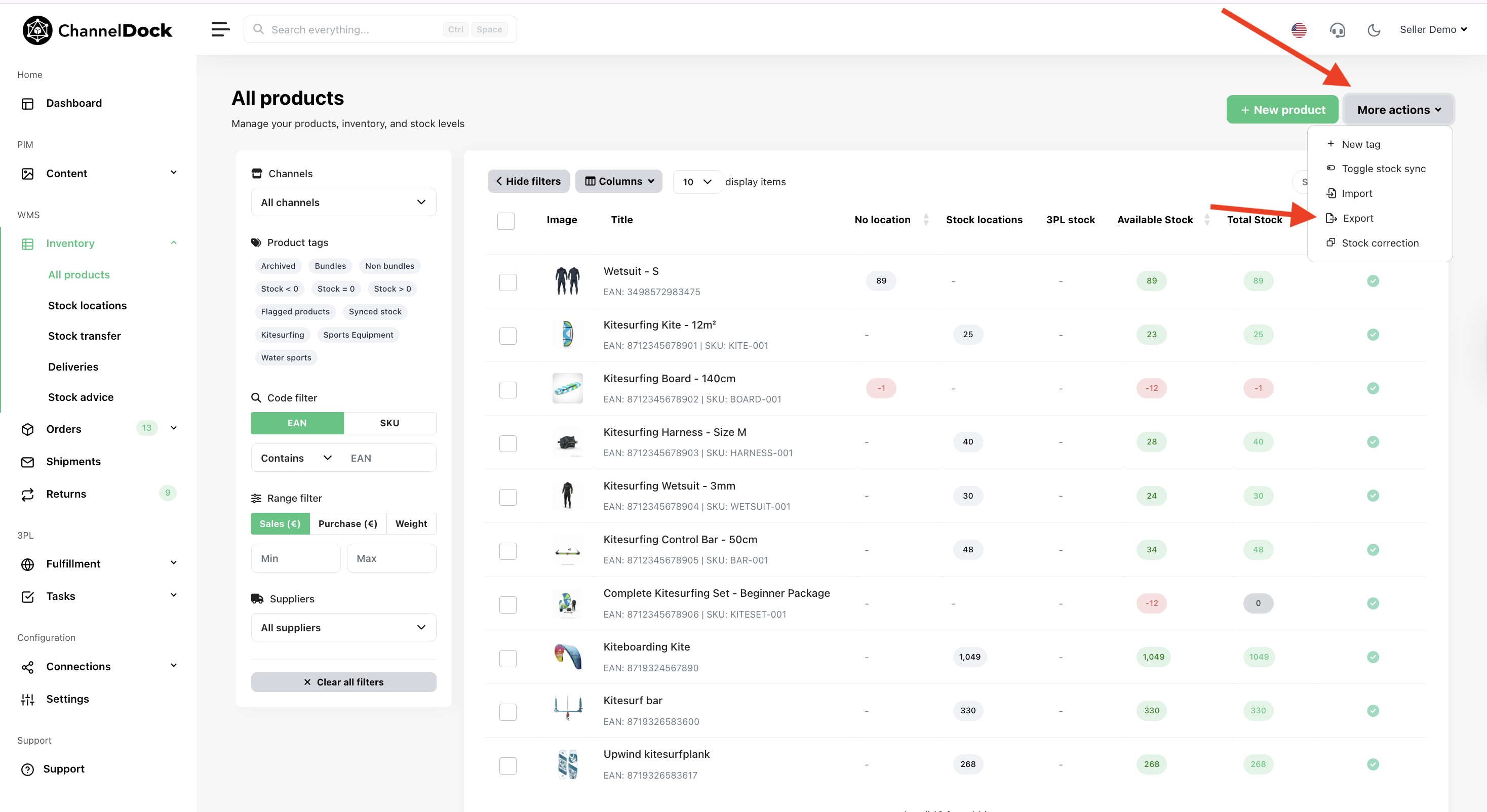
Export product data
The Export modal has five tabs: Parent products, Bundle products, Channel products, Stock level history, and Traceability.
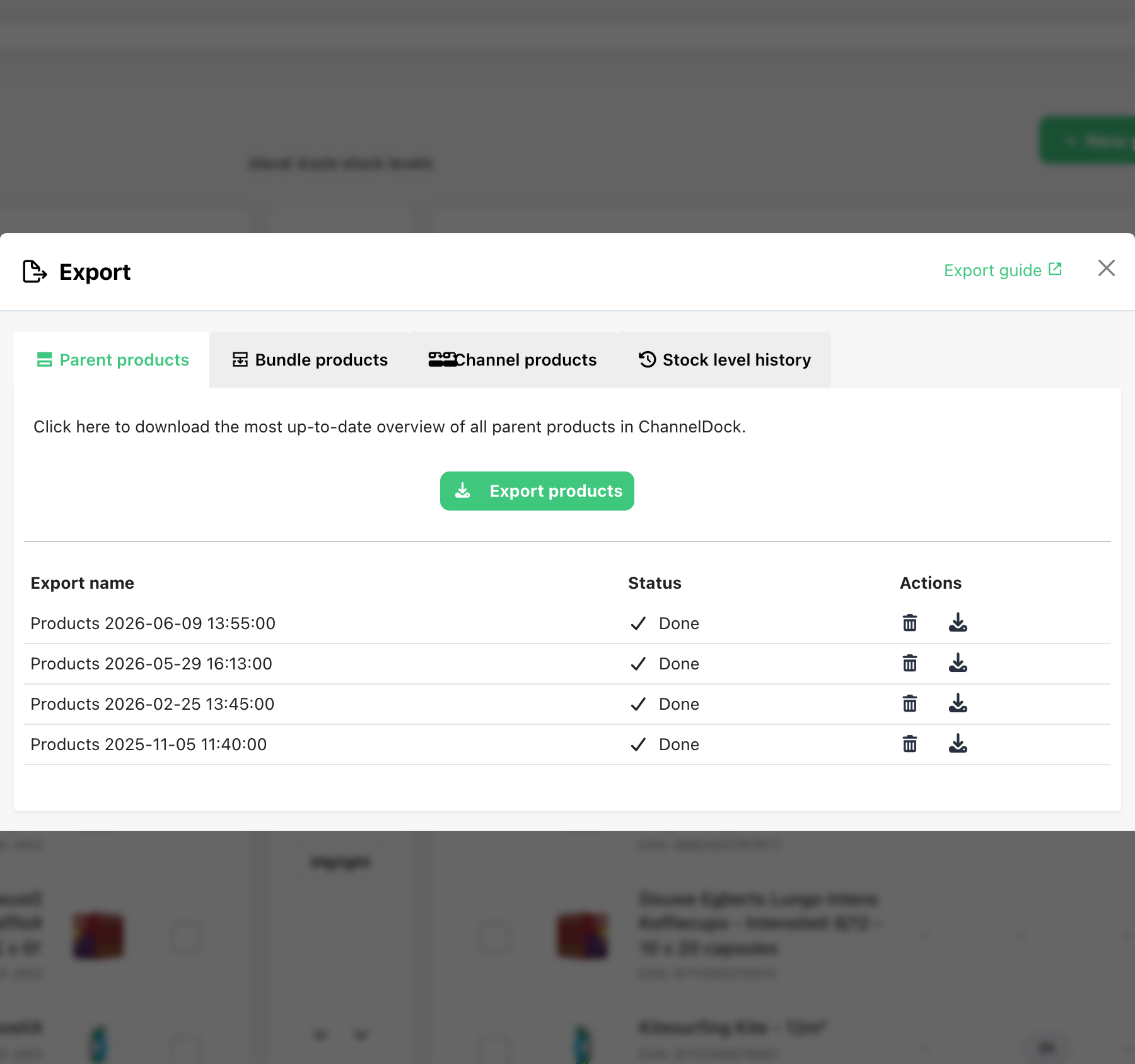
1. Parent products
Click Export products. ChannelDock generates a full parent-product overview and stores the file so you can download it again later from the export history table.
2. Bundle products
Open the Bundle products tab and click Export bundle products. The file downloads immediately and is not stored in ChannelDock.
3. Channel products
Open the Channel products tab and click Export channel products. The file downloads immediately and is not stored in ChannelDock.
Use this export when you want to bulk-edit channel links (API ID, stock sync, or delete) and import the sheet again.
4. Stock level history
Open the Stock level history tab, then:
- Enter a Name export.
- Choose a Date window.
- Optionally enable Include bundle products in export.
- Select one or more Stock types to export (Seller stock, Fulfilment stock, FBA, FBB, In delivery, Total stock).
- Click Export stock level history.
The export is stored in ChannelDock. Each day column sums the stock types you selected.
Notes:
- Stock levels for a given day are logged after that day has ended.
- History is available from 25 July 2024 onward.
5. Traceability
Open the Traceability tab to export serial numbers, batch IDs, and expiration dates. Optionally set:
- Export type (all data, serials only, batch only, or expiration only)
- Filters for EAN, serial number, batch ID, and date ranges
Leave filters empty to include all items. Named exports are stored in ChannelDock.
You can edit exported parent, bundle, or channel spreadsheets and import them back into ChannelDock.
Import product data
The Import modal has three tabs: Main products, Bundle products, and Channel products. Spreadsheet files only: .xls, .xlsx, or .csv. The + character is not supported in EAN/UPC values.
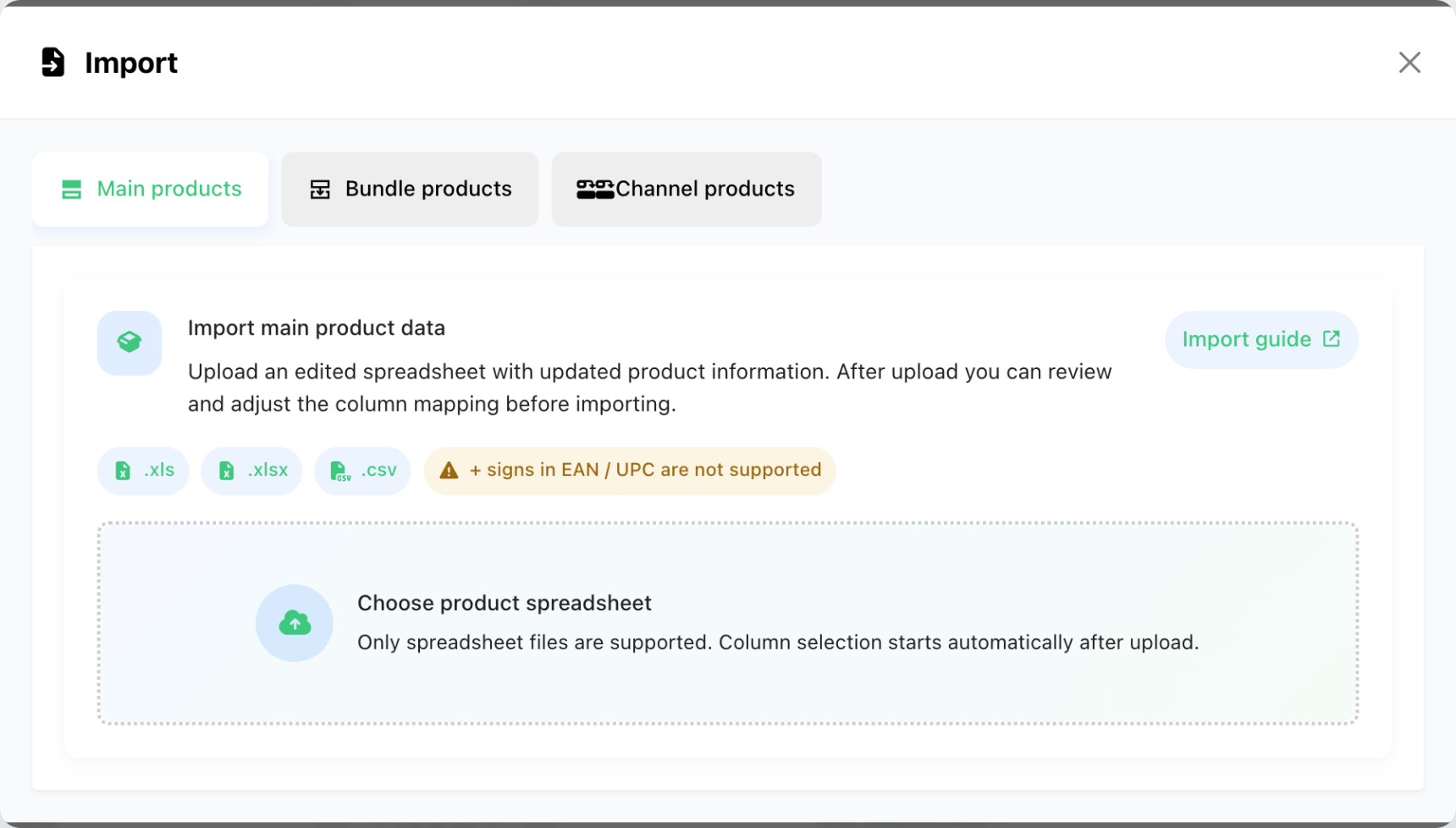
After you upload a file, ChannelDock opens column mapping so you can review fields before the import runs.
1. Main products
- Open the Main products tab.
- Click Choose product spreadsheet and select your file.
- Map at least one product identifier (EAN or SKU) plus the fields you want to update.
- Start the import and wait until it finishes (time depends on file size).
Common mappable fields include title, stock, price, purchase price, dimensions, image URLs, tags, HS code, packaging/EPR weights, stock advice settings, and PIM content fields.
2. Bundle products
- Open the Bundle products tab.
- Click Choose bundle spreadsheet.
- Map EAN / SKU – Main product, each Sub product, and its Amount. You can also map optional bundle package weight and dimensions.
Notes:
- The main product and every sub-product must already exist in ChannelDock.
- If you use a ChannelDock fulfillment center, connect the bundle products to that center as well.
3. Channel products
Use this import for sales-channel (API) product rows. First export Channel products, edit the sheet, then import it again.
Typical edits:
- Bulk delete: set the delete column to
1for channel products to remove. - Bulk stock sync: set sync to
0(off) or1(on).
- Open the Channel products tab.
- Click Choose channel product spreadsheet.
- Map API ID, EAN, and optionally Sync stock (1 or 0) or Delete child.
- Start the import.
Tips
- Prefer exporting first, editing the ChannelDock columns, then importing — mapping is faster when headers already match.
- Parent/main product exports are stored for reuse; bundle and channel product exports download once and are not kept as backups.
- Related: Custom feeds.
Was this helpful?