Adding pallets and freight packages to a B2B order
Last updated
When a B2B order ships as Pallet or Freight, you can assign individual order products to specific pallets or freight packages. This makes it clear what is on each pallet and lets you print a separate label per pallet.
-
Open the B2B order from the Open orders list.
-
In the order panel, open the B2B pick & pack section.
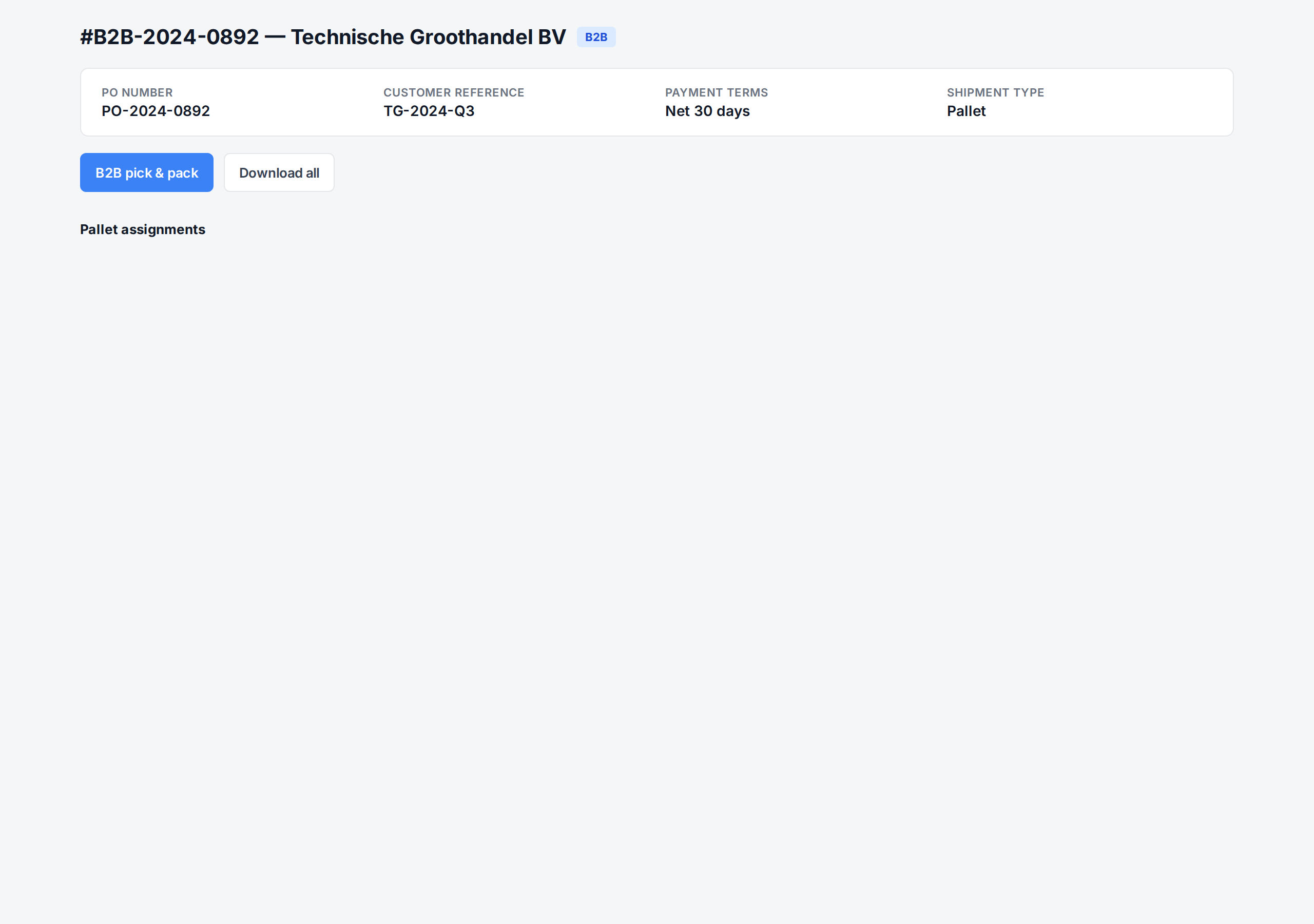
The PO number, customer reference, payment terms, and shipment type are shown at the top.
-
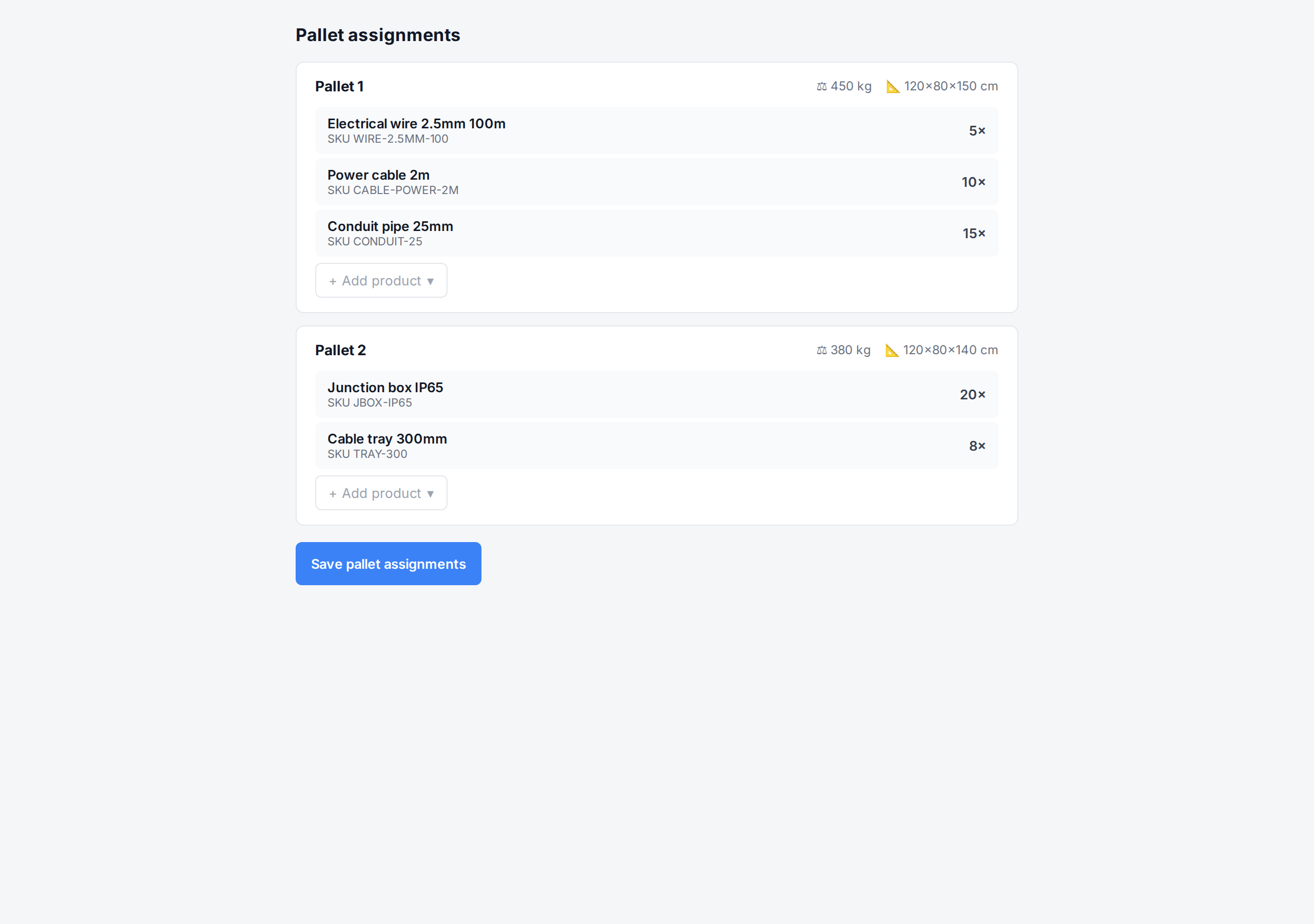
Set the Number of pallets if you haven’t already. ChannelDock will create that many empty pallet rows.
-
For each pallet row, click Add product and select the order line(s) and quantity you want on that pallet. A product can be split across multiple pallets — for example, 100 units split as 60 + 40 across two pallets.
-
Optionally enter a weight and a dimensions value for each pallet. These are printed on the pallet label and used for freight booking.
-
Click Save pallet assignments at the bottom of the panel.
Printing pallet and freight documents
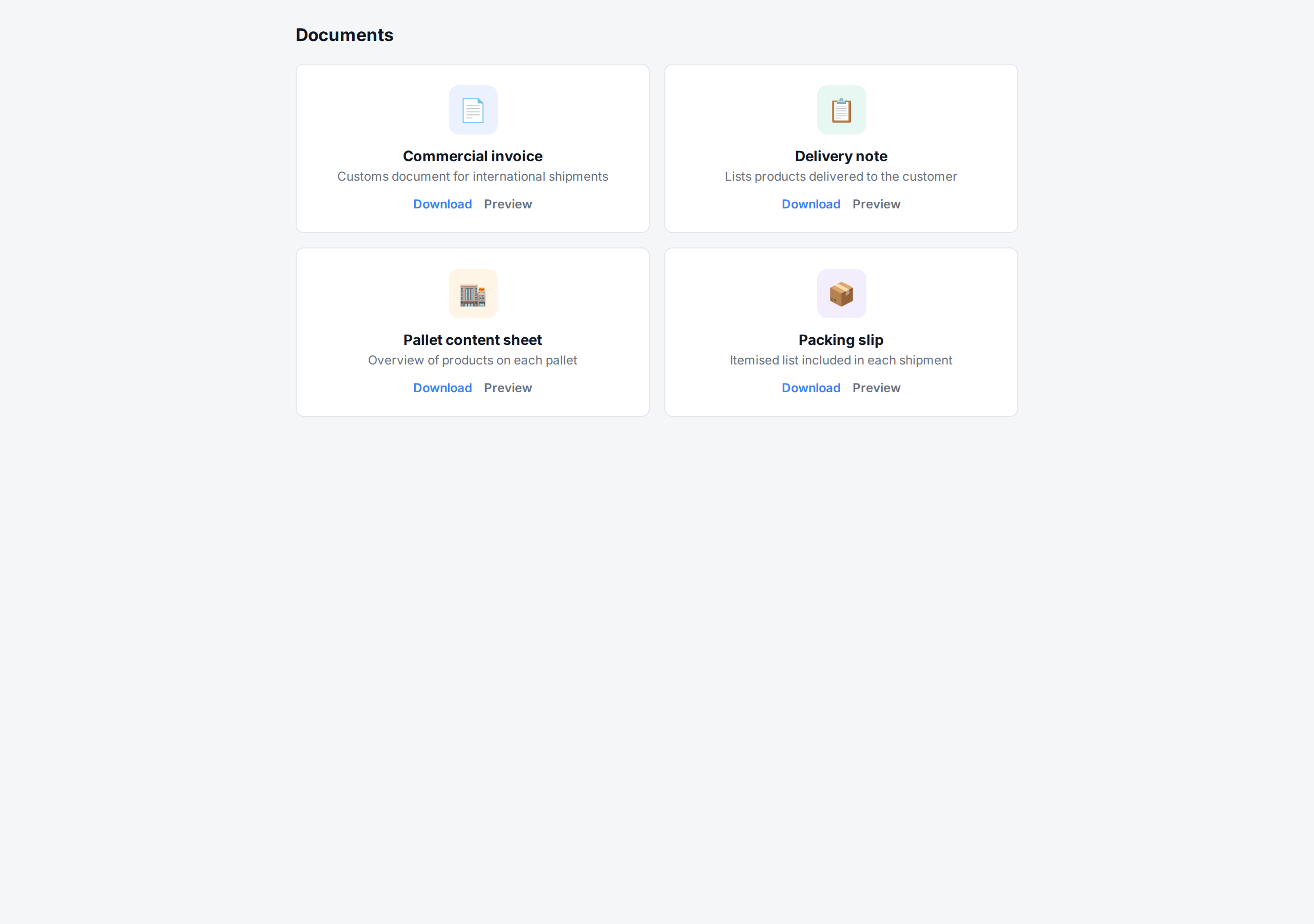
Once your pallets are saved you can print documents from the B2B documents dropdown (see B2B documents and printing):
- Pallet labels — one label per pallet, numbered (1/3, 2/3, 3/3).
- B2B packing slip — full breakdown of which products are on which pallet.
- CMR / freight manifest — for Freight shipment type, ChannelDock generates a CMR document with the consignor, consignee, and pallet count pre-filled.
Documents are available from the B2B documents dropdown on the order panel and from the bulk action menu in the order list.
Editing pallets later
You can re-open the B2B panel at any time before the order is closed to move products between pallets, change pallet weight, or change the pallet count. Saved assignments are versioned so reprinted labels stay consistent with the pick list.
Related articles
- B2B shipment types — when to use Pallet vs Freight
- B2B documents and printing — all available documents
- Bulk picking B2B orders
Was this helpful?