Creating a B2B order from a delivery (for fulfillment centers)
Last updated
When a fulfillment center receives a delivery that’s meant to be cross-docked or re-shipped to a single business customer, you can turn the delivery into a B2B order in one click. This avoids re-entering the products and keeps the link between the inbound delivery and the outbound B2B shipment.
-
As a fulfillment center, go to Deliveries and open the delivery.
-
In the action menu, choose Create B2B order.
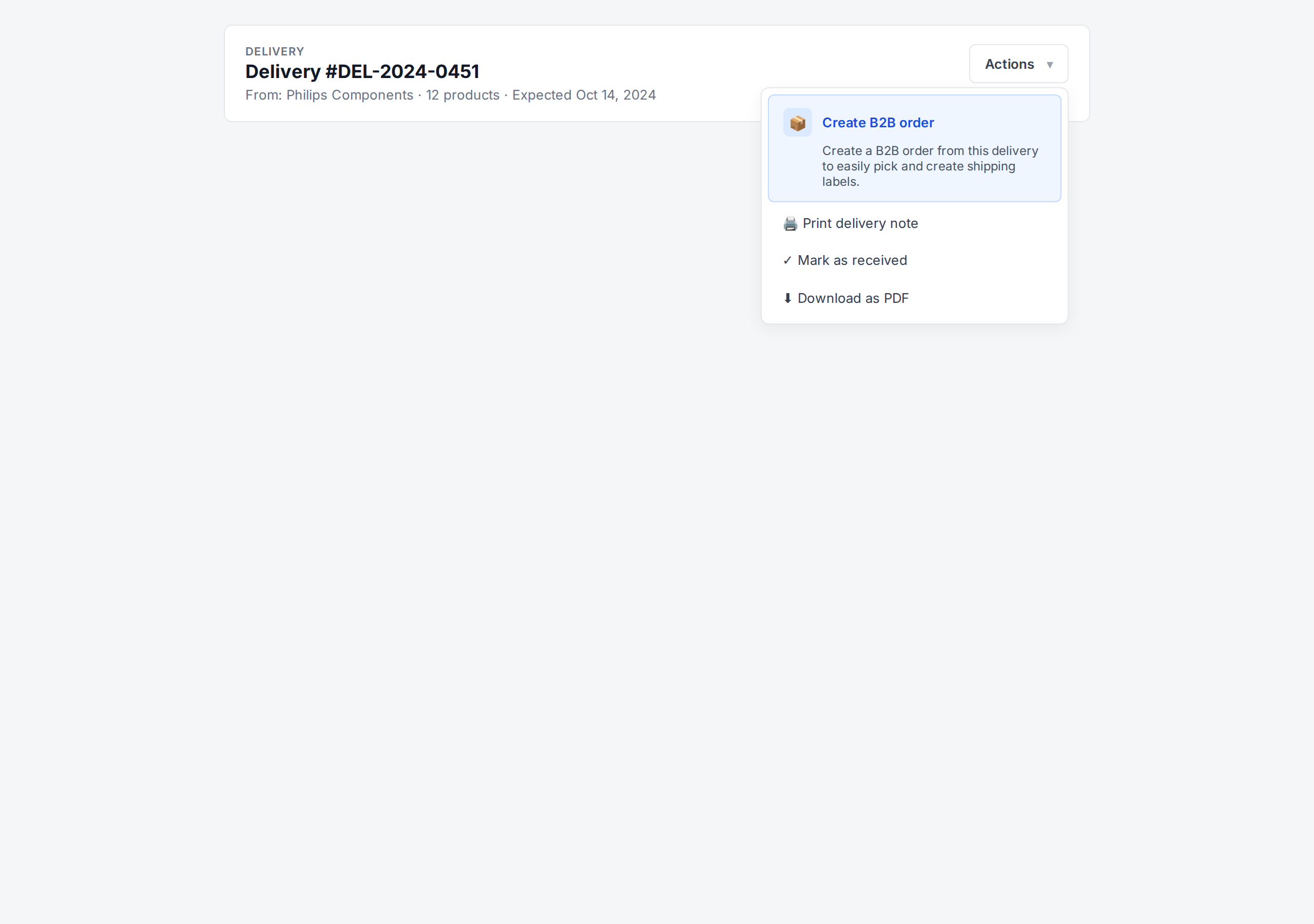
The hint reads: Create a B2B order from this delivery to easily pick and create shipping labels.
-
Fill in the address for the receiving business customer. The product lines and quantities are copied from the delivery automatically.
-
Set the Shipment type — see B2B shipment types if you’re unsure whether to use Parcel, Pallet, or Freight.
-
Confirm. ChannelDock creates a new B2B order, flags it as wholesale, and links it to the delivery.
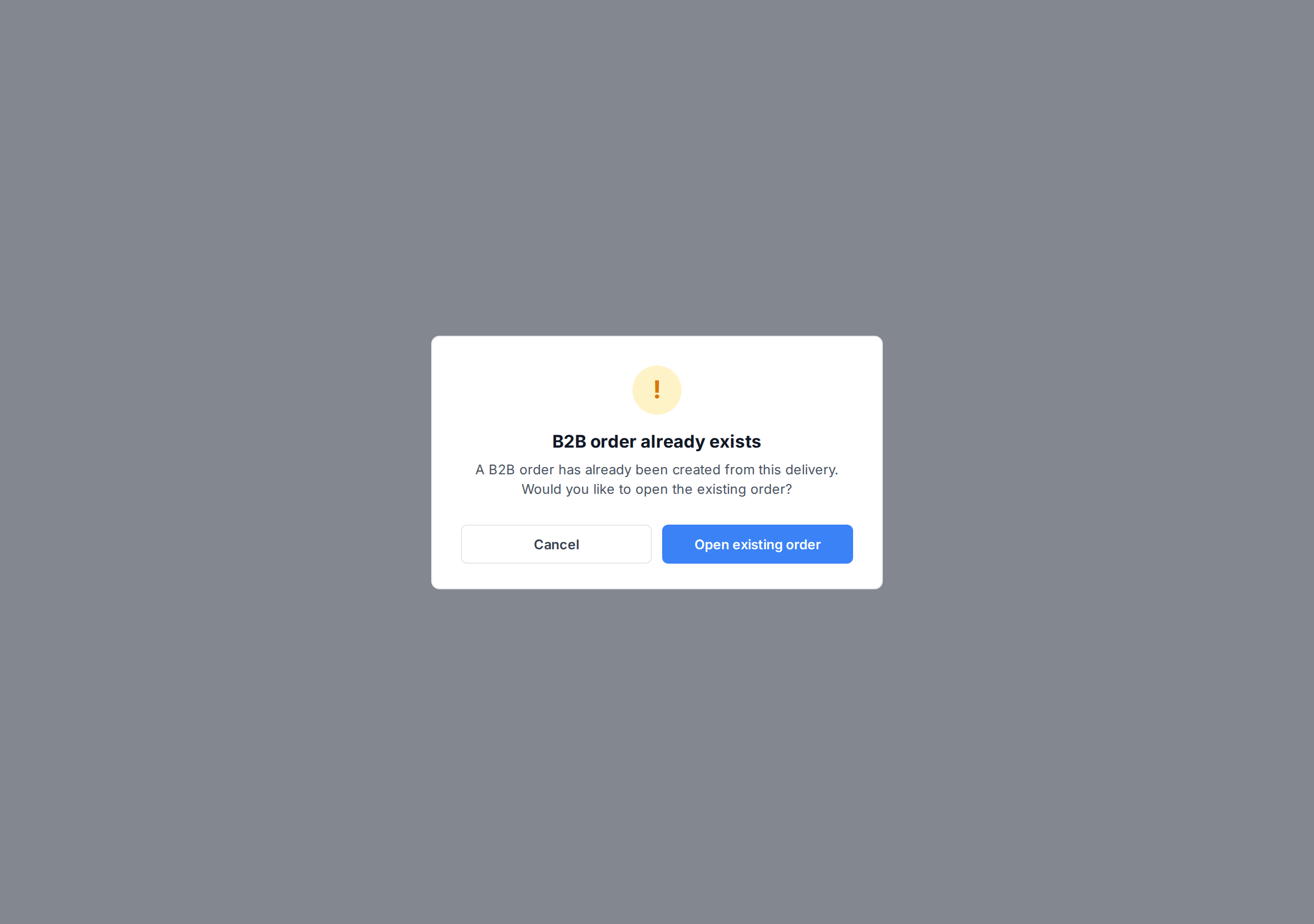
If a B2B order already exists for this delivery, ChannelDock will show a “B2B order already exists” message and let you jump to the existing order instead of creating a duplicate.
Next steps
From there the order follows the normal B2B workflow:
- Bulk pick — pick the order using the B2B pick & pack flow.
- Assign pallets — if the shipment type is Pallet or Freight, assign products to pallets.
- Print documents — packing slips, pallet labels, CMR.
- Ship the order.
Related articles
Was this helpful?