Schedule delivery for your orders
Last updated
Ship on date lets you schedule when an order should enter the shipping workflow. It does not auto-ship the order at that moment — it only controls when the order becomes eligible to process.
What ship on date does
- Orders with a future ship on date are treated as future orders.
- They are kept out of the normal fulfillment and shipment queues until that date (end of day in the account timezone).
- Automatic batching also skips them by default, unless Include future orders in batches is set to look ahead a number of days.
Use this when you want to hold an order back — for example pre-orders, delayed stock, or a channel delivery promise — without deleting or cancelling it.
Set a ship on date manually
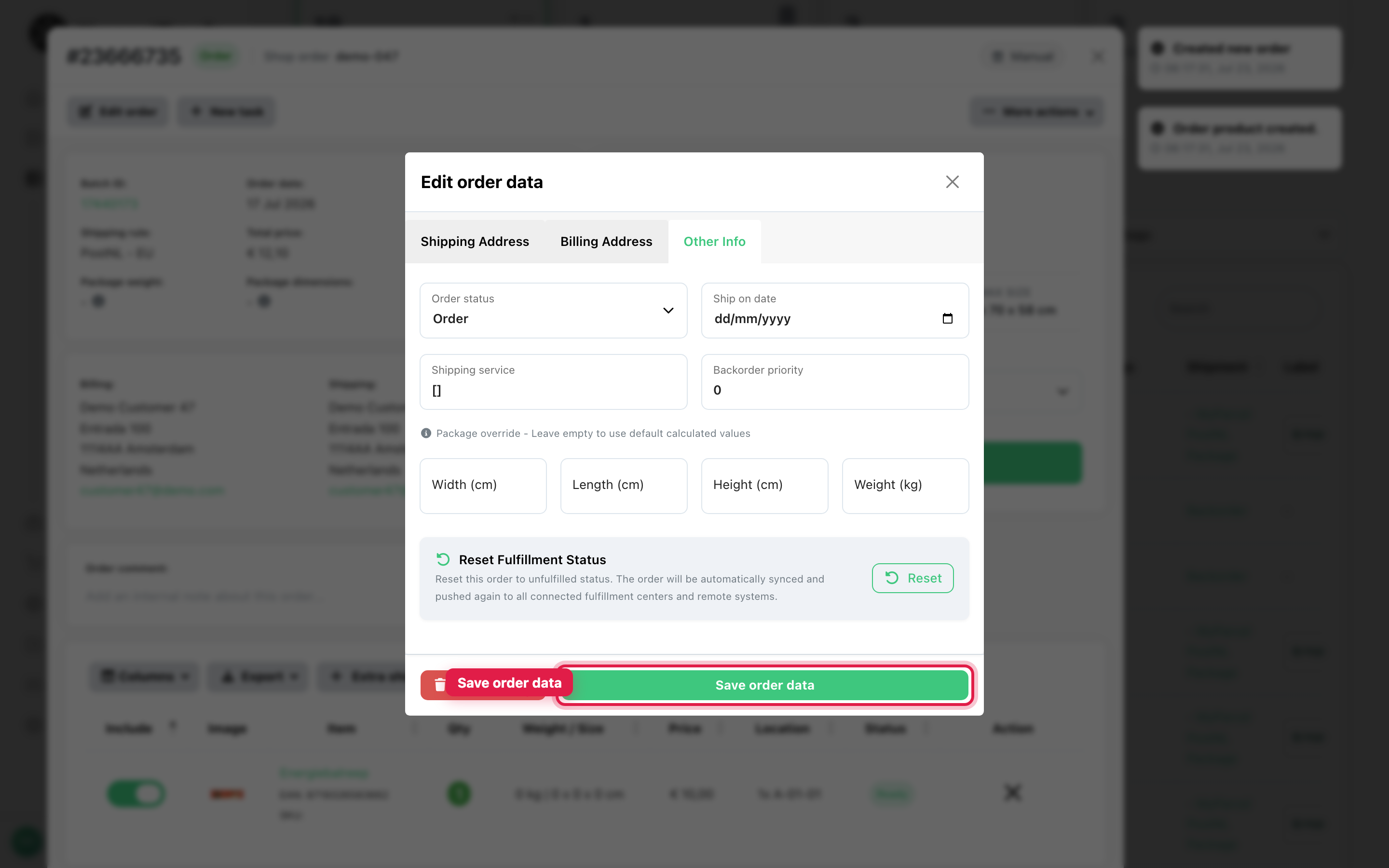
- Go to Open orders and open the order.
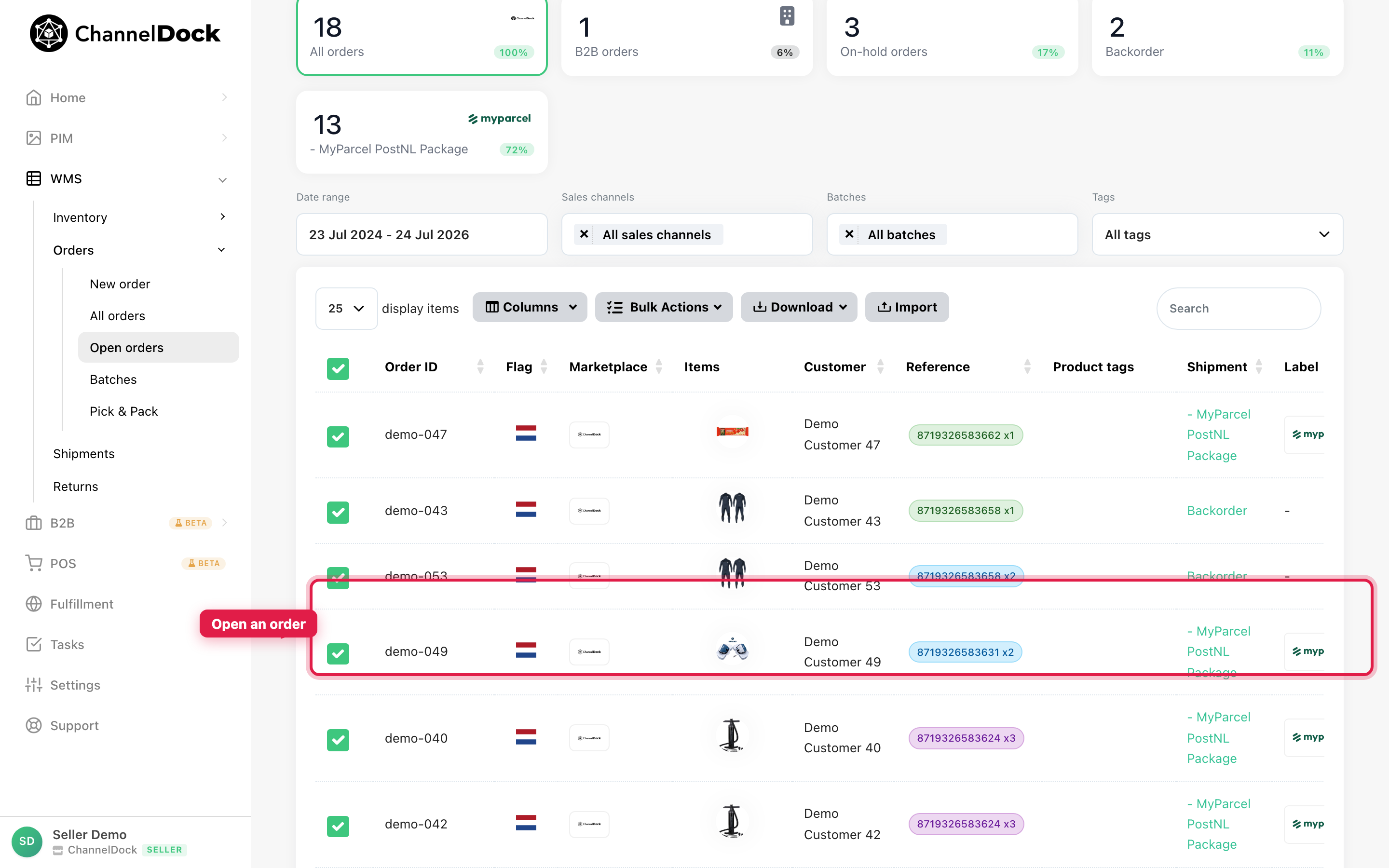
- Click Edit order.
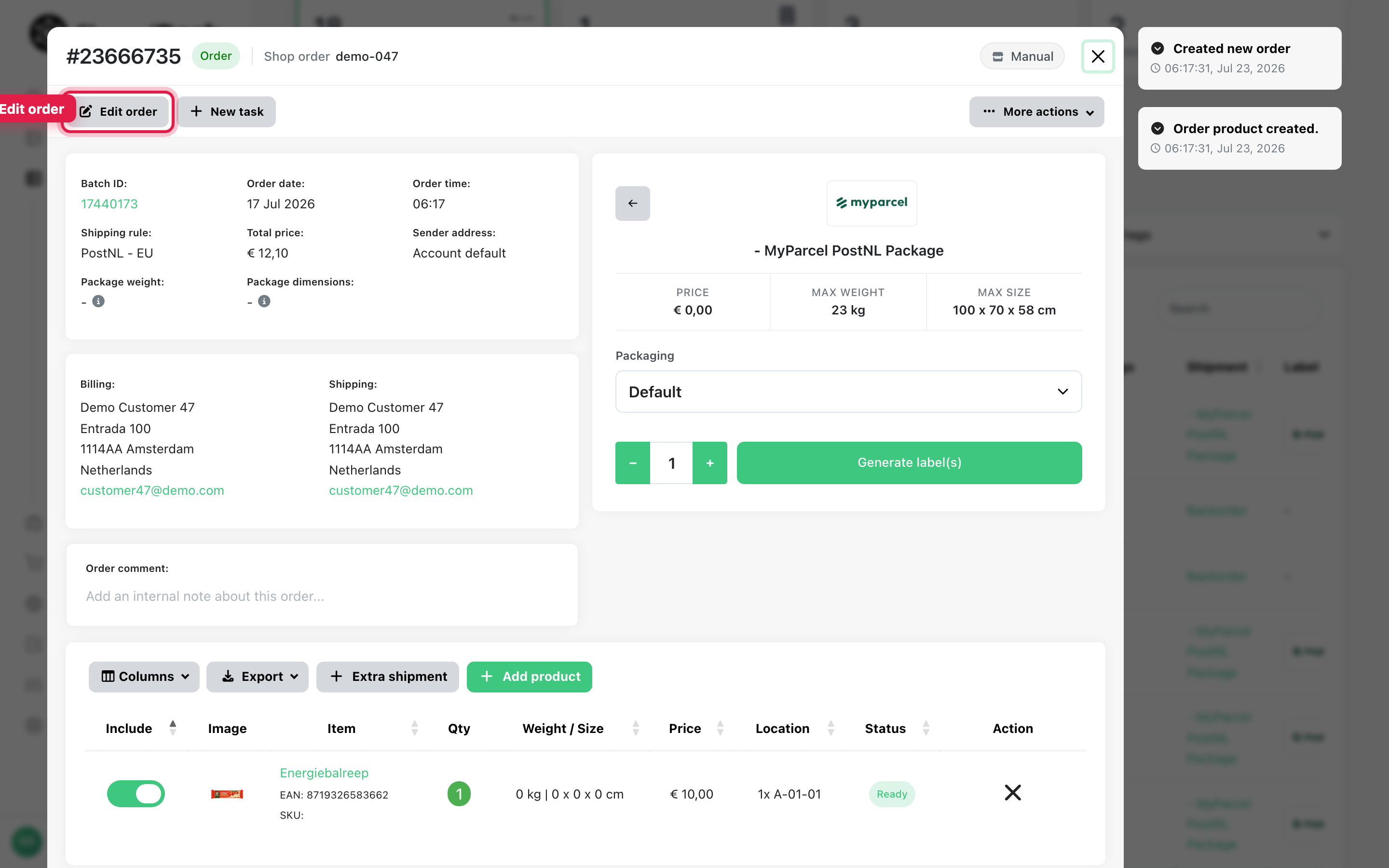
- Open the Other Info tab.
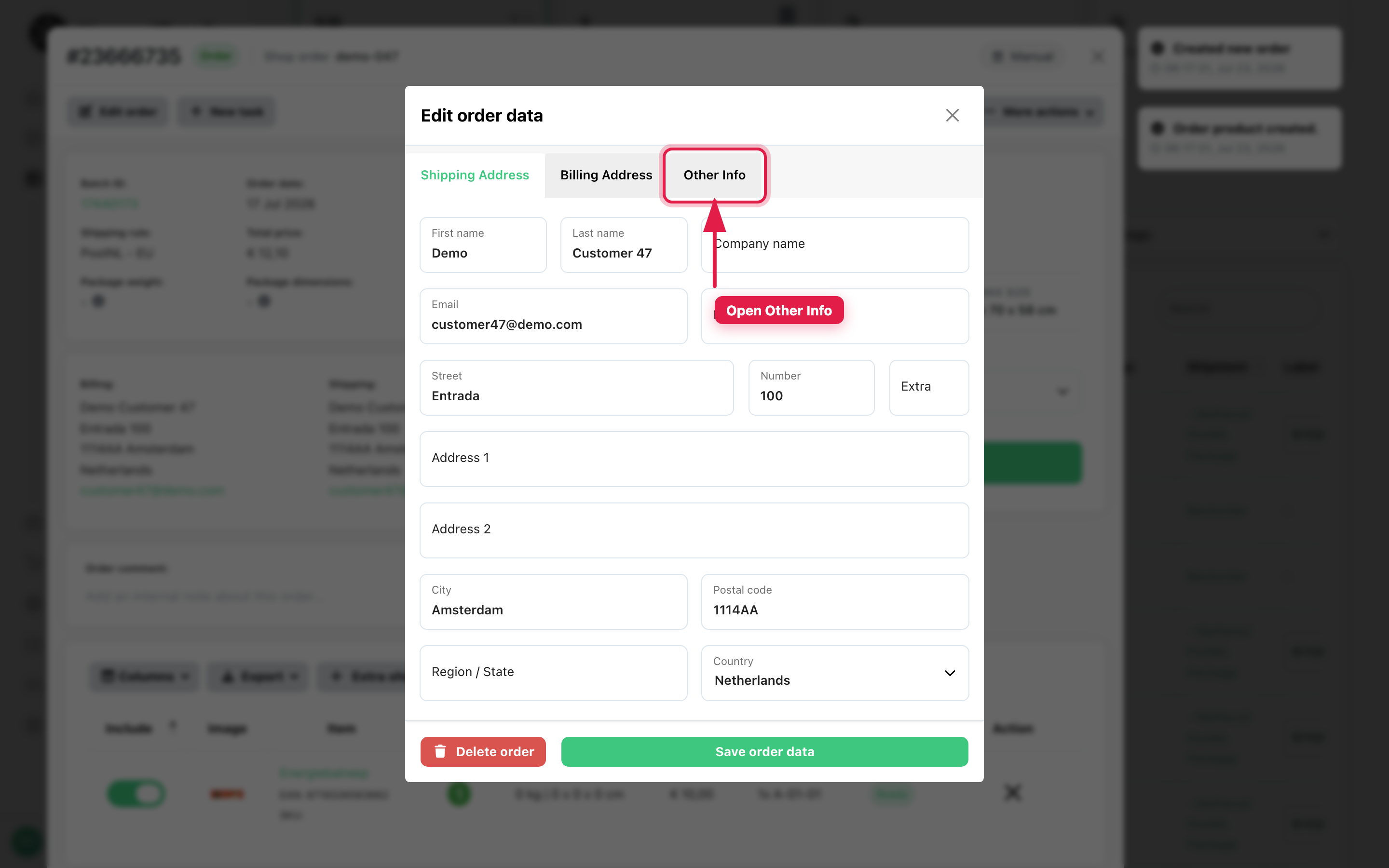
- Set the Ship on date field.
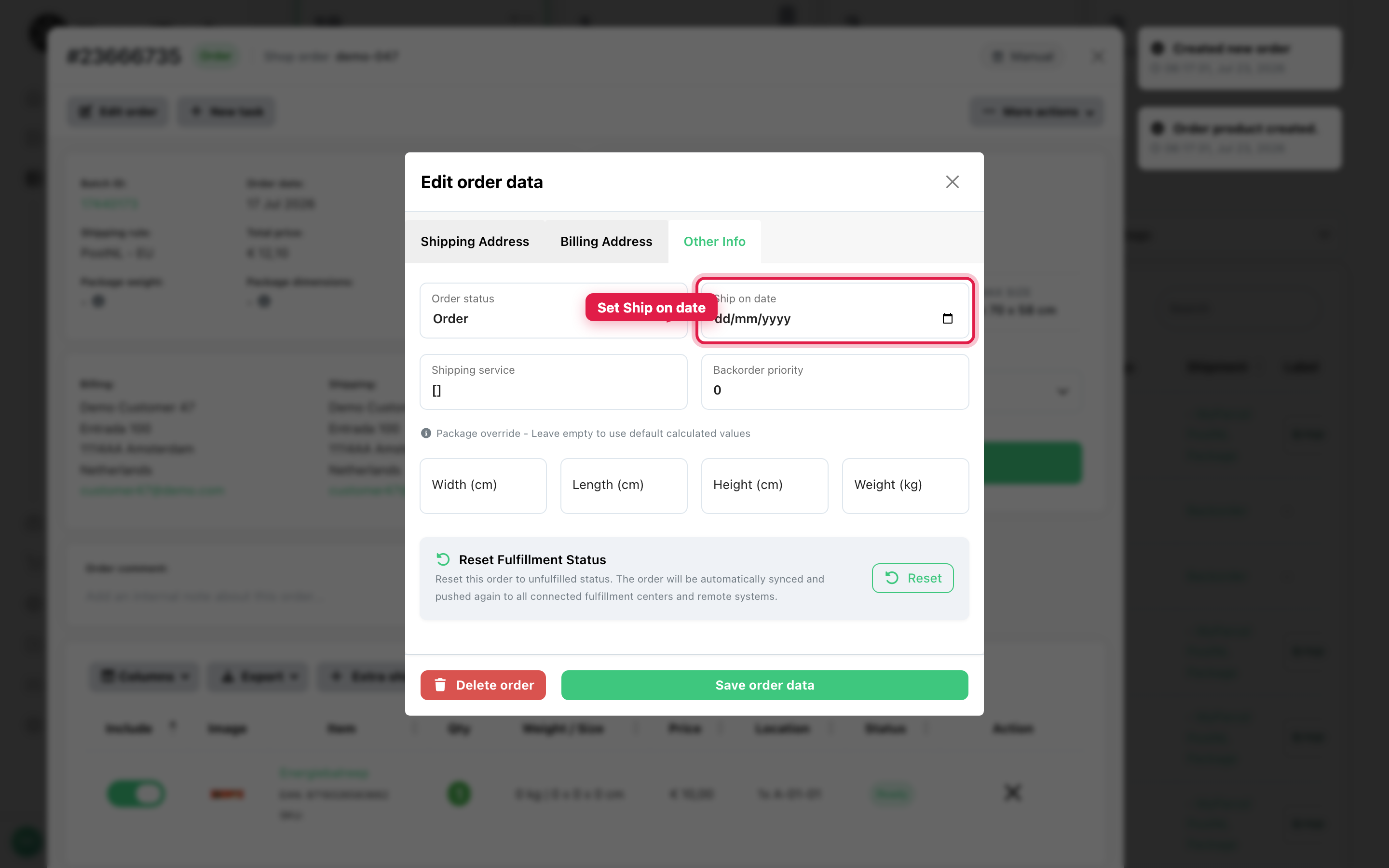
- Click Save order data.
Set a ship on date with a shipping rule
You can also apply a ship on date automatically:
- Go to Settings → Shipping rules and click + New shipping rule.
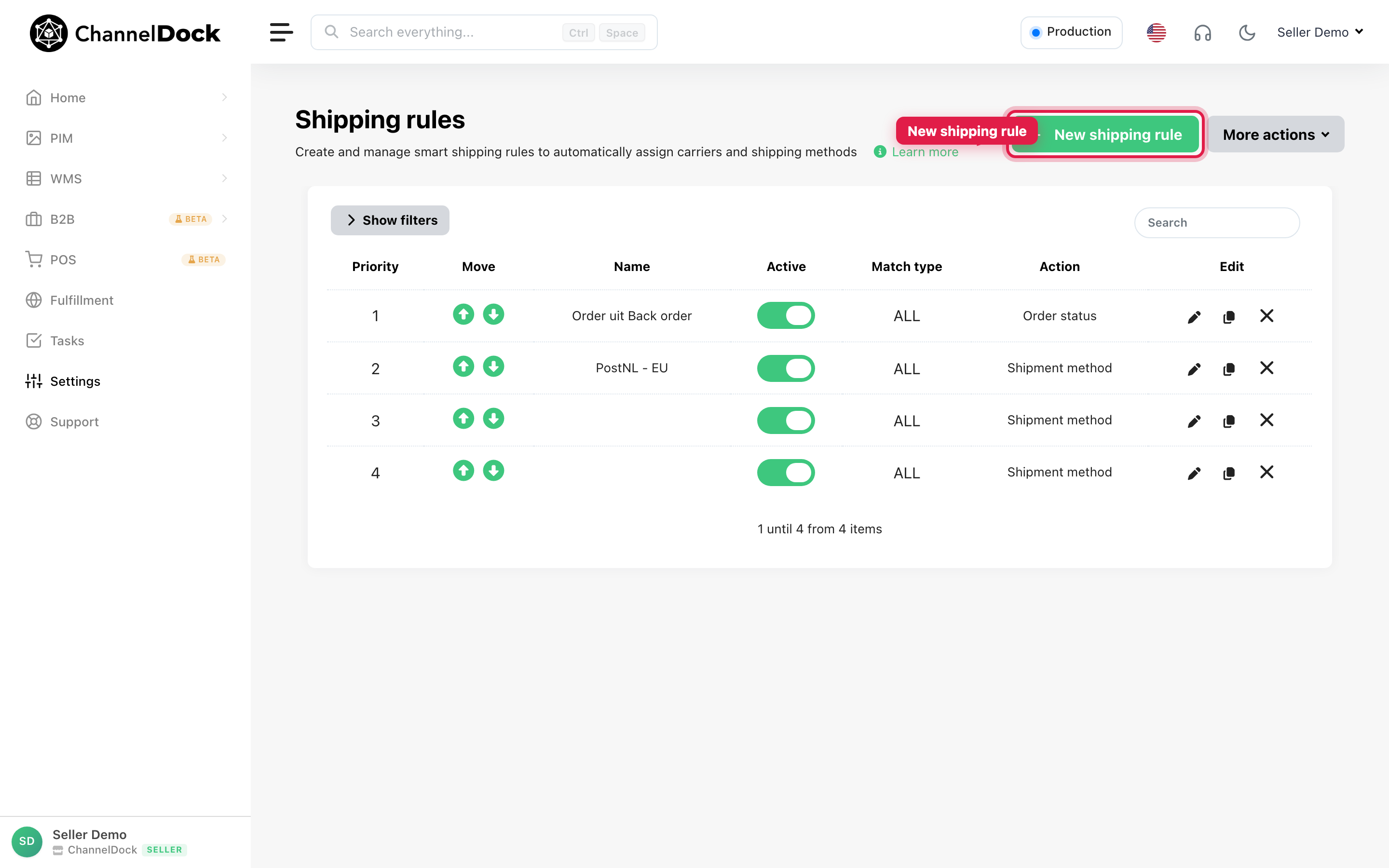
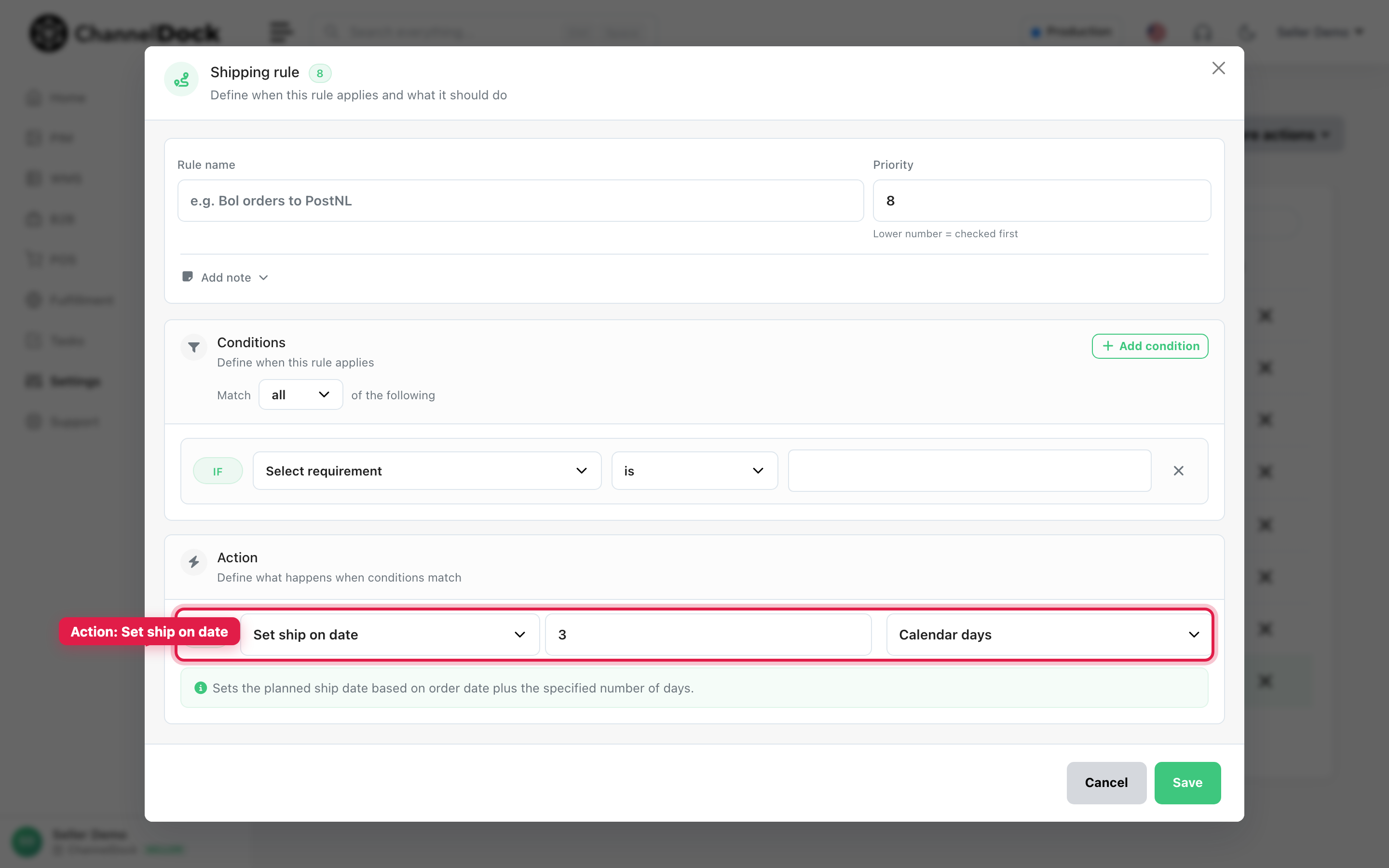
- Under Action, choose Set ship on date, then enter the number of calendar or working days.
For a full walkthrough of shipping rules, see Creating smart shipping rules.
From sales channels
Some channels send a delivery promise or exact delivery date to ChannelDock (for example Bol). When that happens, ChannelDock can set the ship on date for you.
What ship on date does not do
When the date arrives, the order only becomes eligible to process. Someone still needs to pick, pack, and label it — or batches pick it up if auto-batching is on.
There is no “send exactly at this time” scheduler. ChannelDock will not create a label or notify the carrier by itself when the ship on date is reached.
Bottom line
Use ship on date to schedule when the order should enter the shipping workflow. On or after that date, it behaves like a normal open order. It will not ship by itself.
Related reading:
Was this helpful?