Routing orders to your fulfillment center
Last updated
ChannelDock can send order lines to your connected fulfillment center (FC) automatically, or you can assign an order yourself from the order screen.
Routing is per order line. One order can have some lines fulfilled by you and others by your FC.
Before you start
Make sure you are connected to a fulfillment center:
- Go to Fulfillment.
- Open Requests (or Network) and complete a connection with your FC.
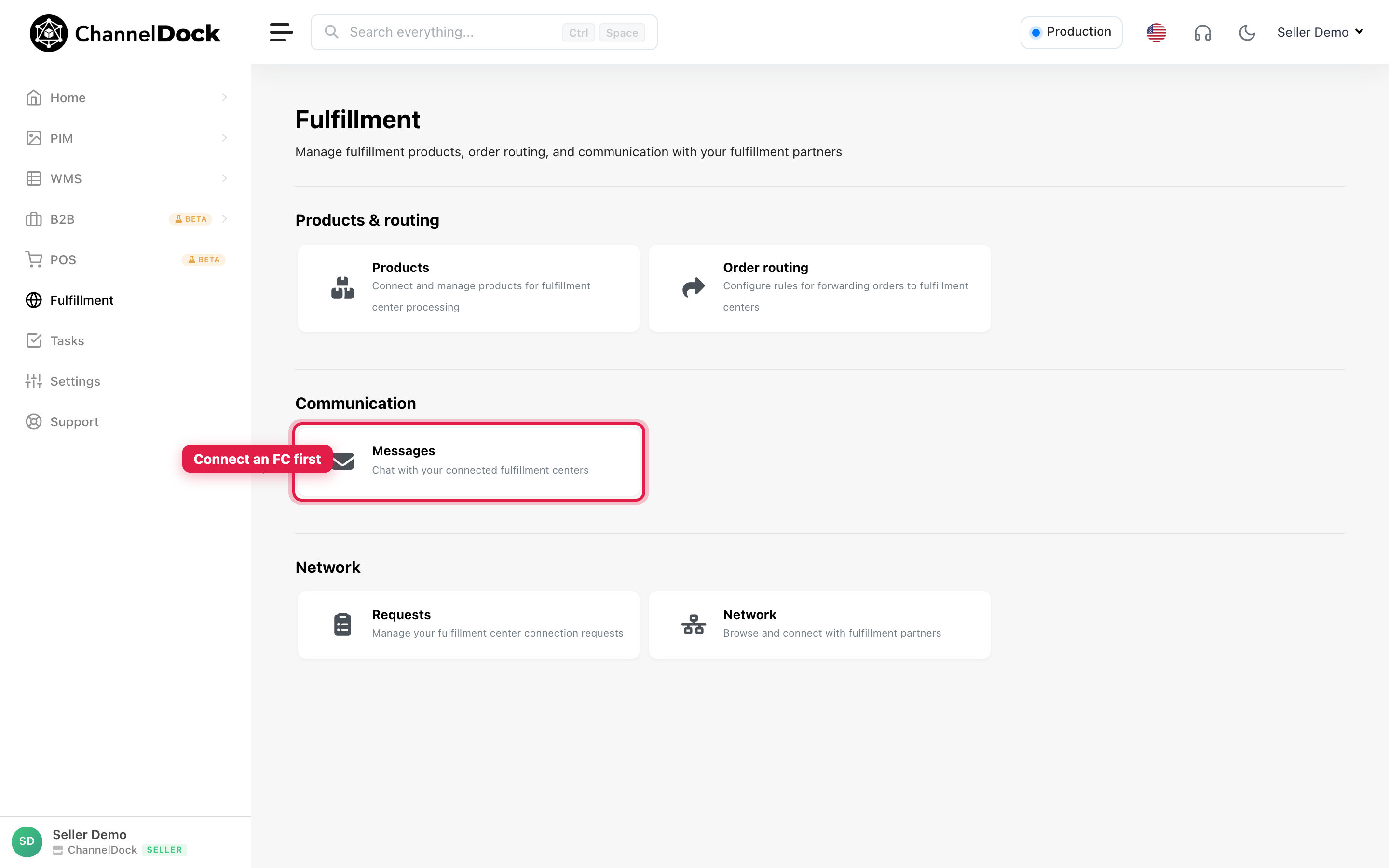
You also need the products on the order linked to that FC, with enough FC stock (unless your FC allows always-assign). See Add products to your fulfillment center.
Option A — Automatically forward orders
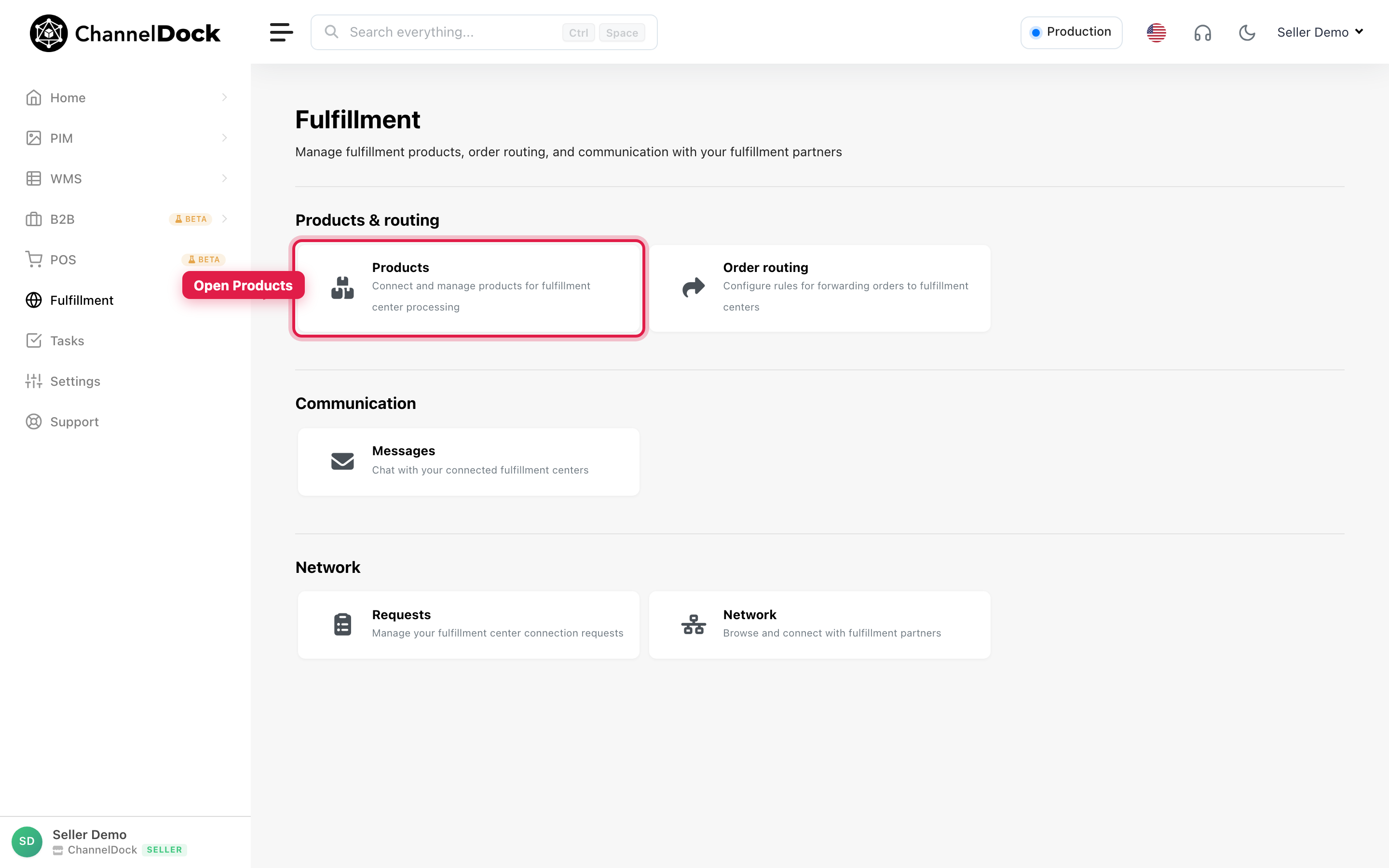
1. Open Fulfillment products
- Go to Fulfillment.
- Click Products.
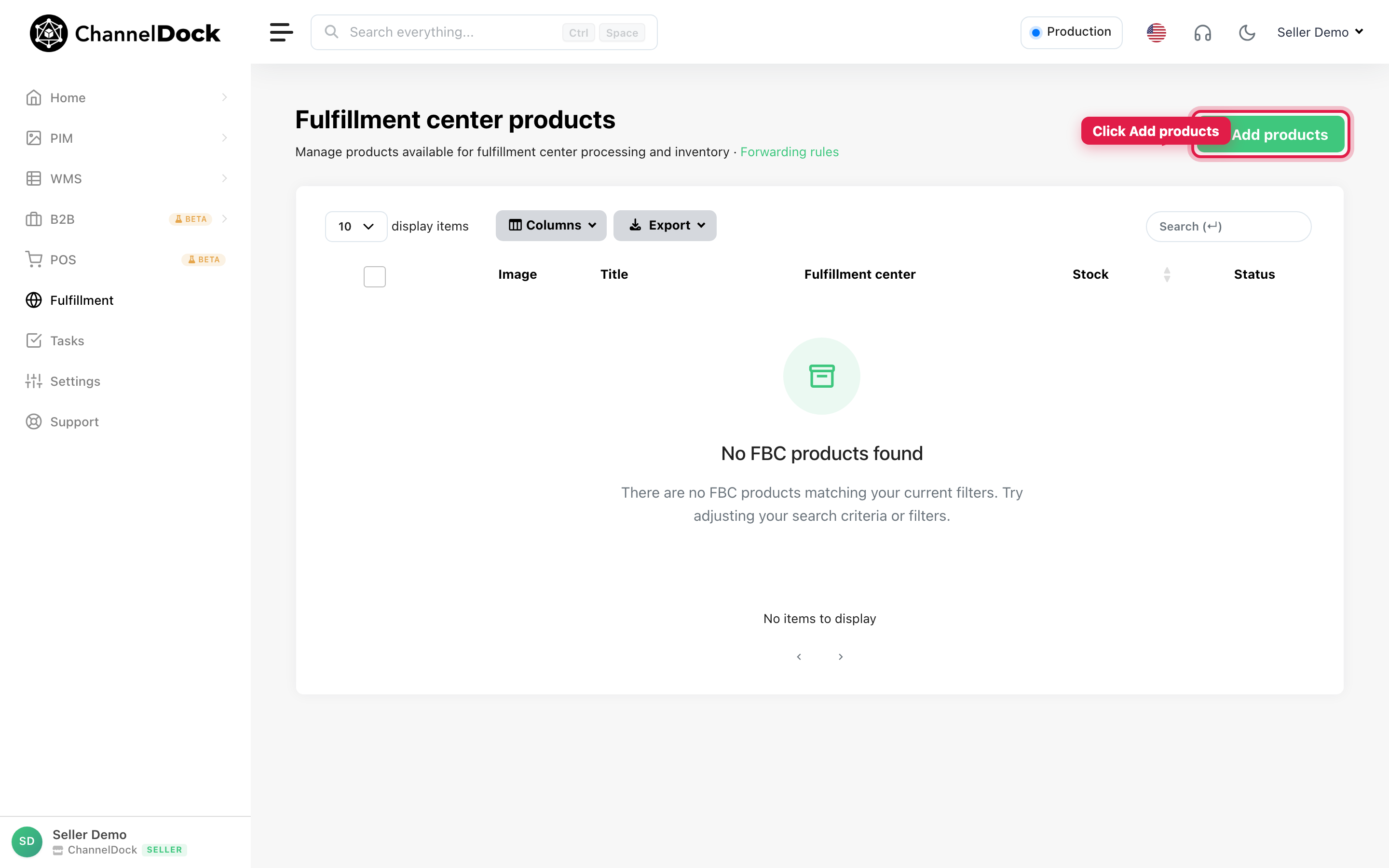
2. Add products and enable auto-forward
- Click Add products.
- Select your fulfillment center.
- Turn on Automatically forward orders to this fulfillment center.
- Select the products (or use Select all) and add them.
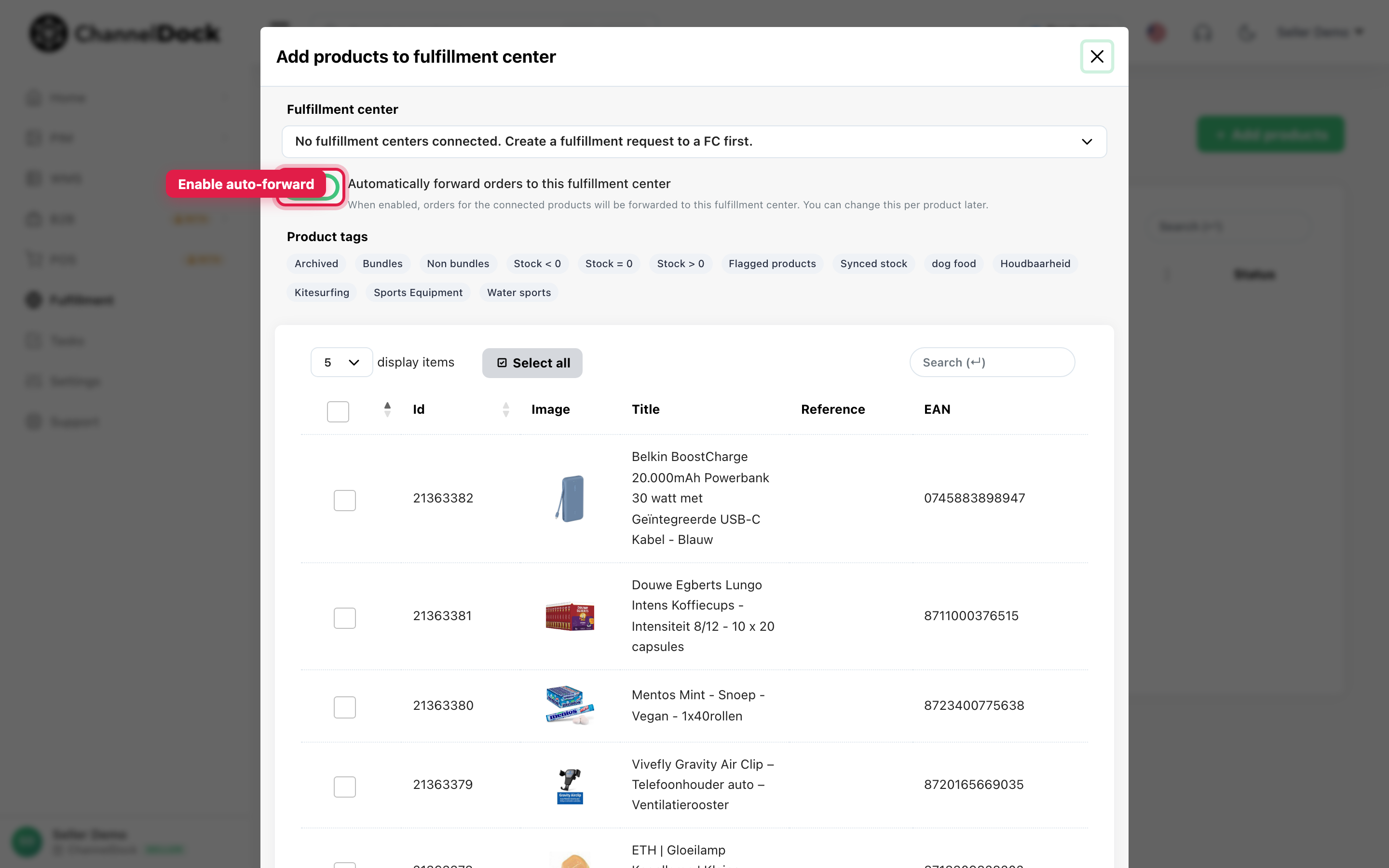
When this is on, new matching order lines are forwarded to the FC during sync — as long as the ship-to country is routed to that FC and stock is available.
Tip: After products are linked, open a product to set Assign a fulfillment center per country and the per-product Forward orders toggle. Countries still set to “You” stay with the seller.
3. Create order routing rules (optional)
Use Order routing when you need conditions (country, sales channel, product tags, and so on) instead of only the per-product matrix.
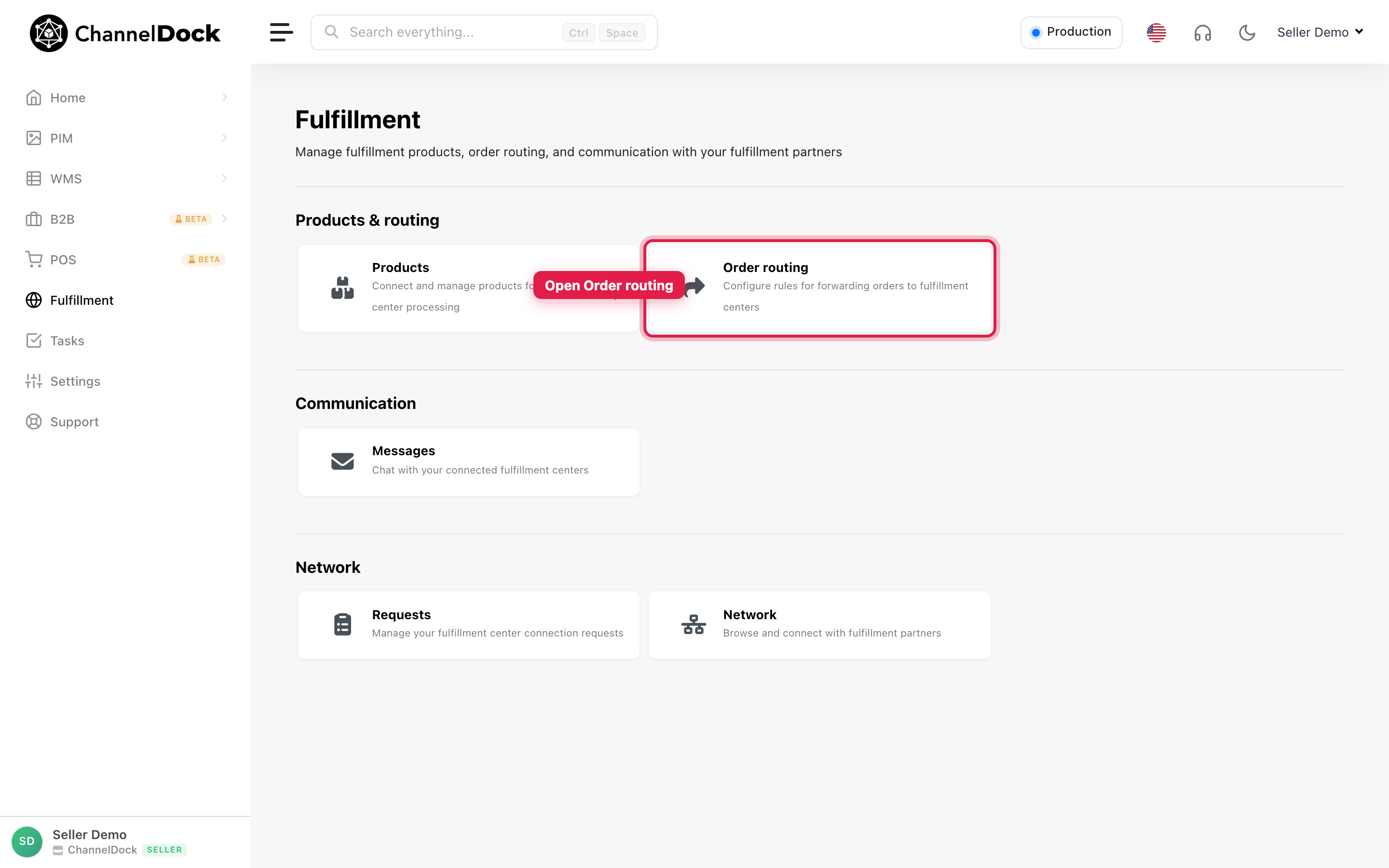
- From Fulfillment, click Order routing.
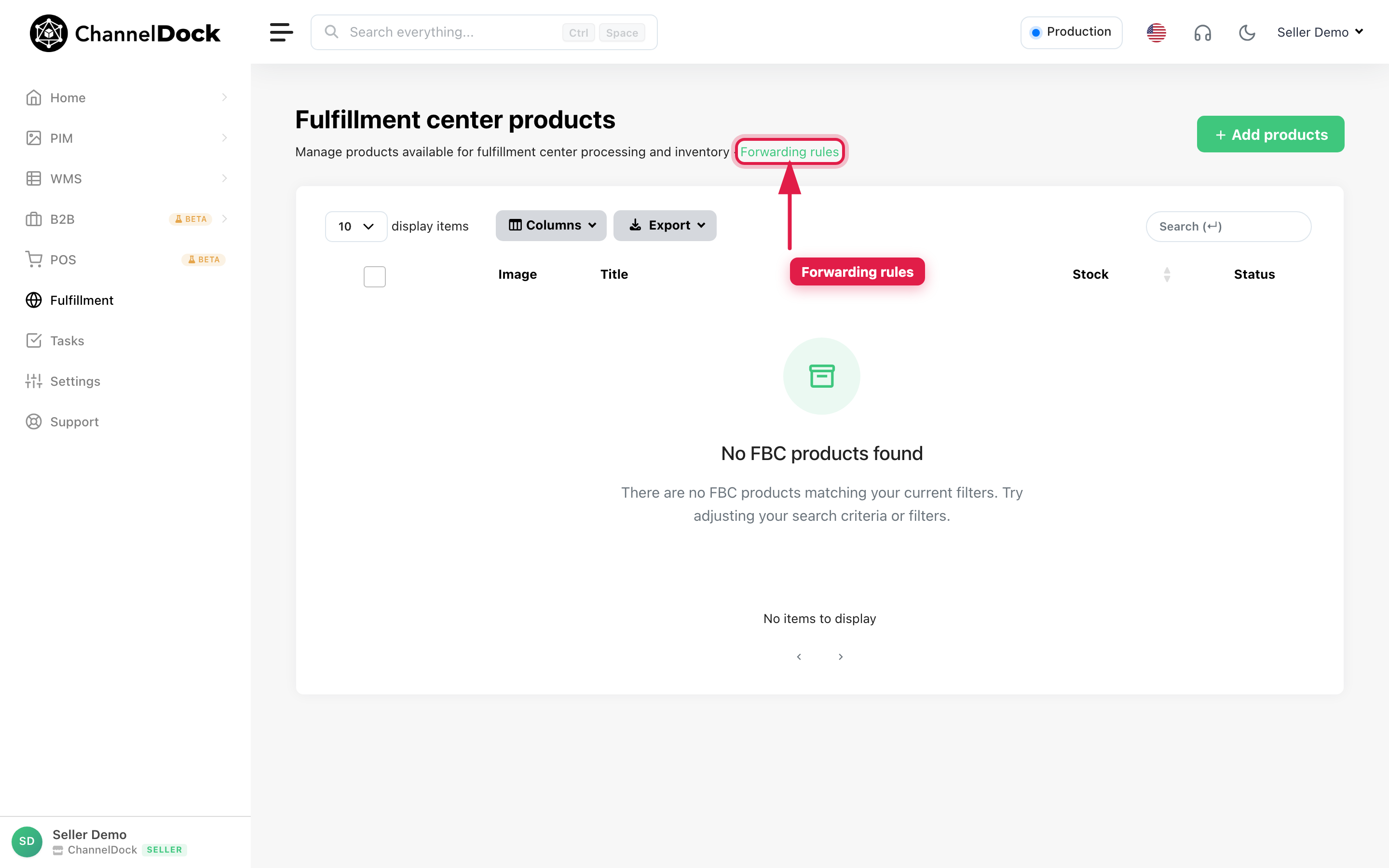
You can also open Forwarding rules from the Fulfillment center products page:
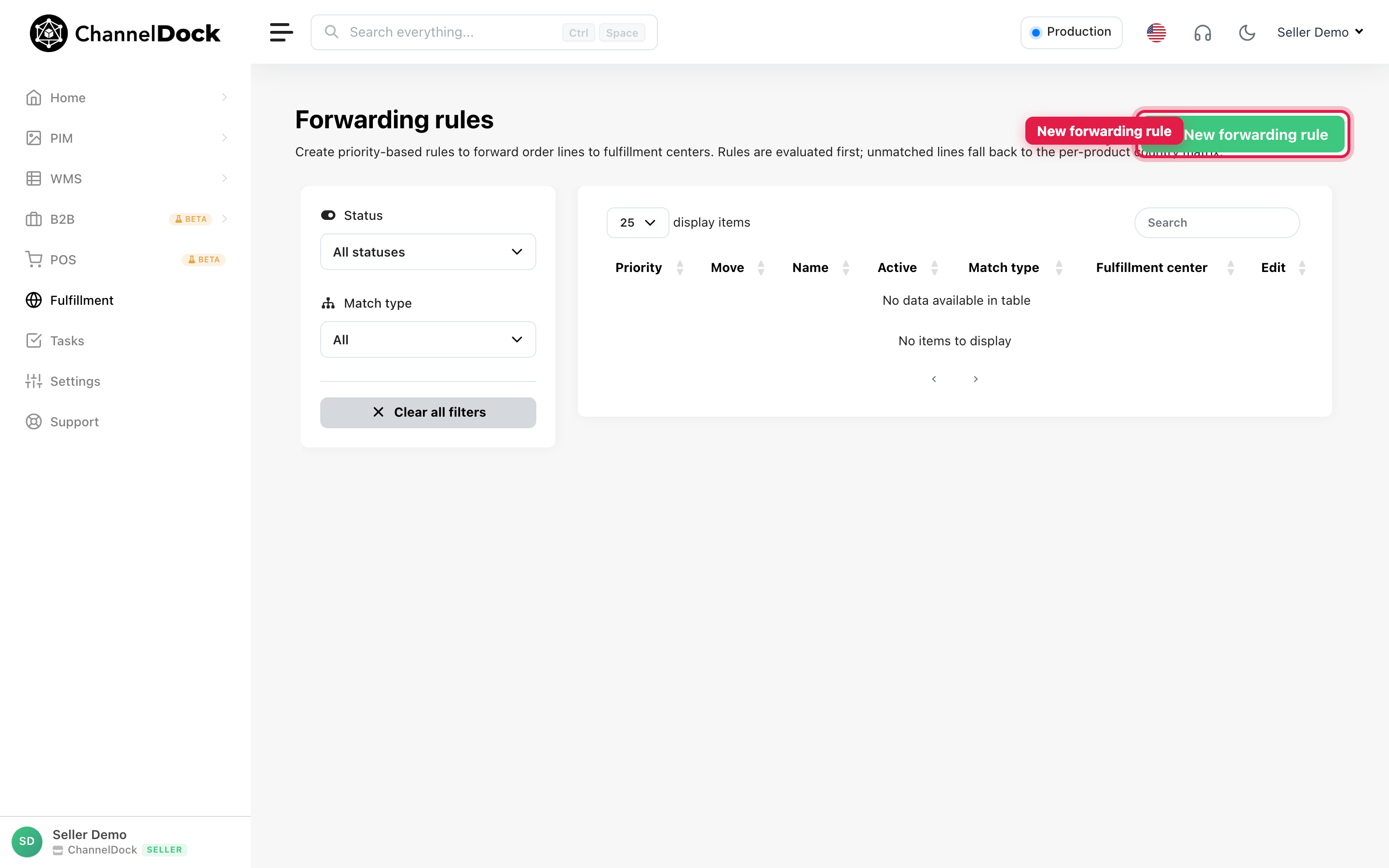
- Click New forwarding rule.
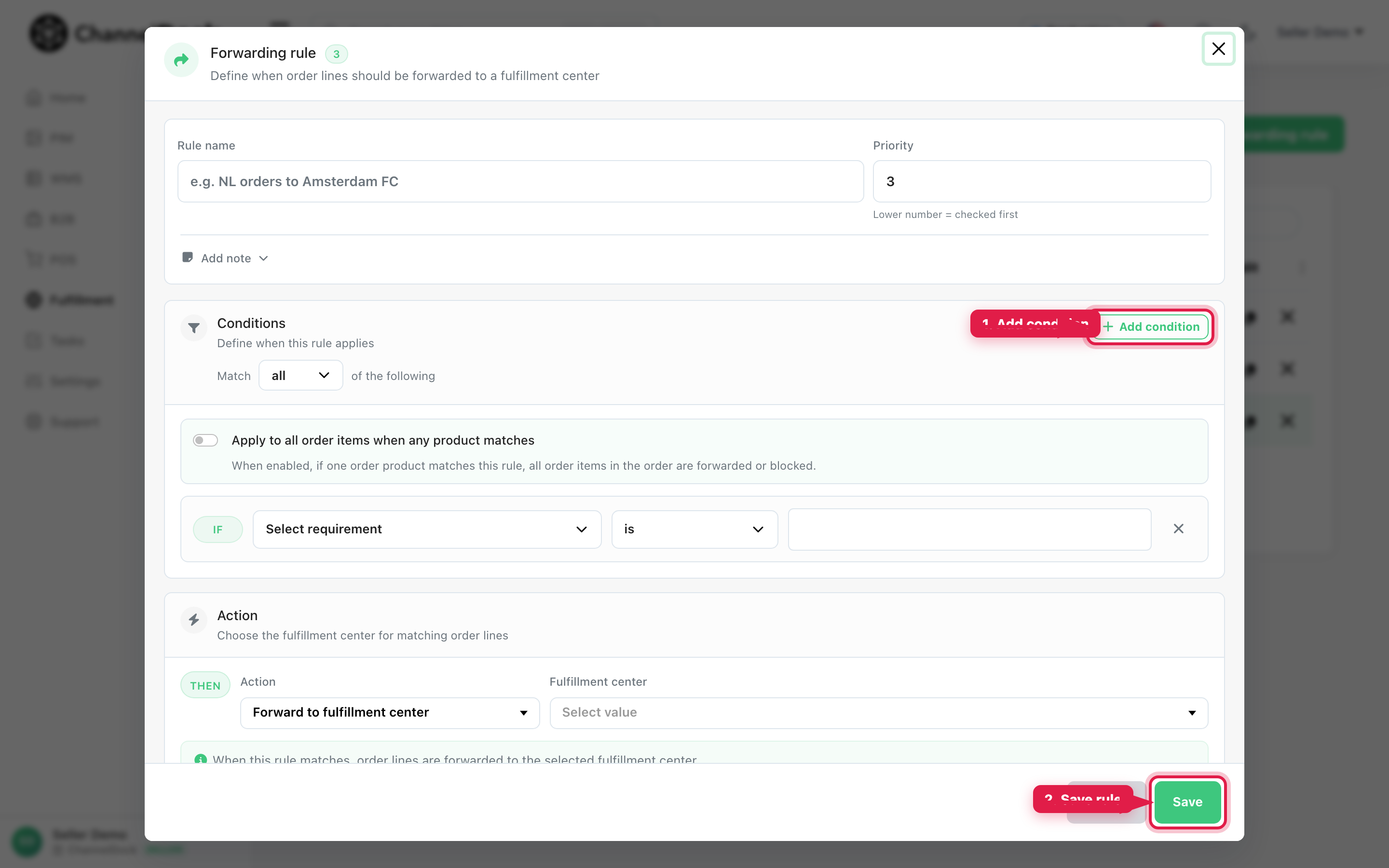
- Give the rule a name and priority (lower number = checked first).
- Click Add condition and define when the rule should match.
- Under Action, choose Forward to fulfillment center and select the FC.
- Click Save.
Rules are evaluated first. Lines that do not match any rule fall back to the per-product country matrix.
Option B — Manually assign an order to your FC
Use this when an order stayed with you (for example forwarding was paused, stock was missing at import time, or you want to push one order now).
- Go to Open orders.
- Click the order you want to send.
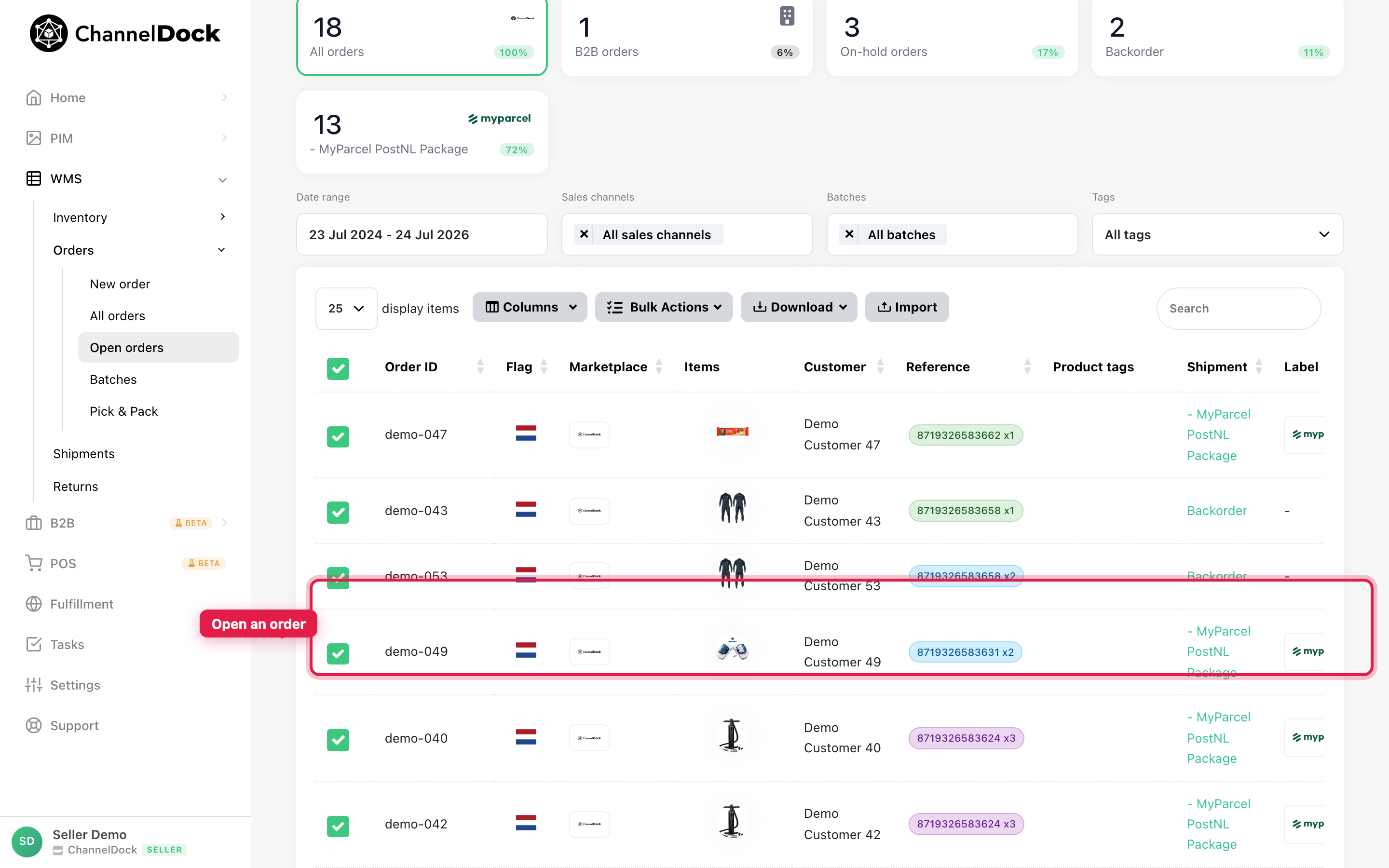
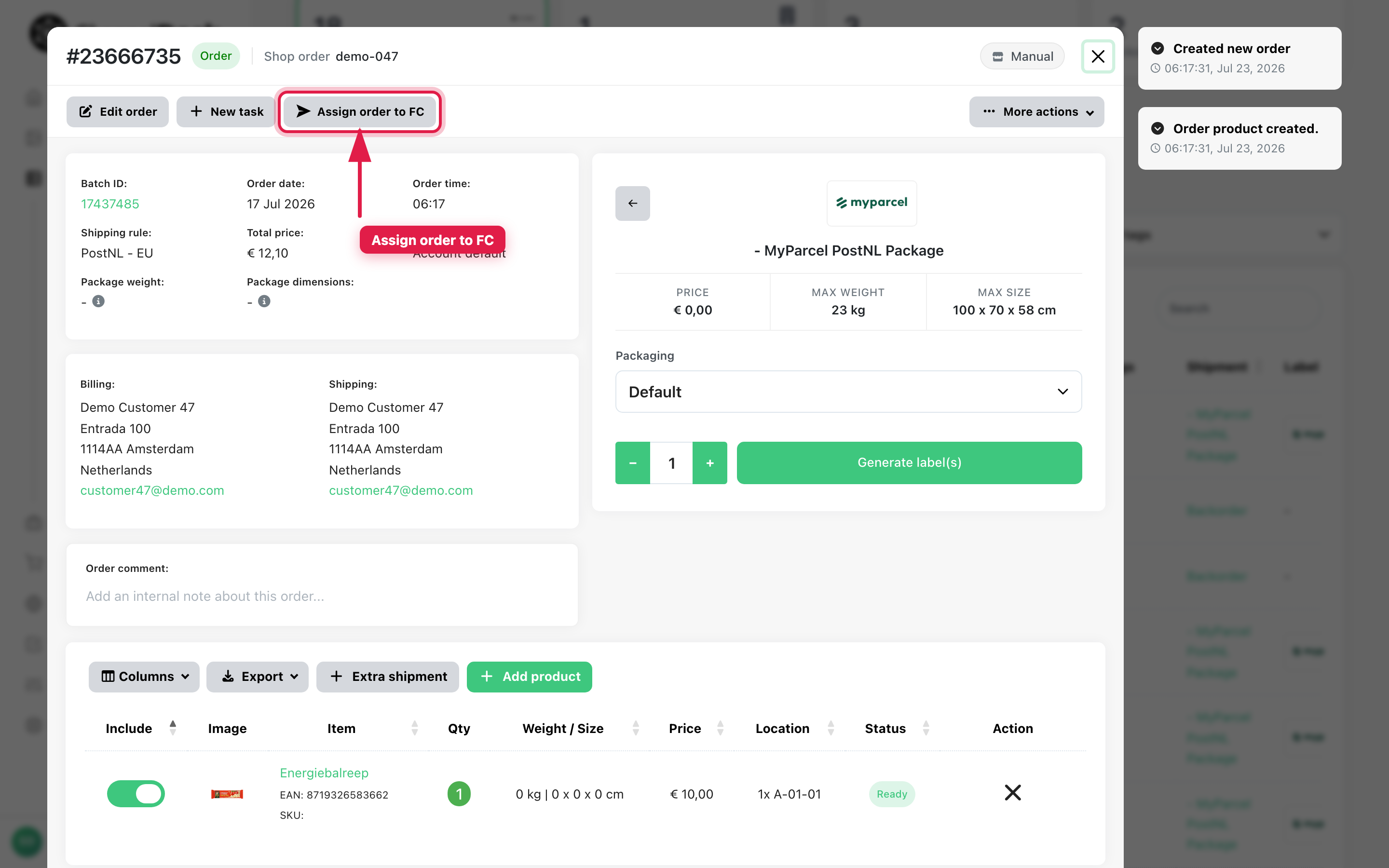
- In the order toolbar, click Assign order to FC.
- Confirm with Continue.
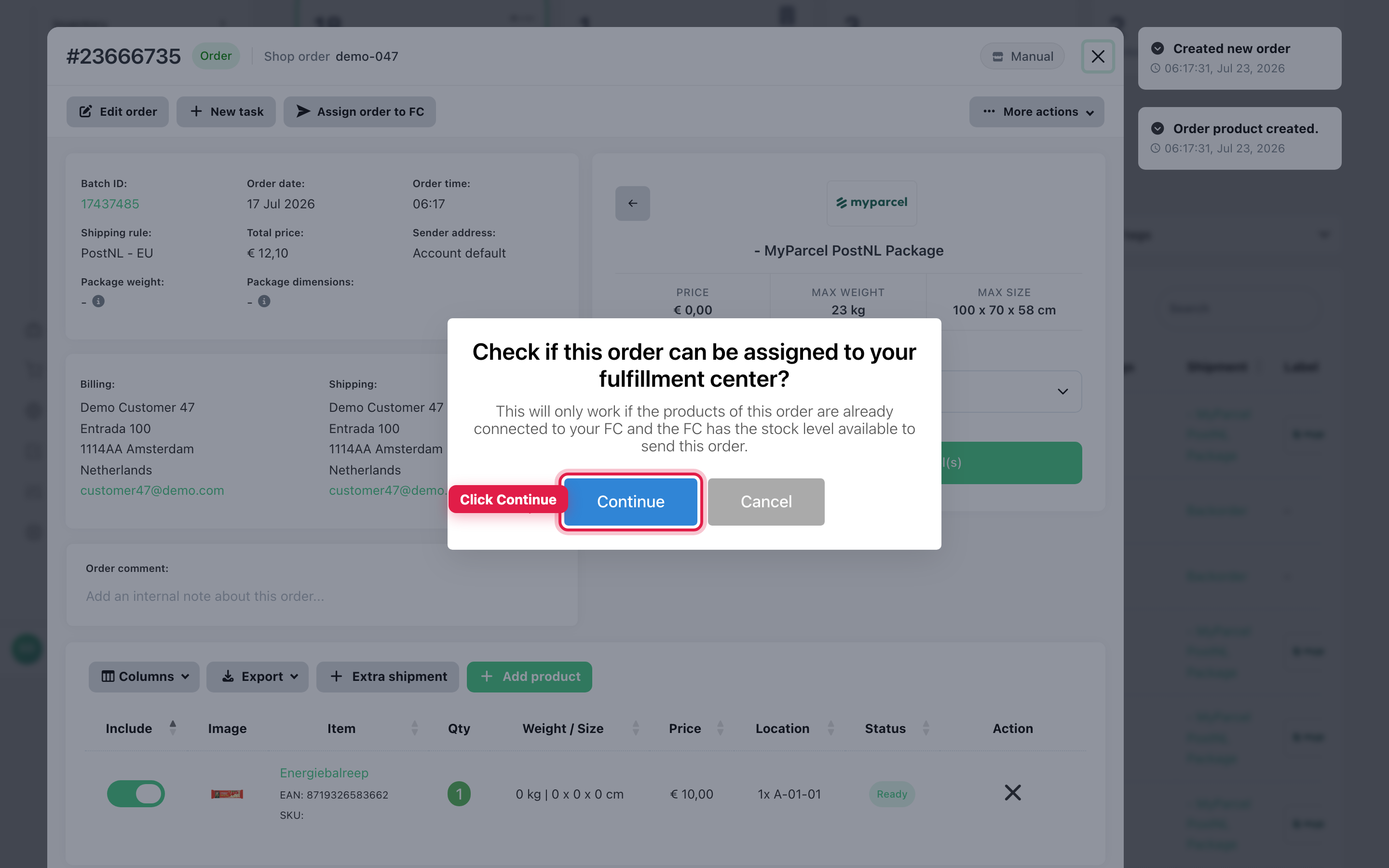
ChannelDock checks whether the products are linked to your FC and whether the FC has stock. Eligible lines are assigned; others stay with you.
The Assign order to FC button only appears when you are connected to an FC and the order still has unshipped lines at the seller. It is not available for POS orders. B2B portal orders must be approved first.
If an order is not forwarded
| Likely cause | What to check |
|---|---|
| Product not linked to the FC | Fulfillment → Products — add the EAN |
| Country routed to you | Product detail → country matrix — set the ship-to country to the FC |
| Forwarding paused | Product detail → enable Forward orders |
| No FC stock | Send an inbound delivery, or ask the FC about always-assign |
| Not connected to the FC | Fulfillment → Requests |
| Pick-up order | Turn Sync pick up orders to FC on in General settings, or remove a Do not forward order-routing rule for that shipping service — see Managing Pick-Up Orders |
Related articles
Was this helpful?