Managing Pick-Up Orders
Last updated
If customers can pick up orders from your shop or warehouse, follow these steps to manage those orders in ChannelDock.
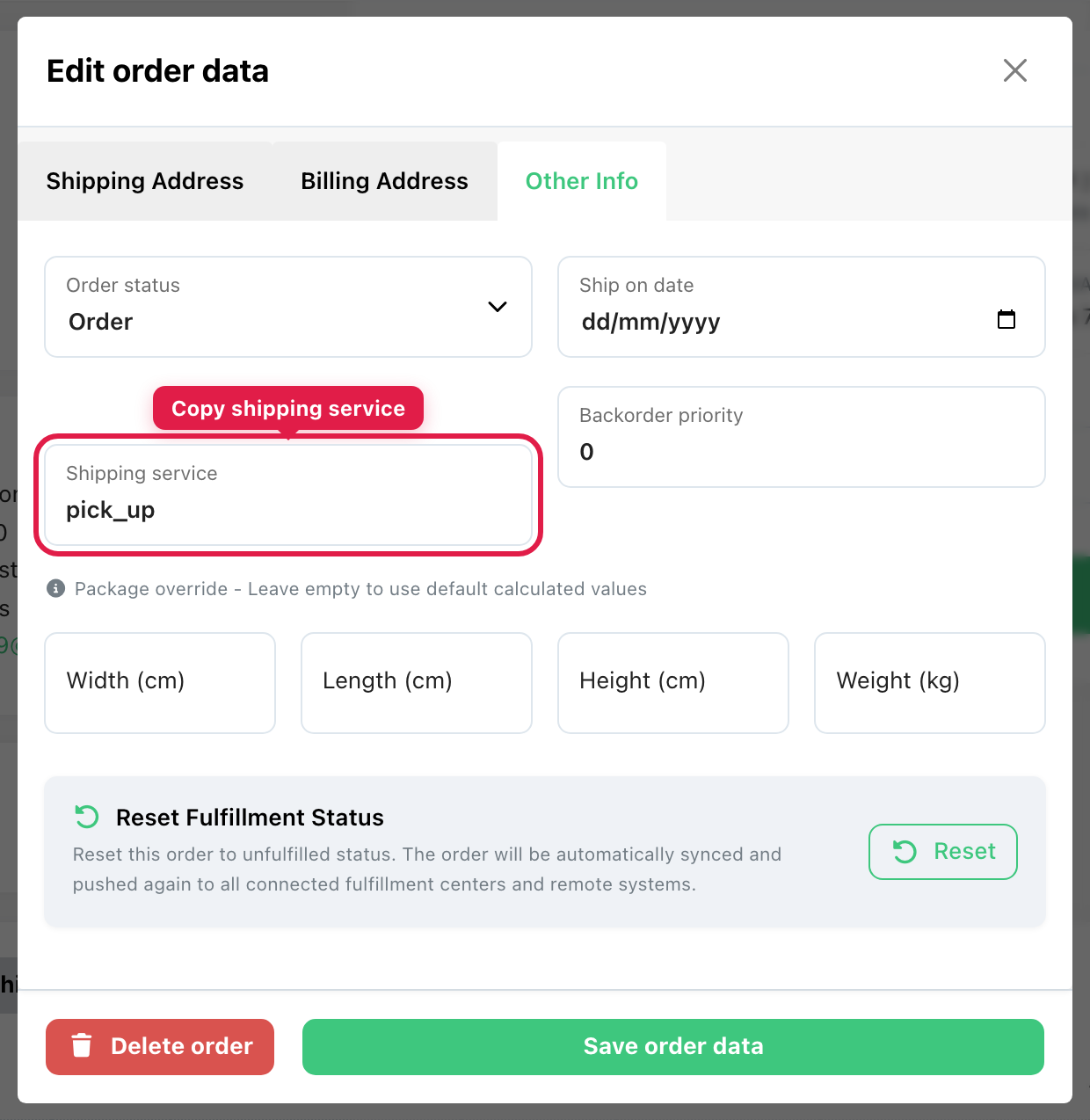
1. Copy the shipping service name
- Open a pick-up order on Open orders.
- Click Edit order → Other Info.
- Copy the Shipping service value (for example
pick_up). Use exactly what your sales channel sends.
2. Create a custom shipping method
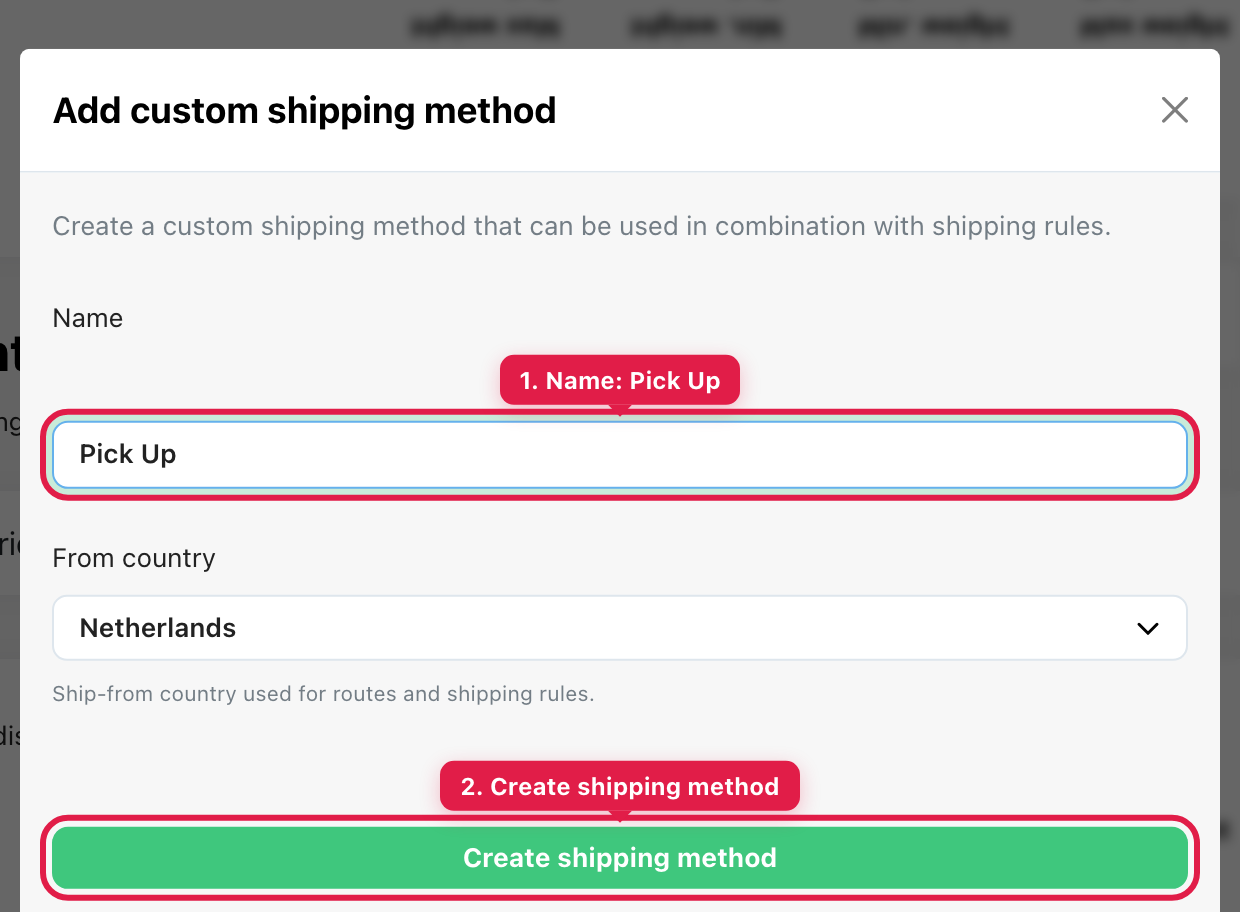
- Go to Shipping carriers → Add carrier.
- Choose Custom shipping method → Connect.
- Name it Pick Up, set the from country, and click Create shipping method.
3. Create a shipping rule
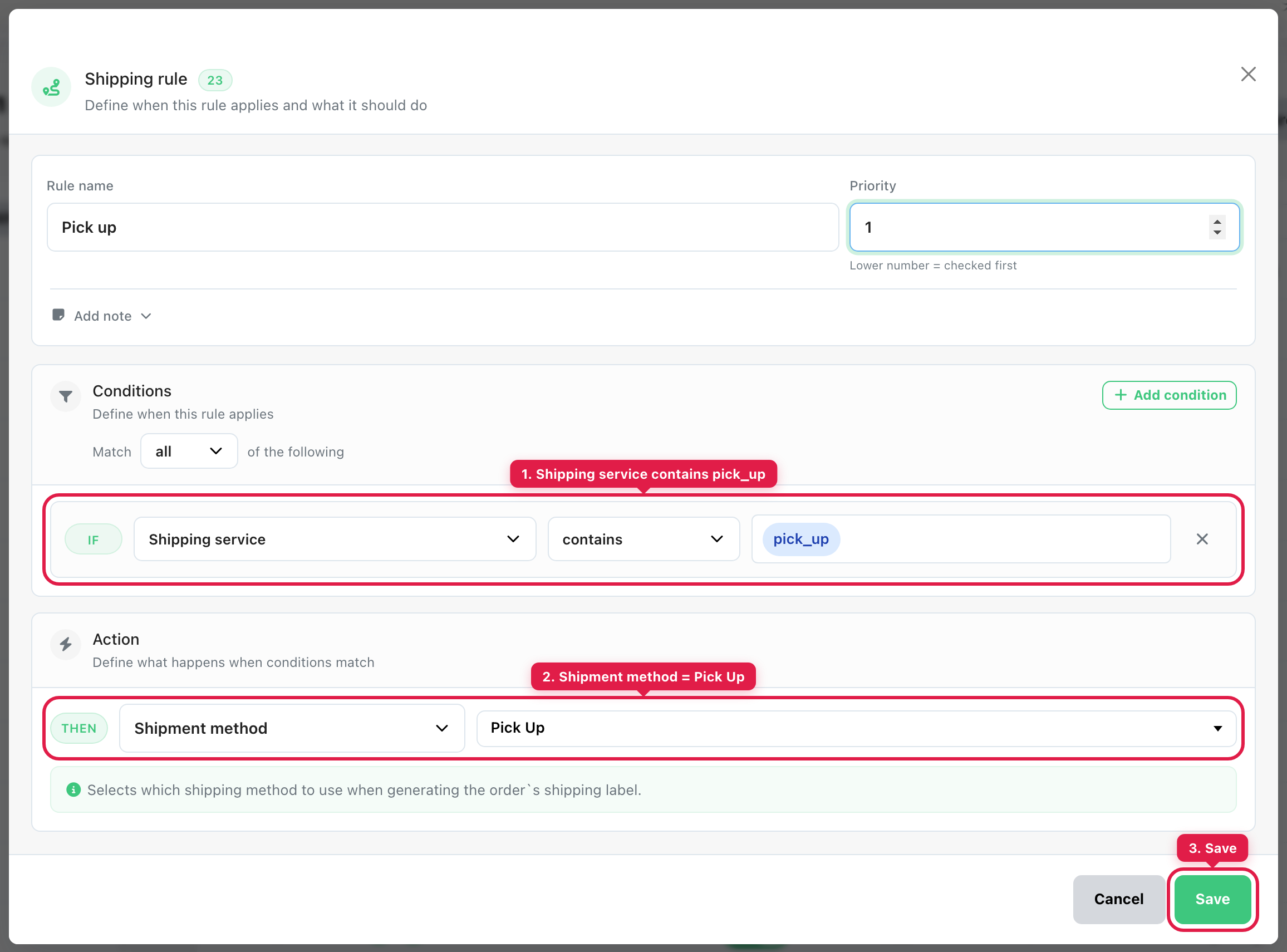
- Go to Shipping rules → New shipping rule.
- Condition: Shipping service → contains → your value from step 1 (e.g.
pick_up). - Action: Shipment method → Pick Up.
- Click Save.
More detail: Creating smart shipping rules.
4. Filter and confirm pick-up orders
On Open orders, click the Pick Up filter card.
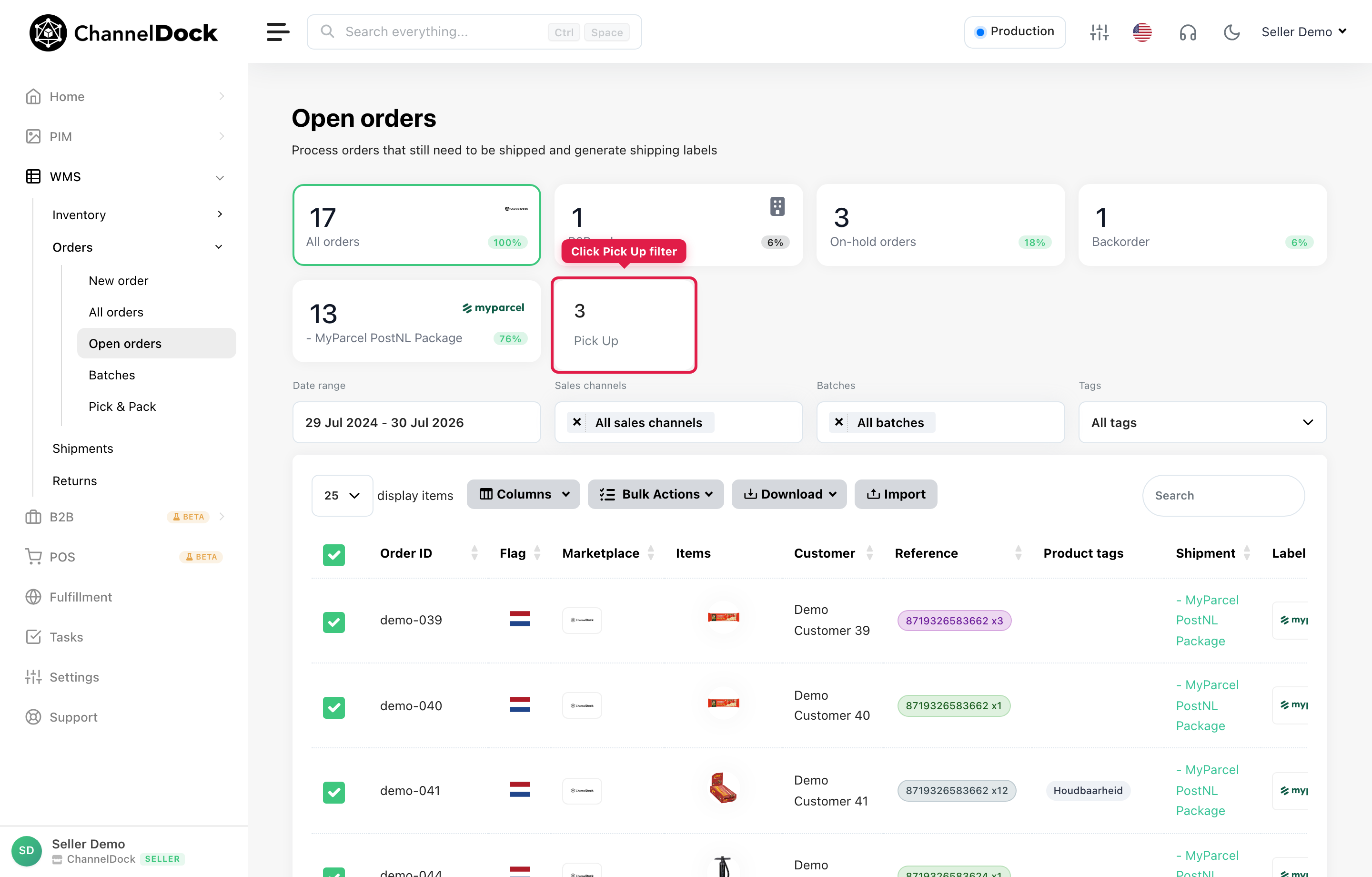
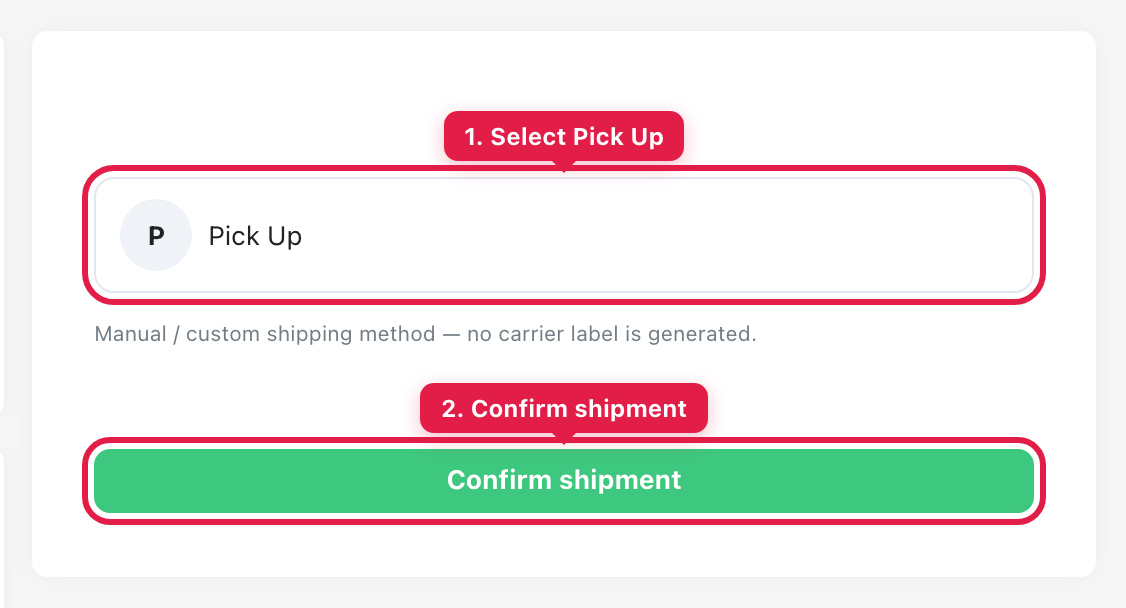
Open an order, select Pick Up, and click Confirm shipment. ChannelDock notifies the customer that the order is ready and sets the status to Shipment (which closes it in your webshop). No carrier label is printed for this method.
Optional: if you use a fulfillment center
Only needed when pick-up orders should stay with you instead of being sent to your FC.
Option A — Sync setting
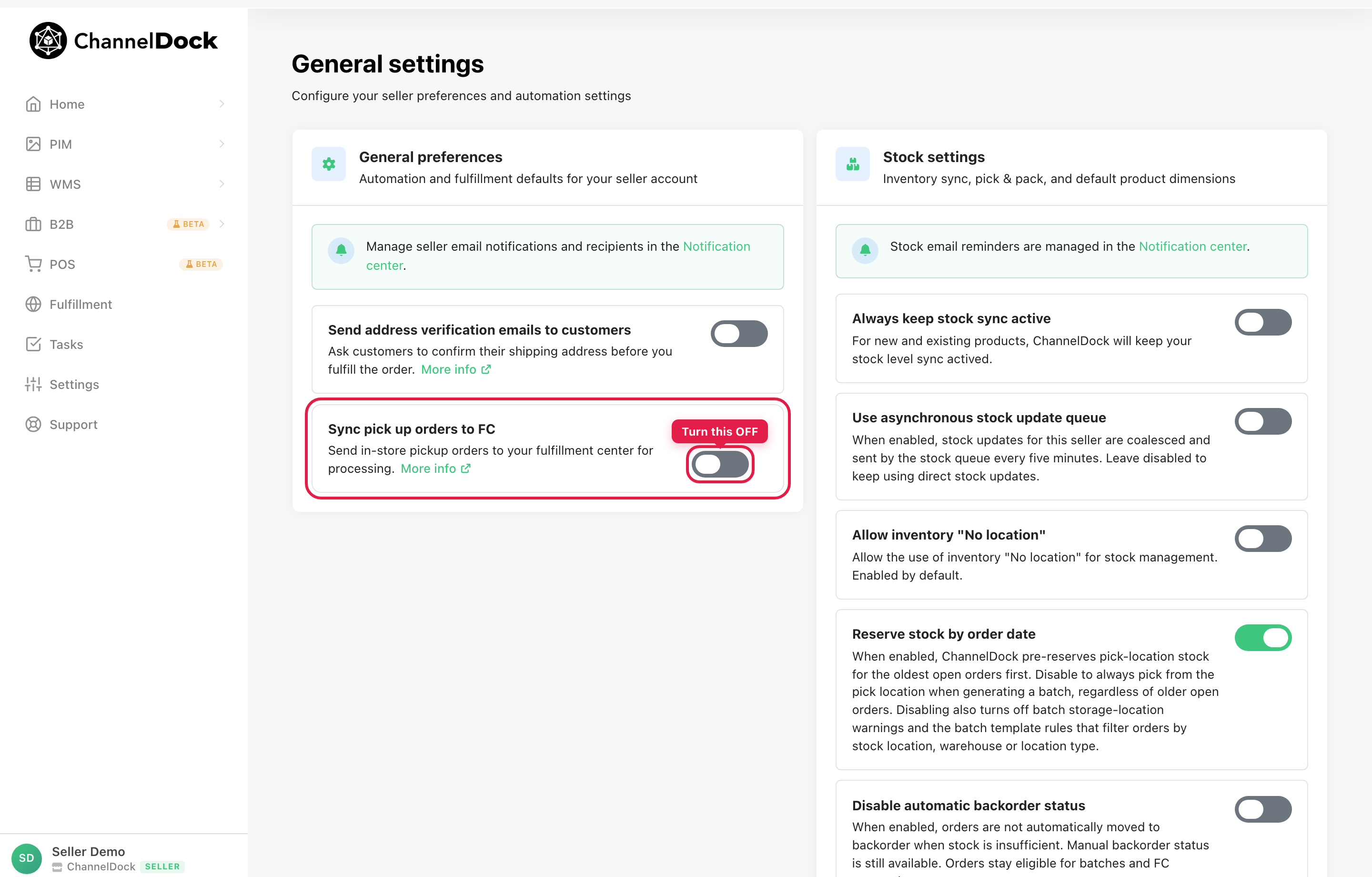
- Go to General settings.
- Turn Sync pick up orders to FC off.
Option B — Order routing rule
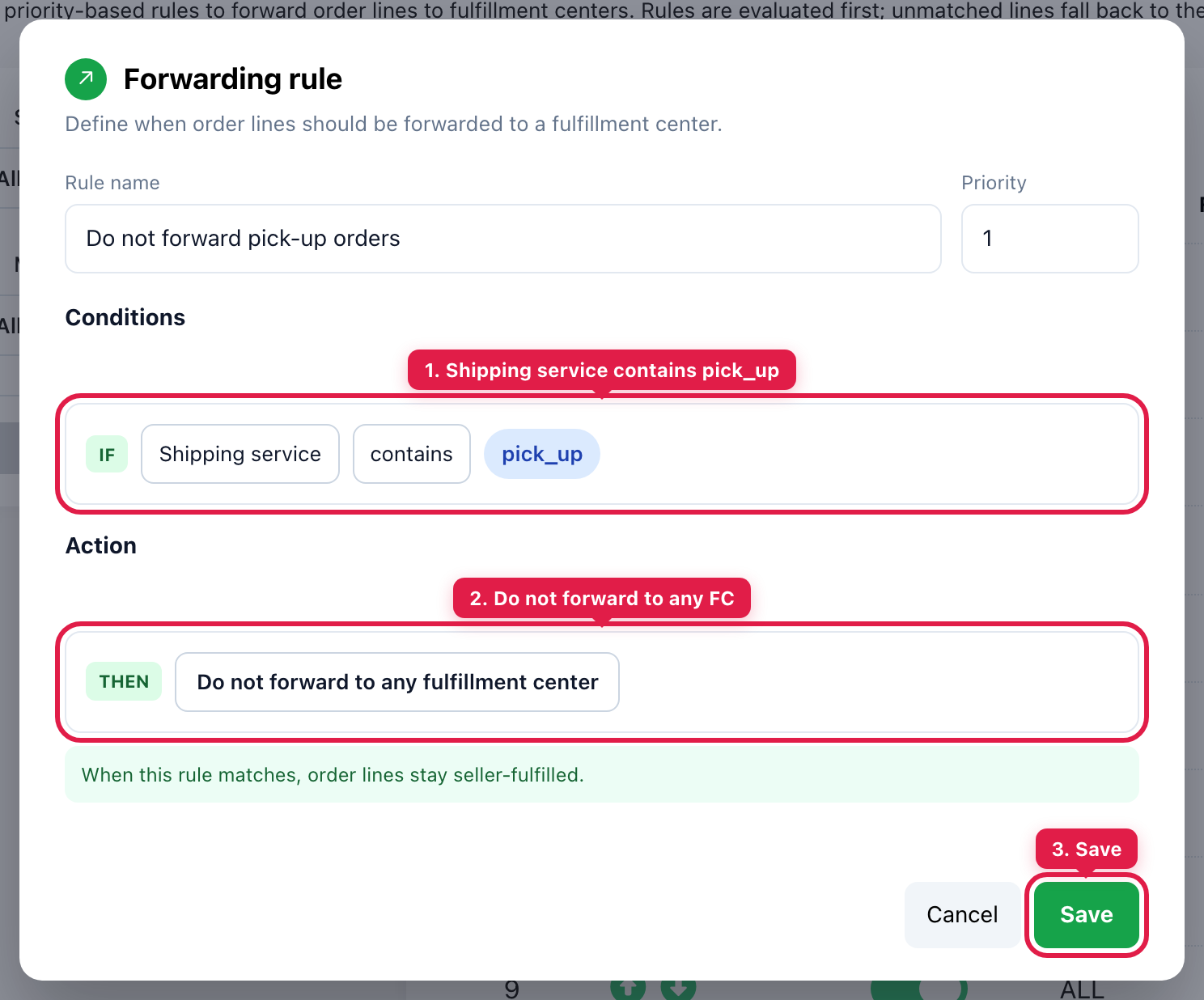
- Go to Fulfillment → Order routing → New forwarding rule.
- Condition: Shipping service → contains → your pick-up value (e.g.
pick_up). - Action: Do not forward to any fulfillment center.
- Click Save (use a high priority / low number so this rule runs before FC forward rules).
Full routing guide: Routing orders to your fulfillment center.
Was this helpful?