Connecting Shopify
Last updated
Before connecting Shopify to ChannelDock
- Make sure the barcode of each product / product variant matches the SKU / EAN used on your other sales channels. ChannelDock uses this value to link products across channels.
- Make sure the SKU of each product / product variant is filled in. The SKU may be the same as or different from the barcode.
- The barcode / EAN must be unique for each product. Duplicate barcodes prevent products (and therefore orders) from importing correctly, and stock levels can become inaccurate.
Connect Shopify
-
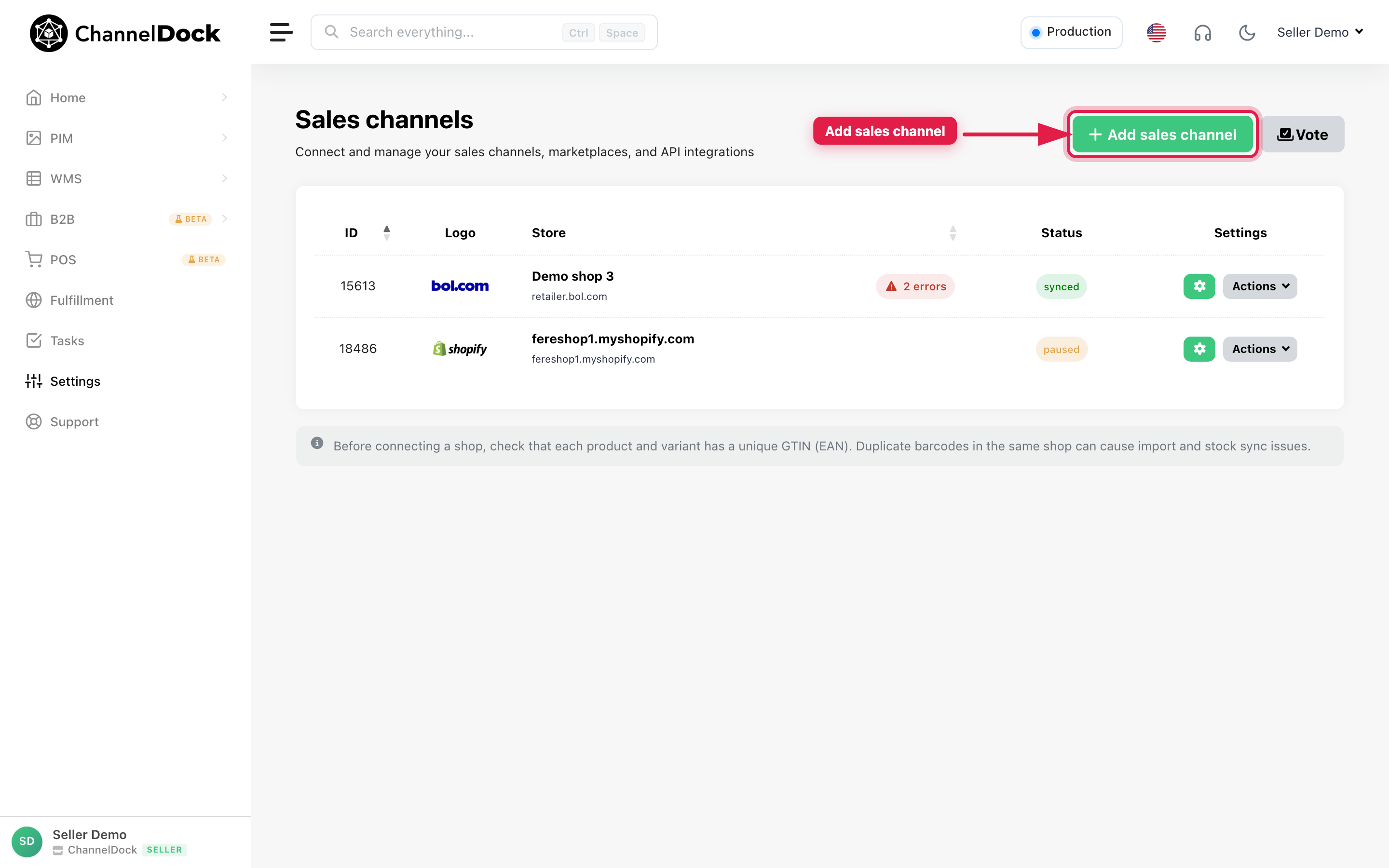
Go to Connections → Sales channels and click Add sales channel.
-
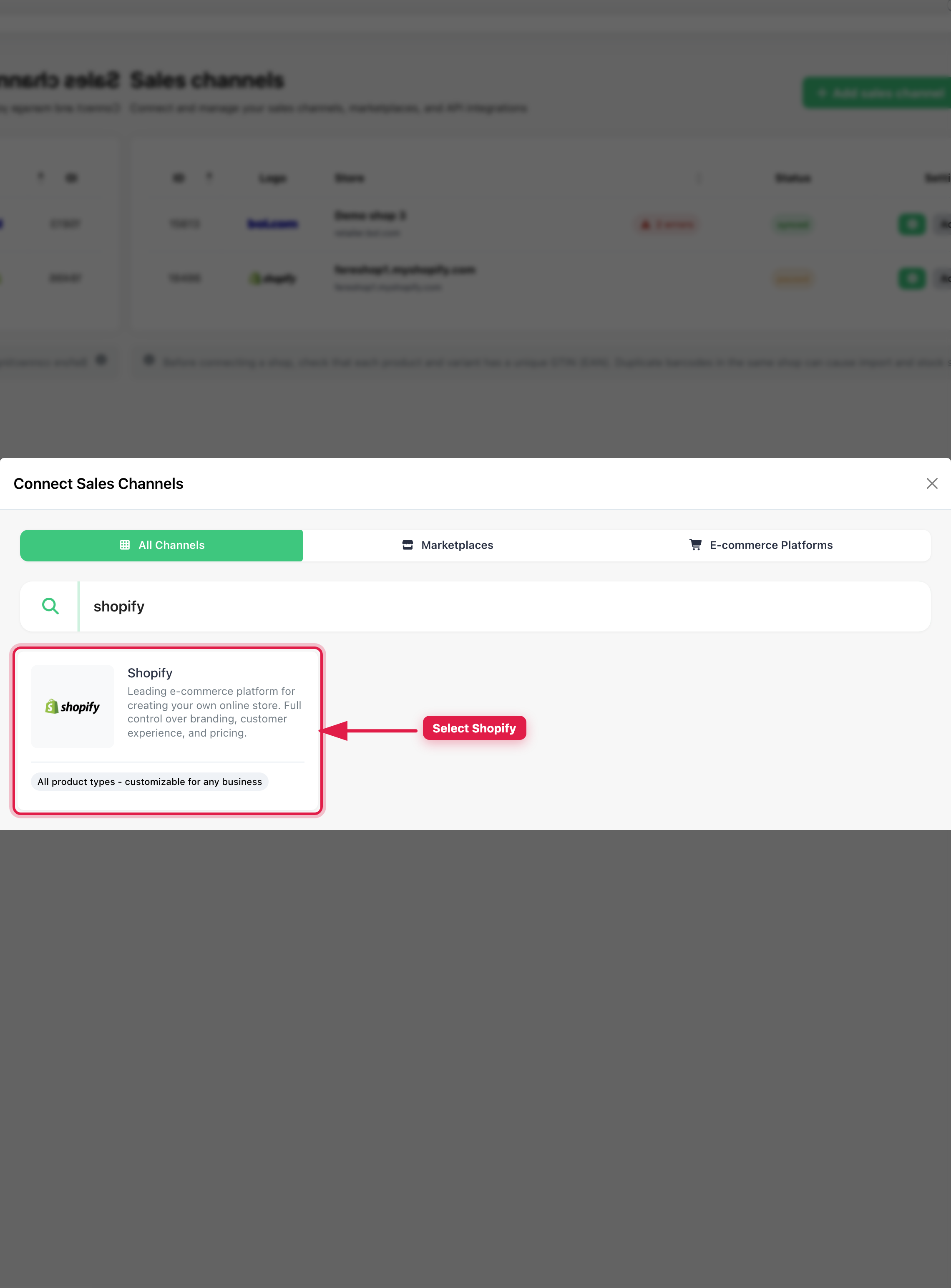
In the Connect Sales Channels modal, search for Shopify and click the Shopify card.
-
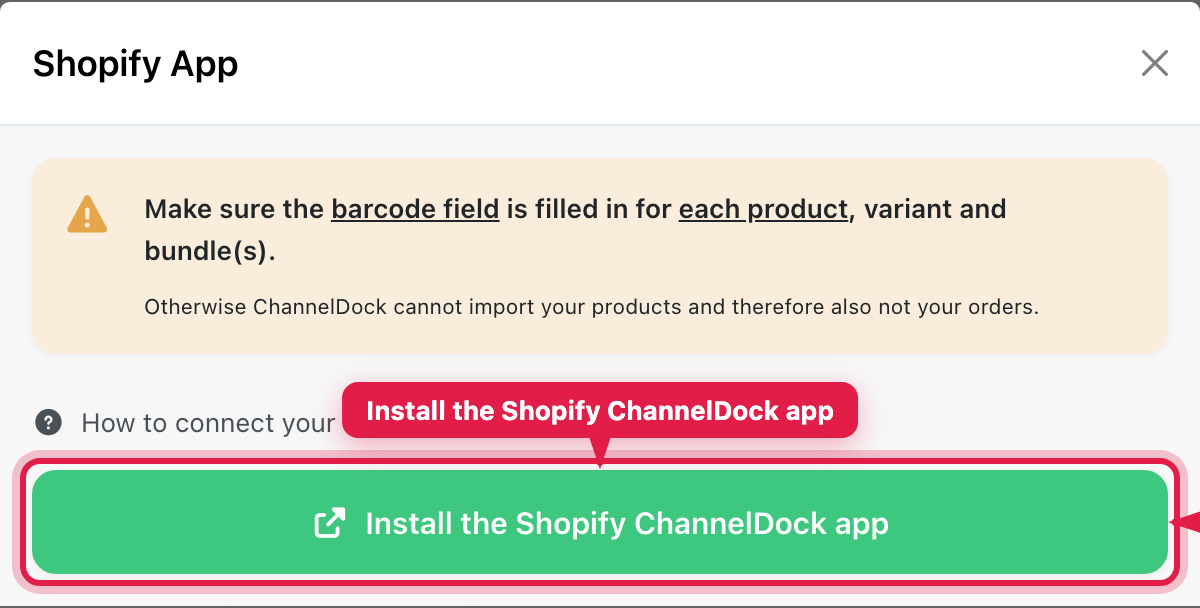
In the Shopify App modal, click Install the Shopify ChannelDock app. This opens the ChannelDock app page in the Shopify App Store.
-
In the Shopify App Store, click Add app.
-
Log in to Shopify if needed, then click Install app.
-
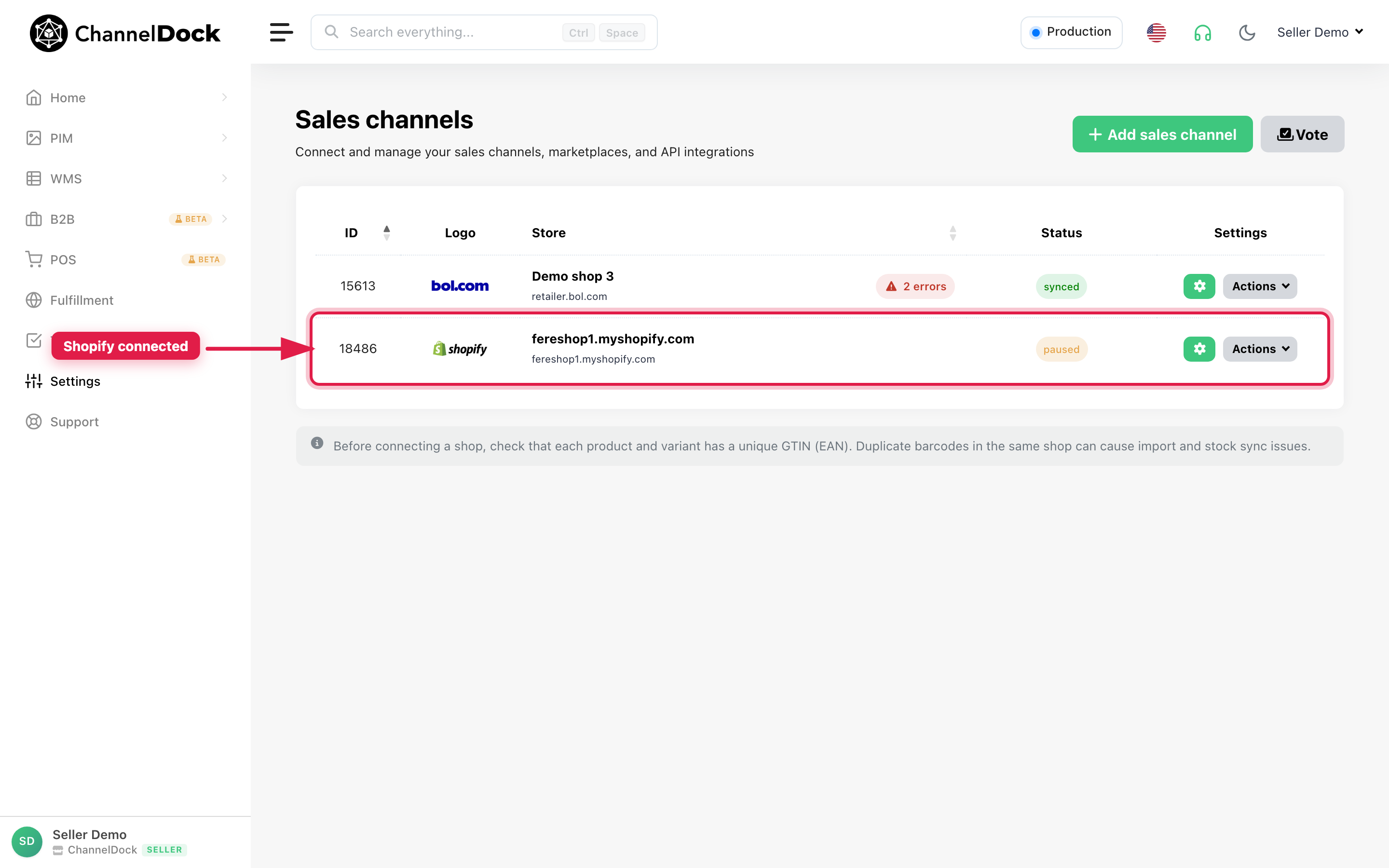
You are redirected back to ChannelDock. Your Shopify store appears in the sales channels list once pairing succeeds. Products start loading in the background (this can take a few minutes).
Edit API settings
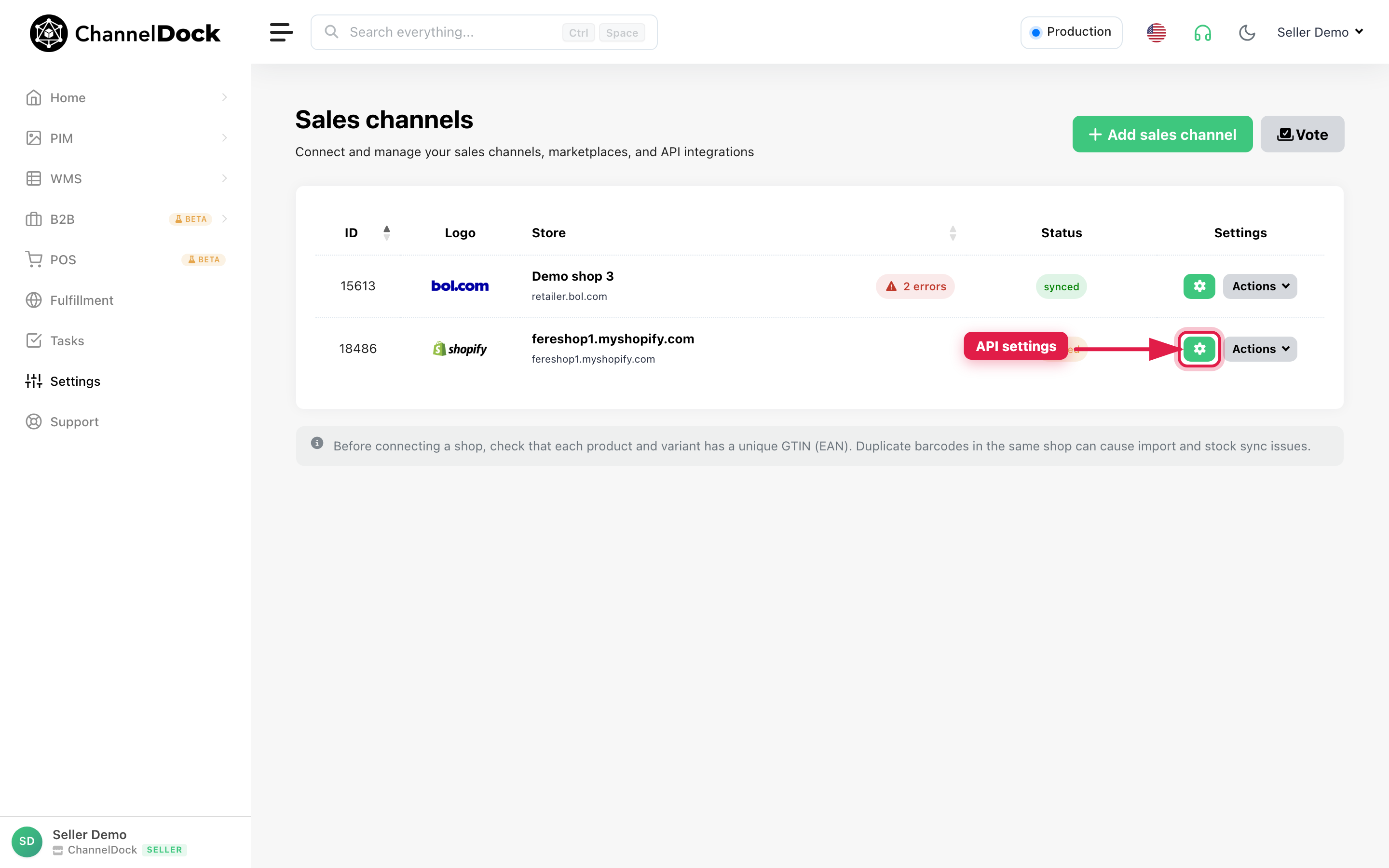
Open Connections → Sales channels, find your Shopify store, and click the gear (API settings) button.
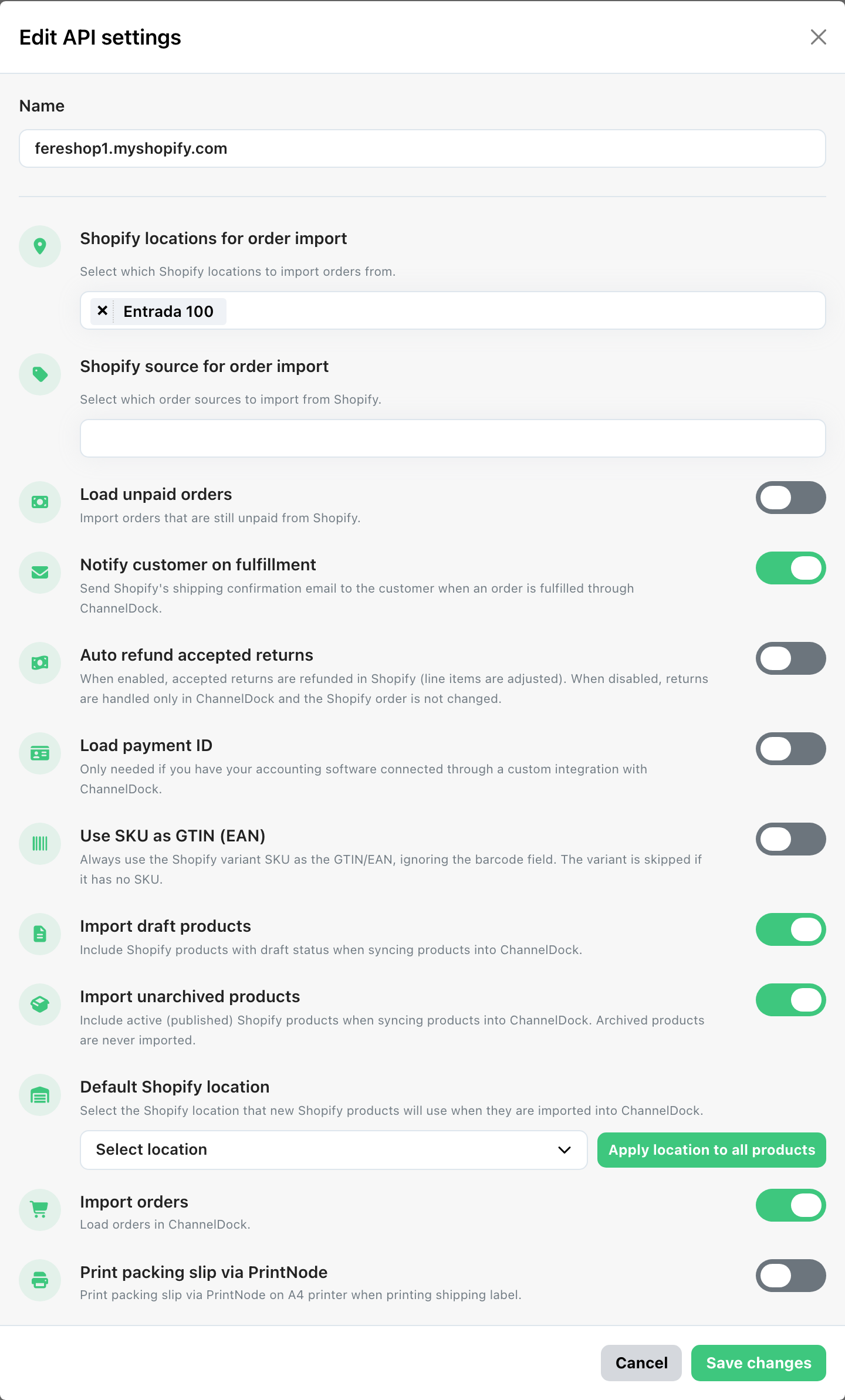
| Setting | What it does |
|---|---|
| Name | Display name of this Shopify connection in ChannelDock. |
| Shopify locations for order import | Choose which Shopify locations to import orders from. Use All locations, or select specific locations. |
| Shopify source for order import | Limit imports by order source: All, Web, POS, Draft order, External, or Other. Leave empty to import from all sources. |
| Load unpaid orders | Also import unpaid / pending-payment orders from Shopify. |
| Notify customer on fulfillment | Send Shopify’s shipping confirmation email when ChannelDock fulfills the order. |
| Auto refund accepted returns | When enabled, accepted returns are refunded in Shopify (line items are adjusted). When disabled, returns stay in ChannelDock only and the Shopify order is not changed. |
| Load payment ID | Import the payment transaction ID with the order. Only needed if accounting software is connected through a custom ChannelDock integration. |
| Use SKU as GTIN (EAN) | Always use the Shopify variant SKU as the GTIN/EAN and ignore the barcode field. Variants without a SKU are skipped. |
| Import draft products | Include Shopify products with draft status when syncing products into ChannelDock. |
| Import unarchived products | Include active (published) Shopify products when syncing. Archived products are never imported. |
| Default Shopify location | Shopify location that new Shopify products use when imported into ChannelDock. Use Apply location to all products to update existing products (this can take a while on large catalogues). |
| Import orders | Master switch to enable or disable order import for this connection. |
| Print packing slip via PrintNode | Automatically print a packing slip on an A4 PrintNode printer when printing a shipping label. PrintNode must be connected to the account. |
Click Save changes after updating settings.
Orders not importing
Orders that are already processed or closed in your sales channels are not imported into ChannelDock. Make sure the orders you expect are still open and unprocessed.
Orders can also fail to import when the related products are not imported into ChannelDock (for example because of missing or incorrect EANs). If products from Shopify are missing or linked incorrectly, fix the product import first:
Orders ship in ChannelDock but stay unfulfilled in Shopify
If orders are picked, packed, and shipped in ChannelDock but remain Unfulfilled in Shopify (and tracking is not synced back), check how your fulfillment location is set up in Shopify.
ChannelDock pushes tracking to Shopify with the fulfillmentCreate API. Shopify only allows this on regular merchant locations. It does not work when the location is a Fulfillment Service location.
How to recognize this issue
- In Shopify Admin, the order shows Request fulfillment instead of a normal Mark as fulfilled action.
- The fulfillment location name appears on the order (for example, your warehouse or FC name).
- In ChannelDock order logs you may see:
No supported actions found to fulfill the order... Check if the order is on hold in Shopify.
How to fix it
- Go to Shopify → Settings → Locations.
- Open the location used for fulfillment (the same location selected in ChannelDock under Shopify locations for order import / Default Shopify location).
- Check whether the location is linked to a Fulfillment service or third-party fulfillment app.
- If it is, do one of the following:
- Recommended: Create a new regular location (for example,
Main warehouse) and use that location for fulfillment going forward, or - Remove or deactivate the fulfillment service connection on the existing location so it becomes a standard merchant location.
- Recommended: Create a new regular location (for example,
- Make sure your products have inventory assigned to the regular location.
- In ChannelDock, open Sales channels → Shopify → API settings and select the correct location.
- For orders already shipped in ChannelDock but still unfulfilled in Shopify, add the tracking number manually in Shopify Admin as a one-time fix.
Important: A fulfillment service location is meant for apps that receive fulfillment requests from Shopify. ChannelDock fulfills orders from its own warehouse workflow and then reports tracking back to Shopify. Those two setups require different location types.
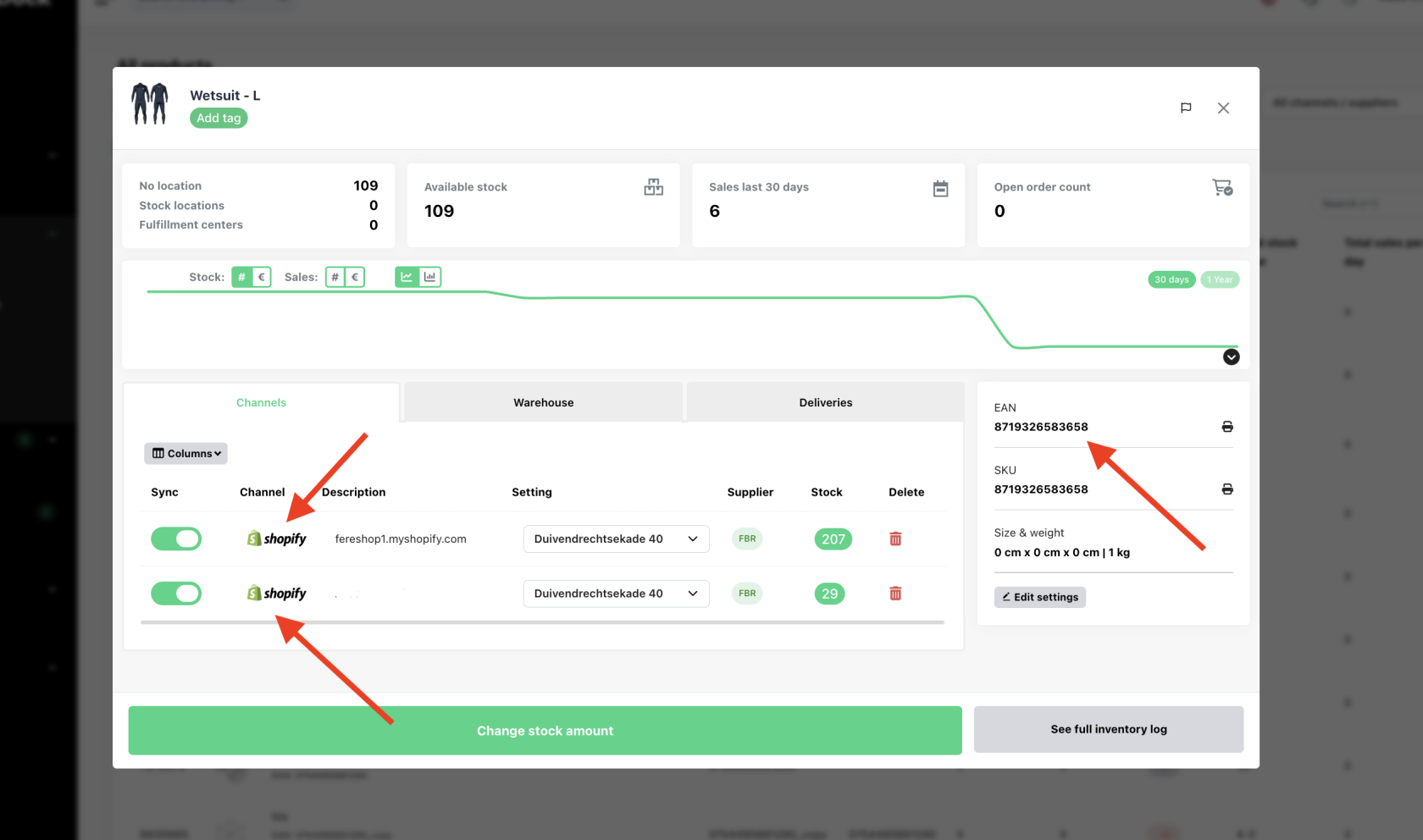
Why do I see two Shopify channels for one product?
If you see two Shopify channels linked to a single product in ChannelDock, while you only expect one, ChannelDock has found multiple Shopify products or variants with the same EAN. ChannelDock uses the EAN to match products across channels. When the same EAN exists more than once in Shopify, ChannelDock shows multiple Shopify connections for that product.
Common causes
- The EAN was previously used on another Shopify product that was never deleted.
- A draft product exists with the same EAN (draft products are also synced when Import draft products is enabled).
- Products were duplicated in Shopify and the EAN was copied.
How to fix this
- Go to Shopify → Products.
- Search for the EAN shown in ChannelDock.
- Check for duplicate, draft, or unused products.
- Remove the product that should no longer exist, or update the EAN.
- Re-sync the product in ChannelDock.
Once only one Shopify product uses the EAN, ChannelDock will show a single Shopify channel for that product.
Was this helpful?