Connecting ShipStation
Last updated
ShipStation is a multi-carrier shipping platform for sellers in the EU, UK, and US. By connecting ShipStation to ChannelDock, you can create shipping labels, use ShipStation carrier rates, and optionally push orders or sync products — all from your existing ChannelDock workflow.
Note: Purchasing labels via ShipStation charges your ShipStation account. Make sure your warehouse and carrier accounts are configured in ShipStation before creating labels.
Important: ChannelDock requires a ShipStation V2 API key to connect. V1 API keys (API Key + API Secret) cannot be used for the initial connection — those are only needed later if you enable product sync.
Before you connect ShipStation to ChannelDock
You must generate a ShipStation V2 API key in your ShipStation account. ChannelDock uses the V2 API to load carriers, warehouses, and shipping methods. Do not use a V1 API key in the connection form.
- Log in to ShipStation.
- Go to Settings → Account → API Settings.
- Under API version, select V2 (not V1).
- Click Generate API Key.
- If prompted, verify your email and complete any required steps from ShipStation.
- Copy your V2 API key and keep it somewhere safe. You will paste this into ChannelDock in the next section.
For more details, see ShipStation’s API documentation.
If you plan to enable product sync later, you will also need your ShipStation v1 API Key and API Secret from the same API Settings page. Product sync is optional and can be configured after the connection is live.
Connect ShipStation to ChannelDock
-
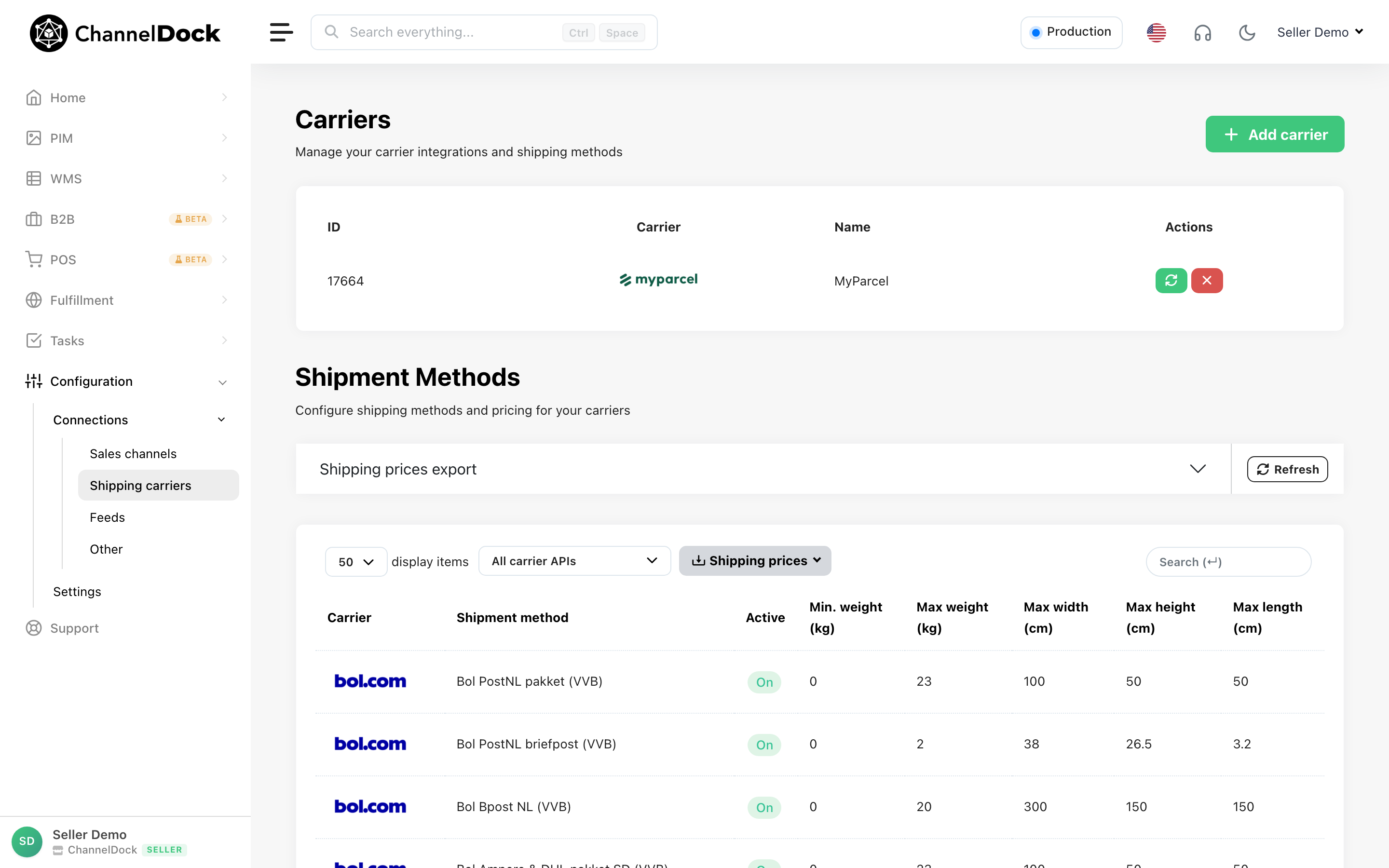
In ChannelDock, go to Connections → Shipping Carriers and click Add carrier.
-
Search for ShipStation and click Connect on the ShipStation card.
-
In the pop-up window, enter an API name (for example,
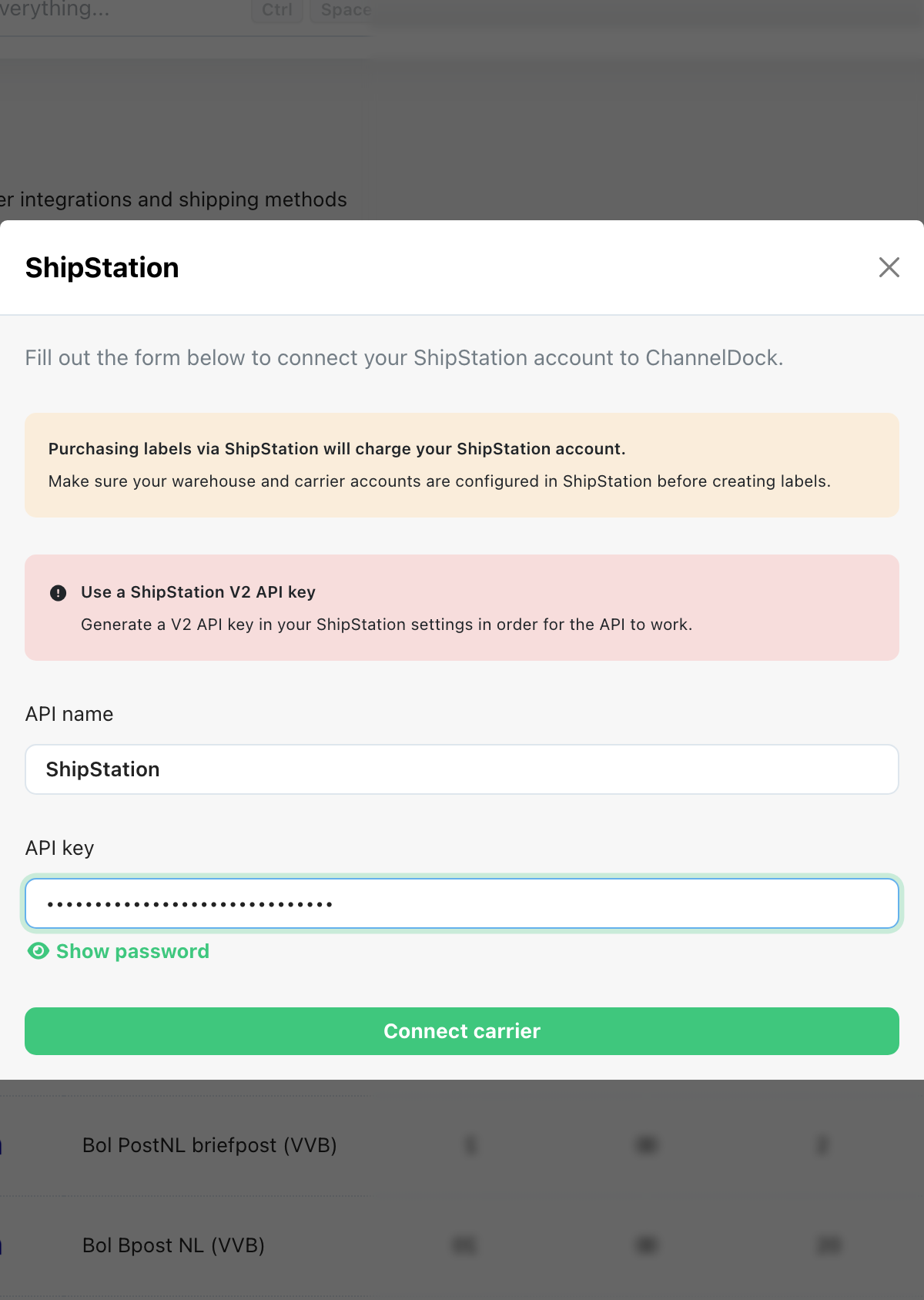
ShipStation) and paste your ShipStation V2 API key (the key you generated in the steps above — not a V1 API key or secret).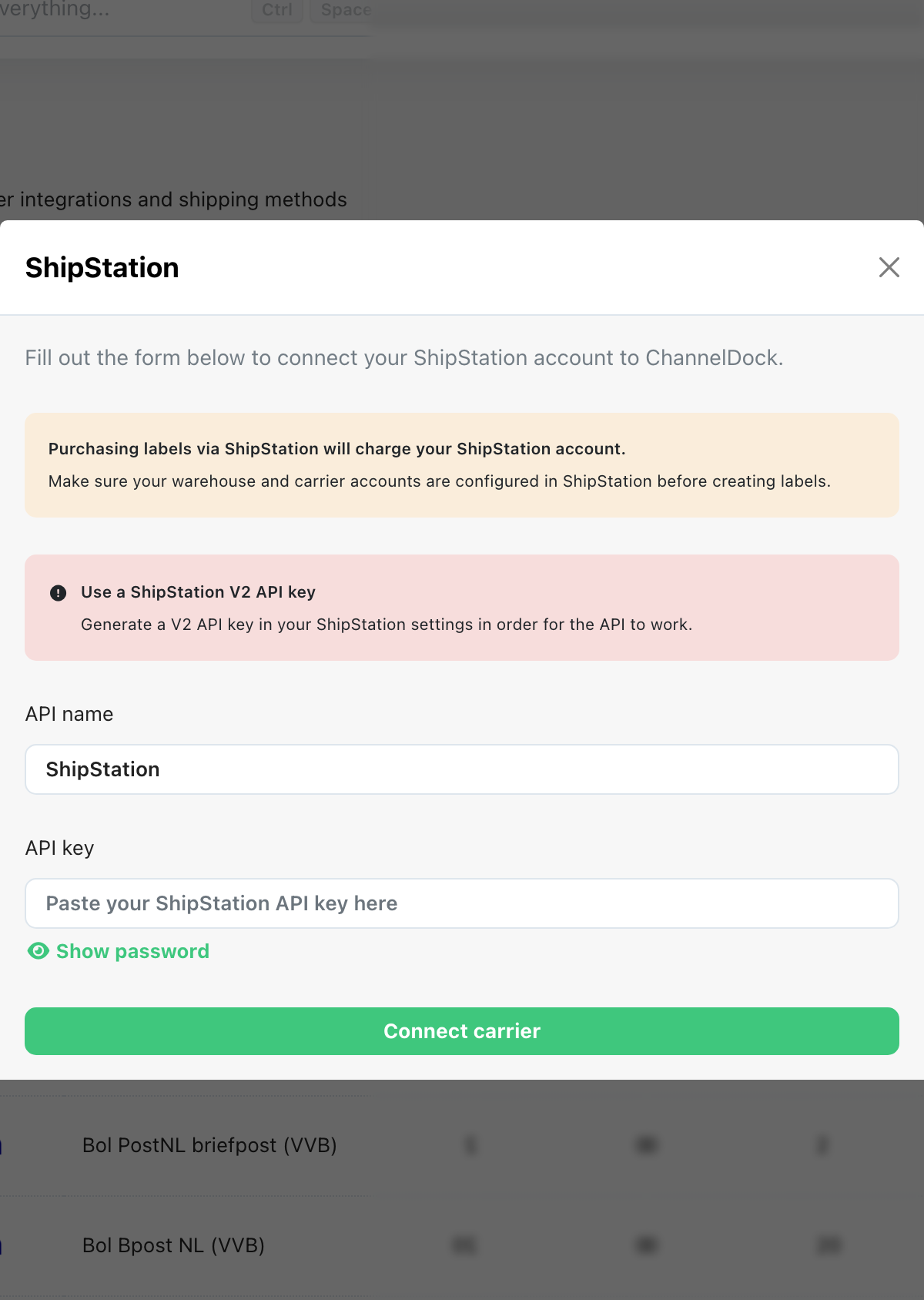
-
Click Connect carrier.
-
ShipStation is now connected. ChannelDock loads your shipping methods immediately and syncs countries and rates in the background. This can take a few minutes for large carrier catalogs.
You can now process open orders in ChannelDock using ShipStation shipping options.
Configure ShipStation settings (optional)
After connecting, open the ShipStation row on the Shipping Carriers page and click the settings icon to adjust:
- Automatically push new orders to ShipStation — sends new ChannelDock orders to ShipStation as orders only (no label is created). Labels are still generated through your normal ChannelDock flow. Orders are pushed within about 5 minutes of import.
- Use realtime ShipStation label price — when enabled, the actual ShipStation label price is saved on the label instead of the synced shipping method price.
- ShipStation warehouse — select which ShipStation warehouse ChannelDock should use for shipments.
- Product identifier for ShipStation — choose whether to match products by EAN, SKU, or reference.
- Sync products to ShipStation — when enabled, ChannelDock updates existing products in ShipStation. New products are created automatically when orders are pushed. This requires your ShipStation v1 API Key and API Secret.
Reload shipping methods
If you add or change shipping methods in ShipStation, reload them in ChannelDock:
- Go to Connections → Shipping Carriers.
- Find your connected ShipStation integration in the table.
- Click the reload button (sync icon) next to ShipStation to refresh shipping methods and rates.
Delete ShipStation from ChannelDock
To remove the ShipStation connection:
- Go to Connections → Shipping Carriers.
- Click the ShipStation row actions menu and choose Delete.
This removes the integration from ChannelDock but does not change your ShipStation account or API keys.
Was this helpful?