Sender addresses
Last updated
A sender address is the from-address printed on your shipping labels. Use it when you ship from more than one location, or when the address on the label should differ from your default company details.
You apply a sender address to shipments with shipping rules. Not every carrier supports this — the page itself shows a notice when that matters.
Open sender addresses
- Open Sender addresses in ChannelDock.
You can also find it under Configuration → Settings. - You will see a list of your saved addresses, with a search box and an + Add New button.
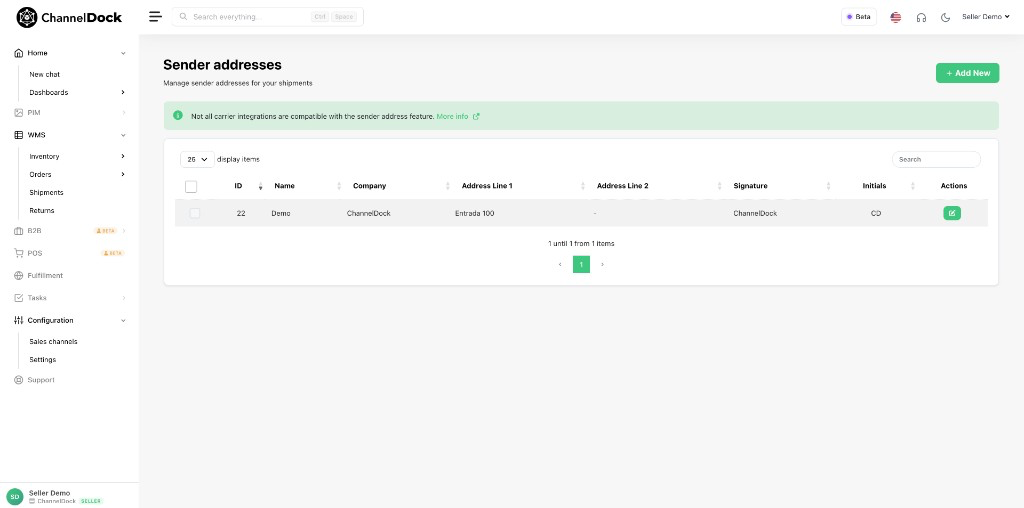
The green banner at the top reminds you that not all carrier integrations support sender addresses. Click More info on that banner for the current details.
Add a sender address
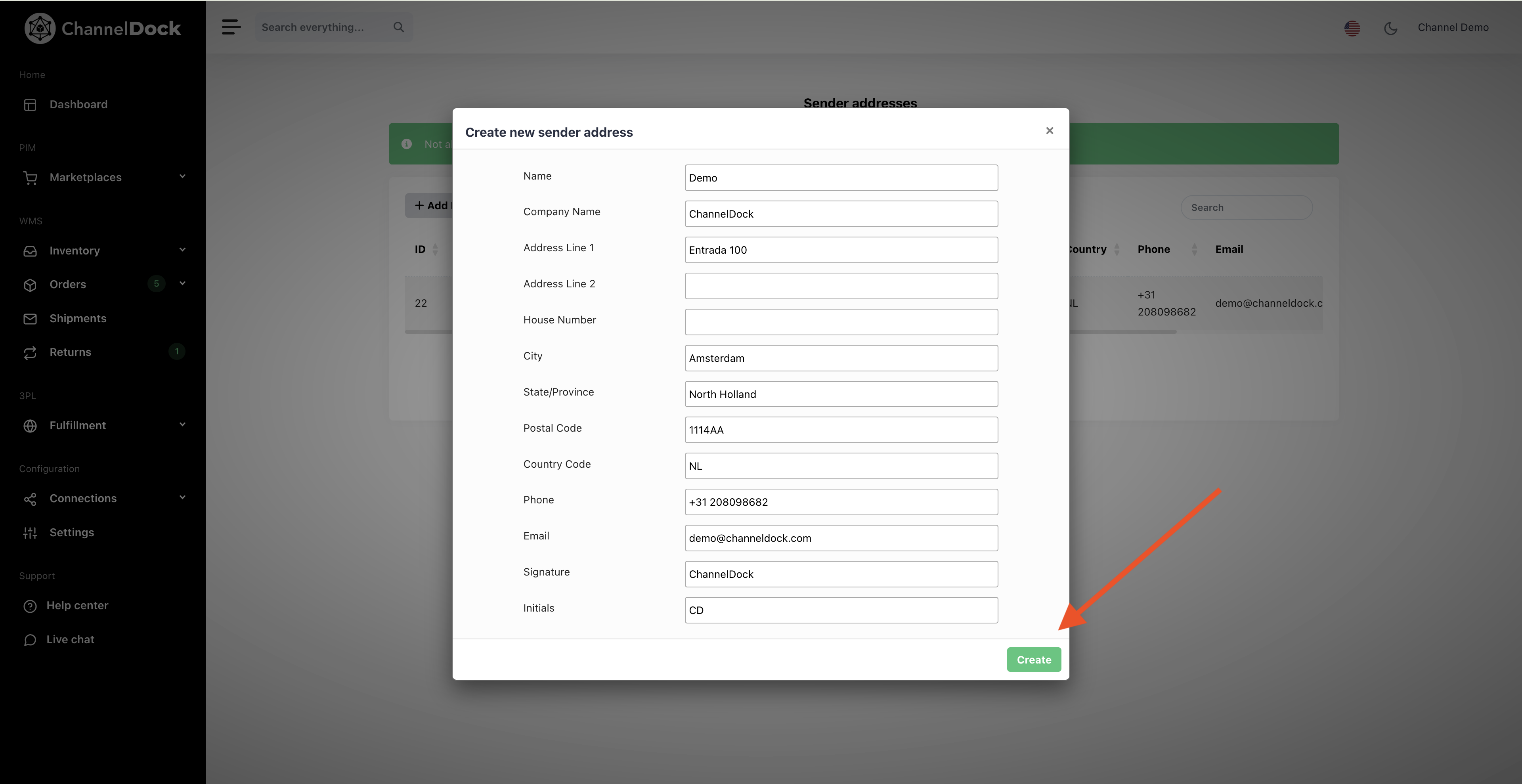
- Click + Add New.
- Fill in the form. Typical fields include:
- Name — a label for yourself (for example “Warehouse Amsterdam”)
- Company Name
- Address Line 1 / Address Line 2
- House Number, City, State/Province, Postal Code
- Country Code (for example
NL) - Phone and Email
- Signature and Initials (used on some labels)
- Click Create.
Edit a sender address
- In the list, find the address you want to change.
- Click the green pencil button in the Actions column.
- Update the fields, then save.
Use a sender address on shipments
Saving an address is only the first step. To put it on labels:
- Go to Shipping rules.
- Create or edit a rule and set the action to use your sender address.
- Give that rule a higher priority (lower number = checked first) than rules that only set a shipping method, so the sender address is applied reliably.
For a full walkthrough of shipping rules, see Creating smart shipping rules.
SendCloud
ChannelDock’s built-in sender address does not apply to SendCloud labels.
In SendCloud, create the sender address there first. Then refresh the shipping methods in ChannelDock via your SendCloud connection settings. New methods appear with the sender address in the name — update your shipping rules to use the right method.
Was this helpful?