Lesson 12 of 19 · Orders
Handle missing or damaged products during picking
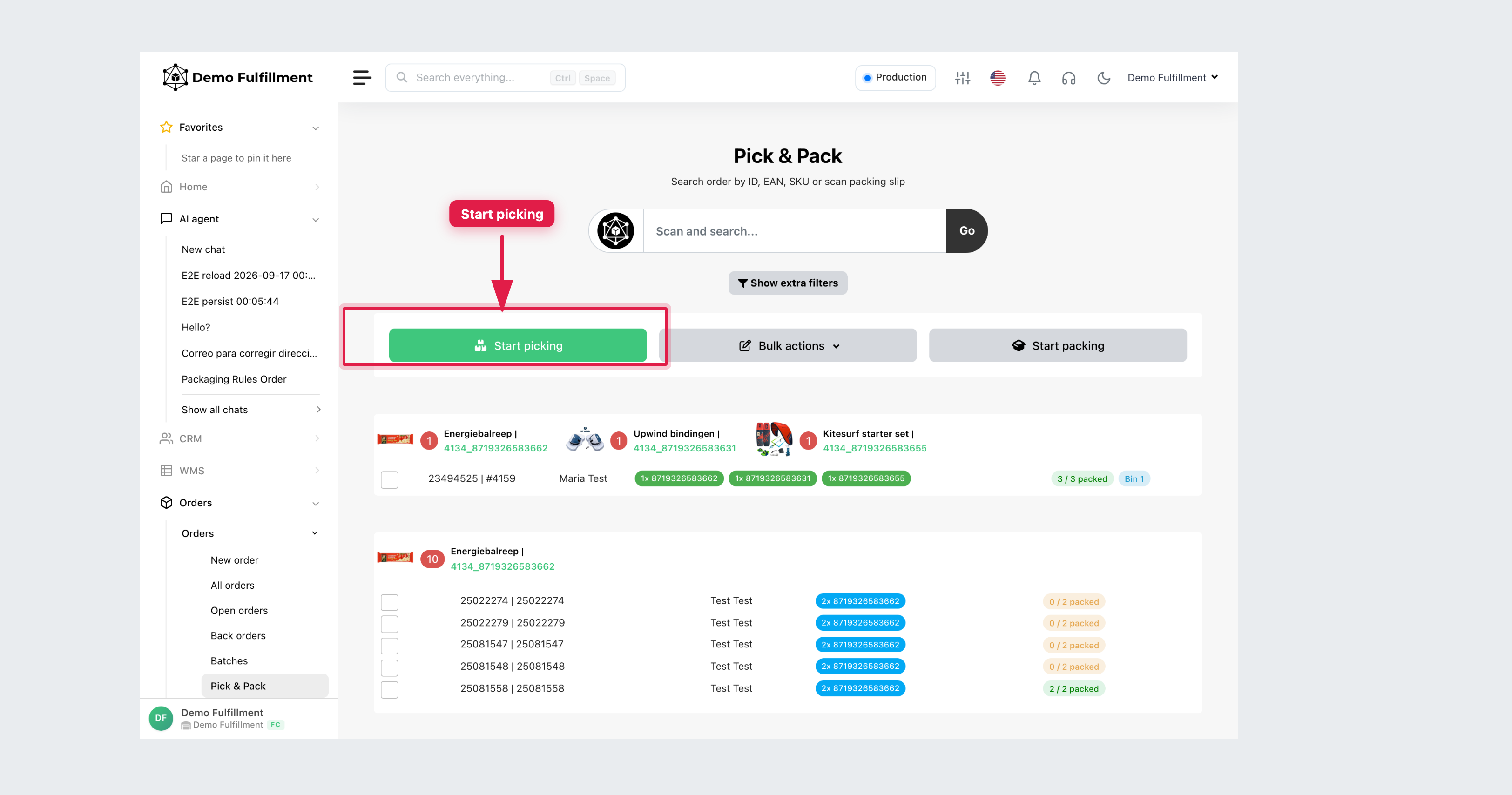
How to: stop a line in Pick & Pack when stock is short or damaged.
If the location has fewer good units than the order needs, stop that line. Do not substitute another SKU or change stock on your own.
Steps
- Confirm product (SKU/EAN) and location on Orders → Pick & Pack. Scan again.
- Count what you actually have. Do not scan damaged units or another order’s goods.
- If Pick & Pack asks about the shelf, use the real count:
- Shelf is empty — ChannelDock can set stock to your picked count so label creation does not over-subtract.
- There is still stock on the shelf — enter how many units remain; ChannelDock adds what you already picked.
- Confirm with Update Stock only if a supervisor wants the count written back.
- Report to your supervisor: order IDs, seller, product, location, required quantity, quantity found. Use + New task on the order if that is your process.
- Keep the order identifiable (hold tote). Do not pack it as complete.
Do not use Replace product (beta) unless a supervisor instructs you.
Was this helpful?