Lesson 15 of 19 · CRM
Work with more than one seller
How to: filter by seller and keep stock, totes and counts separate.
A fulfillment center stores goods for many sellers. Every product, delivery, order and return belongs to one seller. The same EAN can exist for two sellers — always check the Seller column.
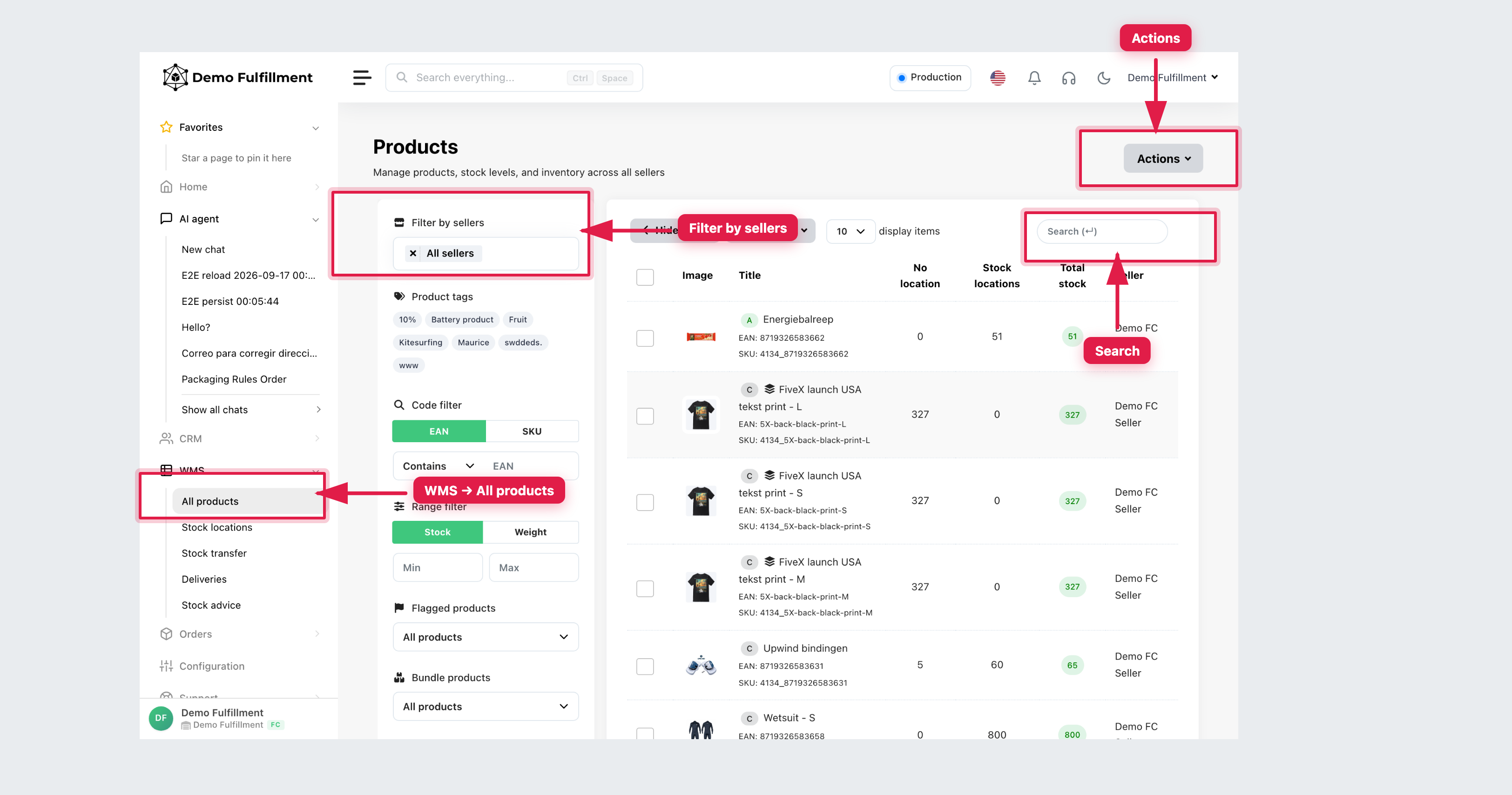
How to stay on the right seller
- On WMS → All products, WMS → Deliveries, Orders → Open orders and Orders → Returns, set Filter by sellers before you work.
- Open the row and read Seller / Seller company again.
- Put goods only in that seller’s locations. Do not “borrow” units from another seller to finish a pick.
- Read Order comment on the order (the seller or shop can write this). Read Internal seller note on CRM → All sellers only if you have CRM access — that note is for your warehouse, not the seller.
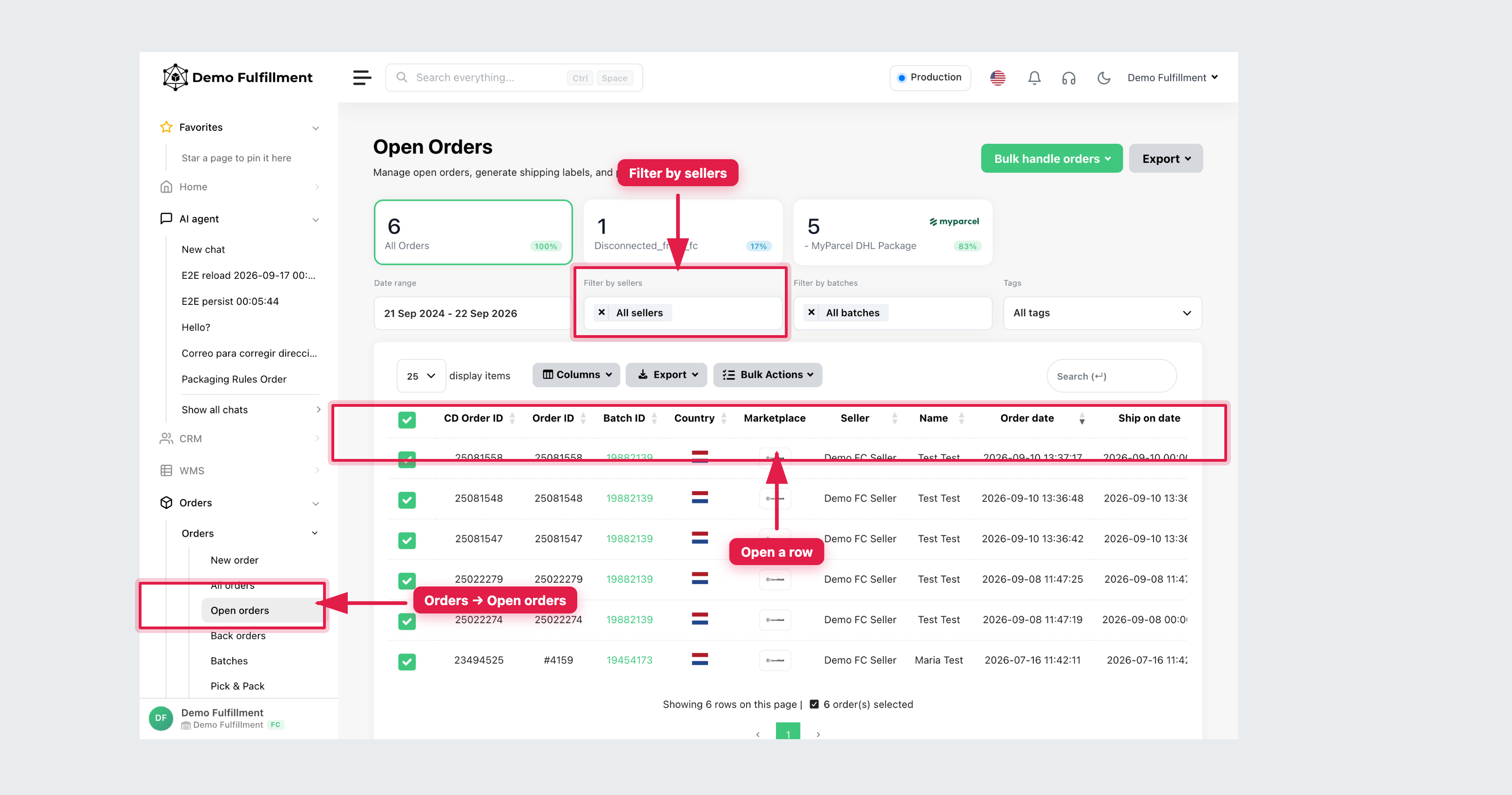
What changes per seller
On the seller profile (CRM → All sellers), supervisors can turn on things that change your bench work, for example:
- Require barcode scanning during Pick & Pack
- Mark as backorder when a line has no location or no stock
- Whether the seller may see your stock locations
If Pick & Pack refuses a quantity-only confirm, that seller likely requires a scan. Do not override it.
What you must not do
- Do not create a seller login for yourself. You work in the fulfillment account.
- Do not mix two sellers in one tote or one stock correction.
- Do not change General settings or pricing on the seller profile unless you are authorised.
Next: Use the CRM if you need the seller card, messages or tasks.
Was this helpful?