Lesson 13 of 19 · Orders
Reprint or create an extra shipping label
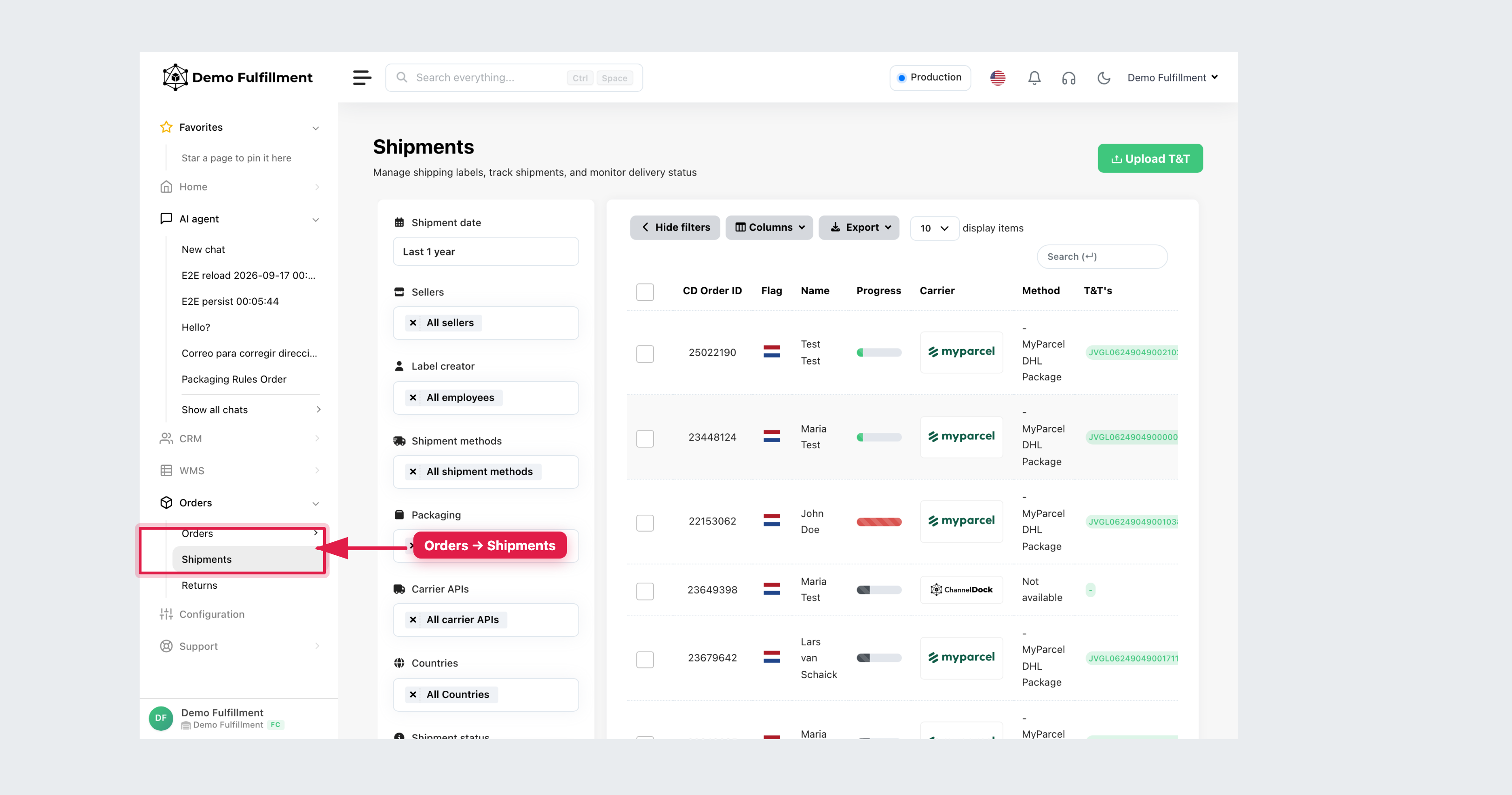
How to: use Orders → Shipments to reprint, or Extra shipment for a second box.
These are two different jobs. Never copy one parcel’s label onto a second box.
When to reprint
Use this when the label already exists (you can see tracking on Orders → Shipments) but did not print, jammed, or is unreadable.
- Open the order and use More actions → Print packing slip, or print/download the existing label from Pick & Pack (Print labels / Download labels).
- On Orders → Shipments, open the shipment row (Open order) and print the existing label. Do not click Extra shipment because the printer failed.
When to add Extra shipment
Use this when the order needs another parcel with its own tracking number.
- On the order (or in Pick & Pack), click Extra shipment.
- Confirm Yes, add it on Add extra shipment? (This will add an extra shipment label to the order and change the order status back to order.)
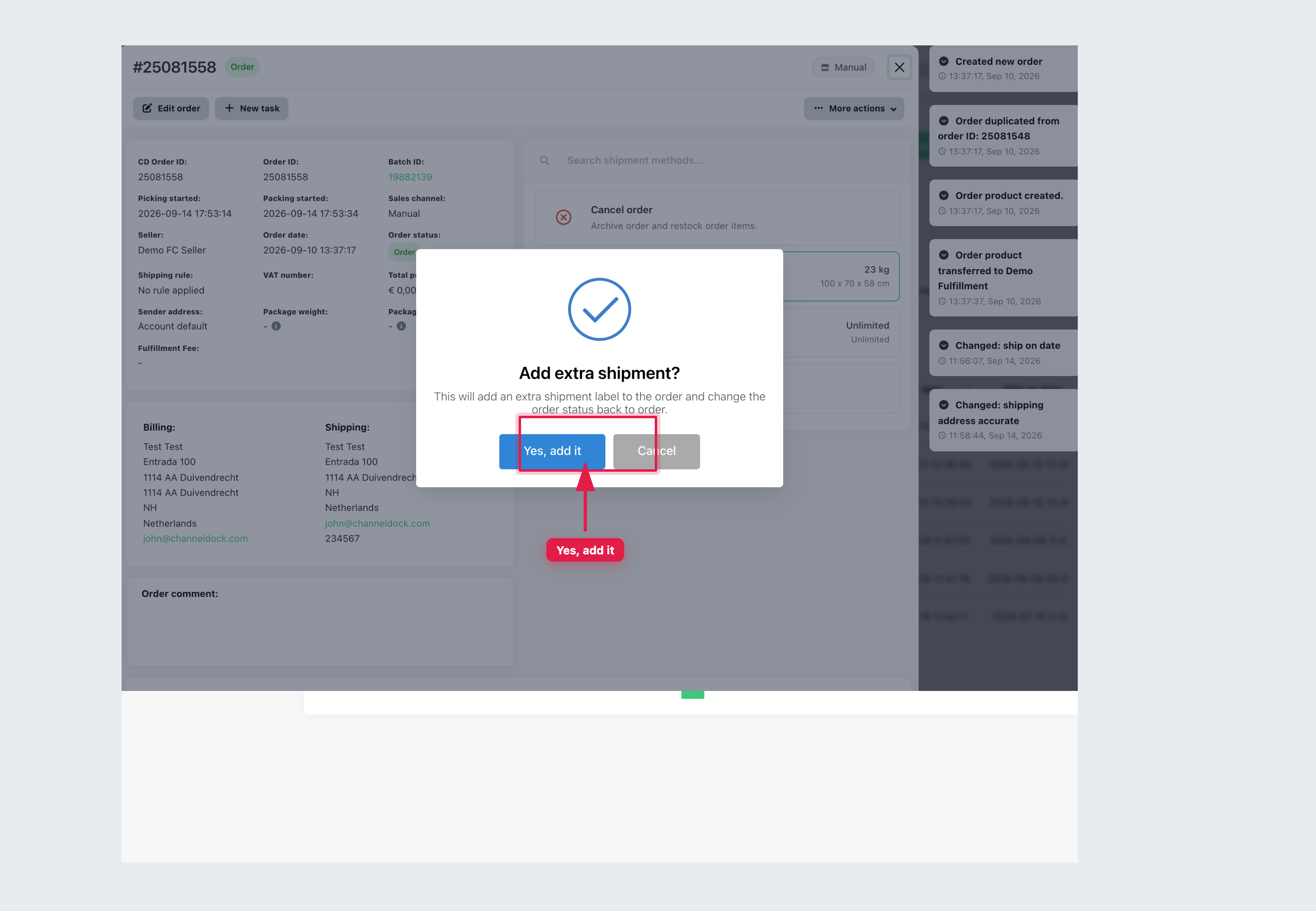
- An extra shipment line appears. Create the second label with the same carrier and service. You cannot mix different carriers on one order.
- In Pick & Pack, scan or enter
EXTRA_SHIPMENT(or use the quantity field). It is not a physical product.
Extra shipment does not change stock. Options depend on the carrier and your Create Bulk Labels / label rights.
More help: Add an extra shipment label · Extra Shipment
Was this helpful?