Lesson 6 of 19 · WMS
Record stock changes
How to: Change stock amount on a product (Correct / Adjust).
Update stock in ChannelDock, not in the webshop. Get approval if your warehouse requires it, and give a clear Inventory log message.
To move goods, use Move stock between warehouse locations instead.
Steps
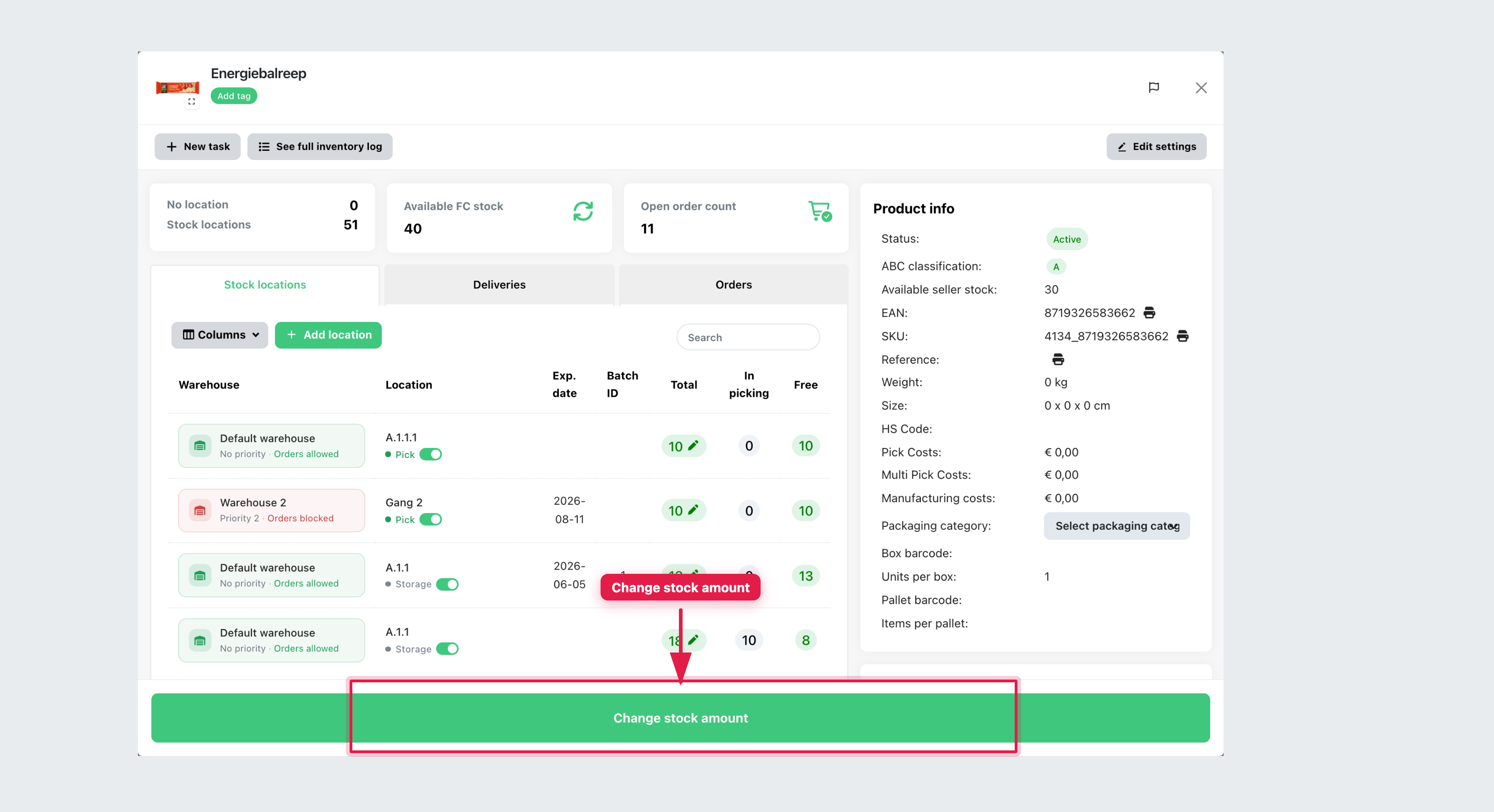
- Go to WMS → All products, open the product, click Change stock amount.
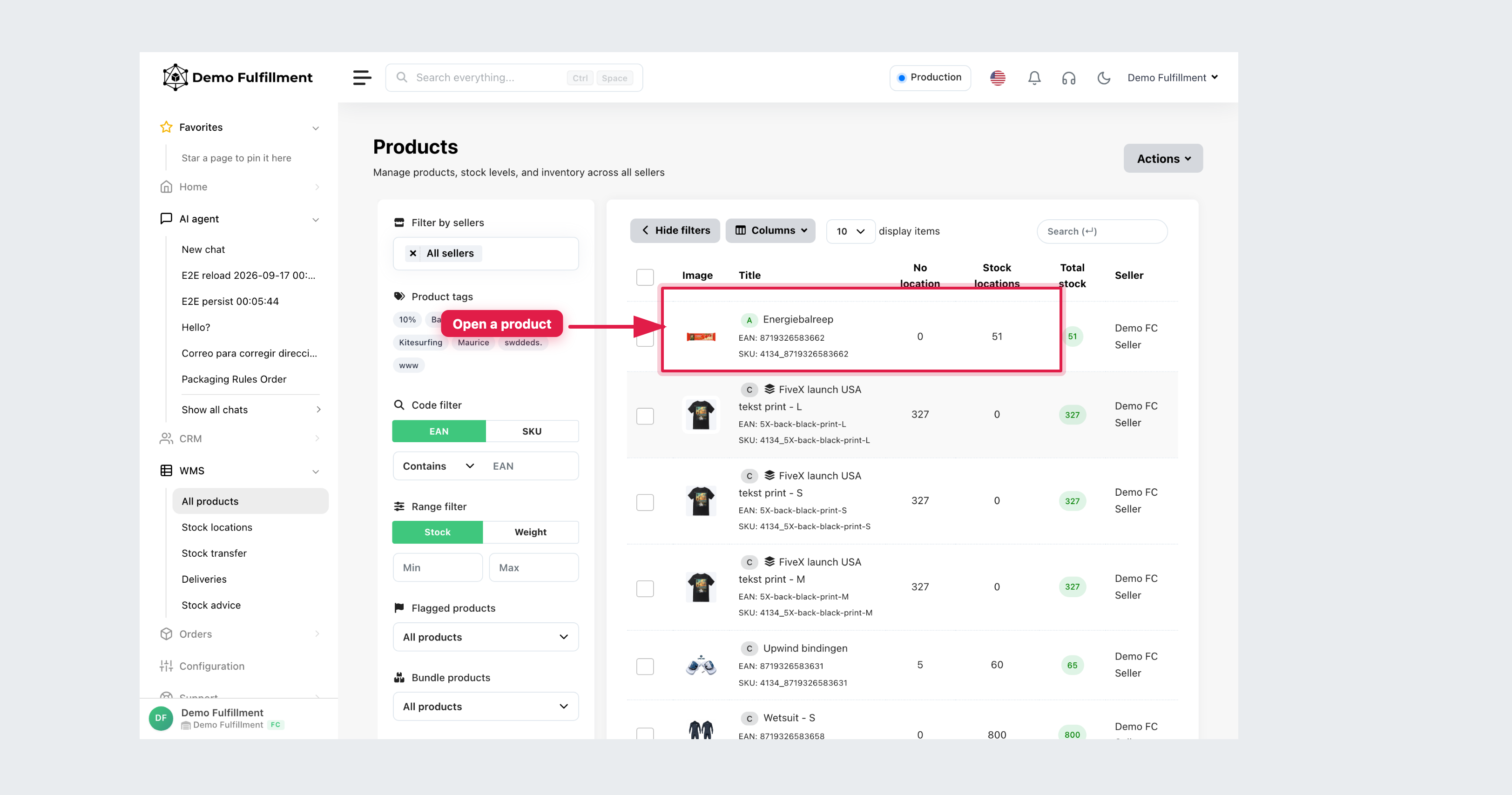
- Choose the stock location (Choose a location…).
- Choose Correct, Adjust or Transfer. You can also set Expiration date, Batch ID and Inventory log message.
- Confirm with the green button (for Correct it reads Set stock to … after you enter the amount).
| Use | When |
|---|---|
| Correct | Set the stock to an exact number (This will set the stock to the exact amount specified). |
| Adjust | Add or subtract (+10 or -5). |
| Transfer | Move quantity to another location. Total stays the same. |
You can open the same popup from a product’s Stock locations table (pencil on the quantity) or from WMS → Stock locations.
Before you save, check: unreceived delivery, unfinished pick, wrong bin, or wrong SKU.
More help: How to change stock in ChannelDock
Was this helpful?