Lesson 10 of 19 · Orders
Work with batches
How to: use Orders → Batches, then Pick & Pack.
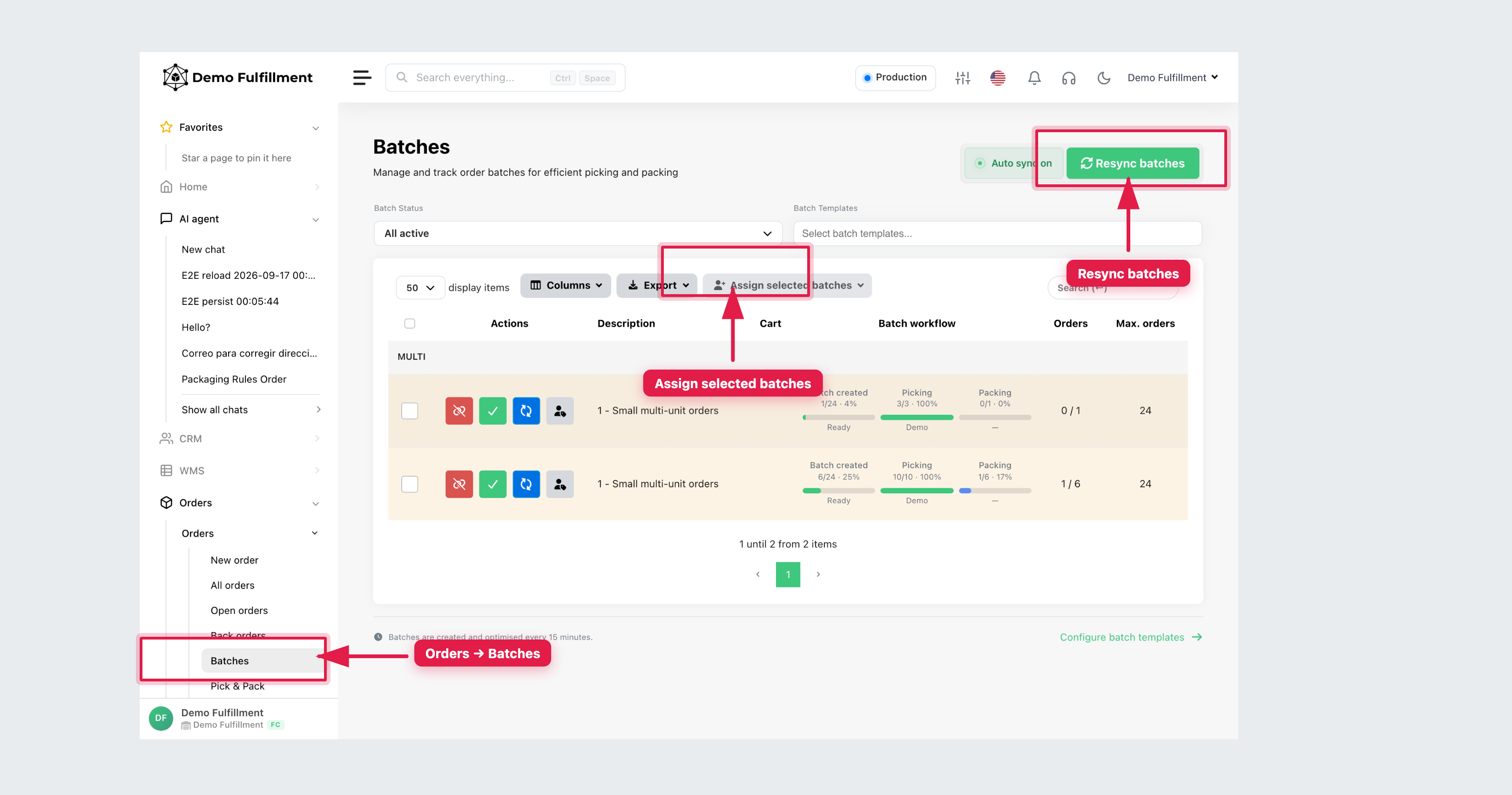
A batch groups several orders for one pick walk. Work from Orders → Batches (page title Batches). Batch templates are set by administrators under Configuration → Settings → Batch rules.
Steps
- Open Orders → Batches. Filter by Batch status (for example All active) and Batch templates.
- Find your assigned batch. The row shows Picking and Packing progress, order count, and who is assigned. Supervisors can use Assign selected batches.
- Process the batch in Orders → Pick & Pack. Use Start picking, then Start packing. Keep one order per tote / bin (Pick & Pack shows bin numbers when bins are used).
- Leave unfinished orders on the batch until they are packed and labelled. Do not use another person’s login if a batch is assigned to them.
Batches are created and optimised about every 15 minutes. Use Resync batches only if a supervisor asks you to.
More help: Batches
Was this helpful?