Lesson 11 of 19 · Orders
Pick and pack an order
How to: use Orders → Pick & Pack (Start picking / Start packing).
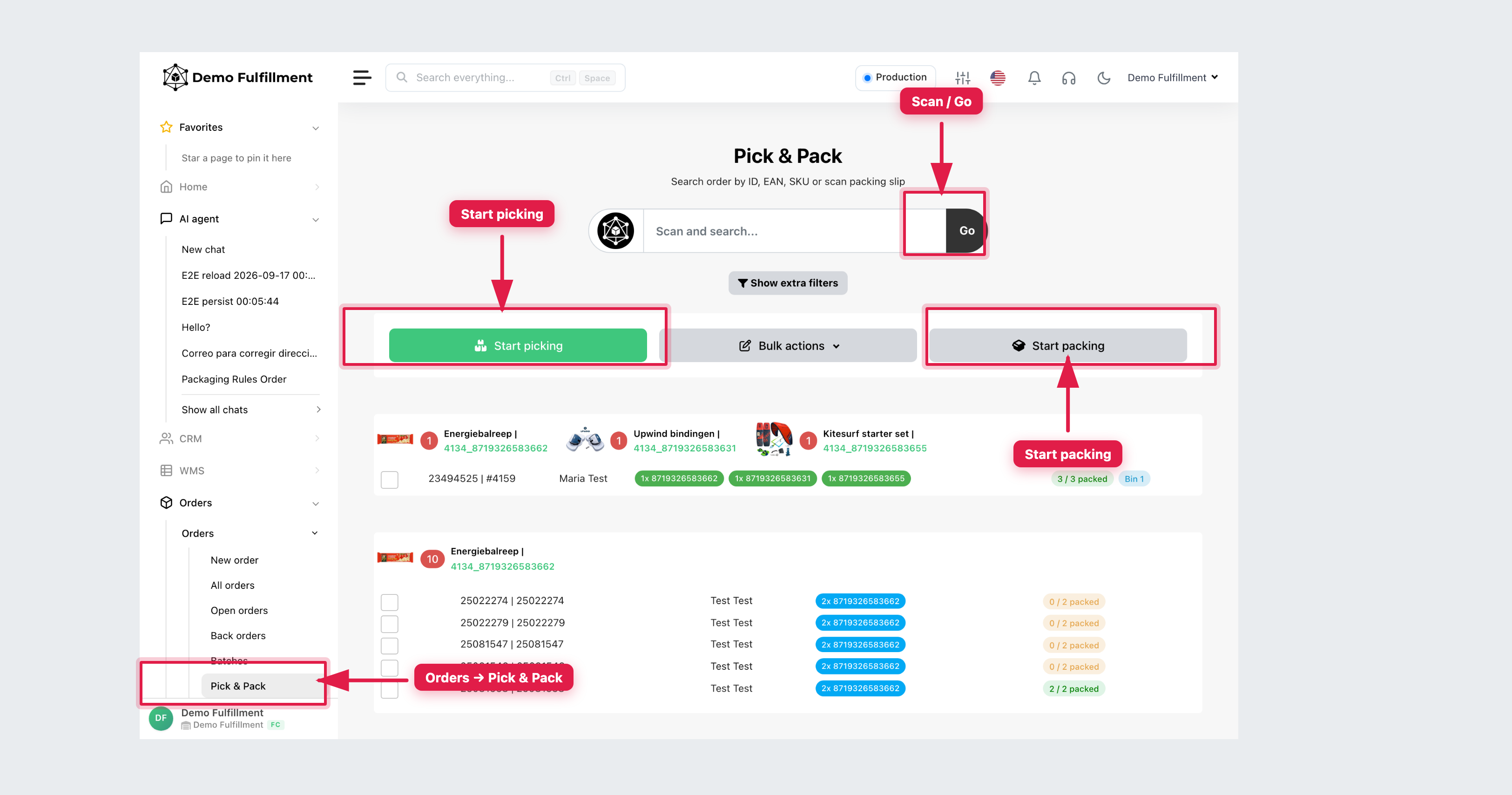
Use Orders → Pick & Pack. Search by order ID, EAN, SKU or packing slip, then press Go.
Steps
- Open Orders → Pick & Pack.
- Open or scan the order. Confirm seller, order IDs and shipping method. Packed progress shows as x / y packed.
- Use Start picking to pick (locations and quantities on the order). Scan each line, or enter quantity if scanning is not required for that seller.
- Use Start packing when you are at the packing table. Pack with the packaging your warehouse uses.
- Create labels with Generate labels for orders. Print existing labels with Print labels (or Download labels). Do not generate a second label if one already exists — reprint instead.
- Finish only when products, quantity, pack and label match this order.
If stock is missing or damaged, stop: Handle missing or damaged products during picking.
From an open order you can also choose More actions → Open in Pick & Pack.
More help: Accelerated Pick and Pack
Was this helpful?