Lesson 14 of 19 · Orders
Receive and check returns
How to: use Orders → Returns and Restock / Confirm.
Returned goods are not automatically sellable. Stock increases only when you Restock a line (and Confirm).
Steps
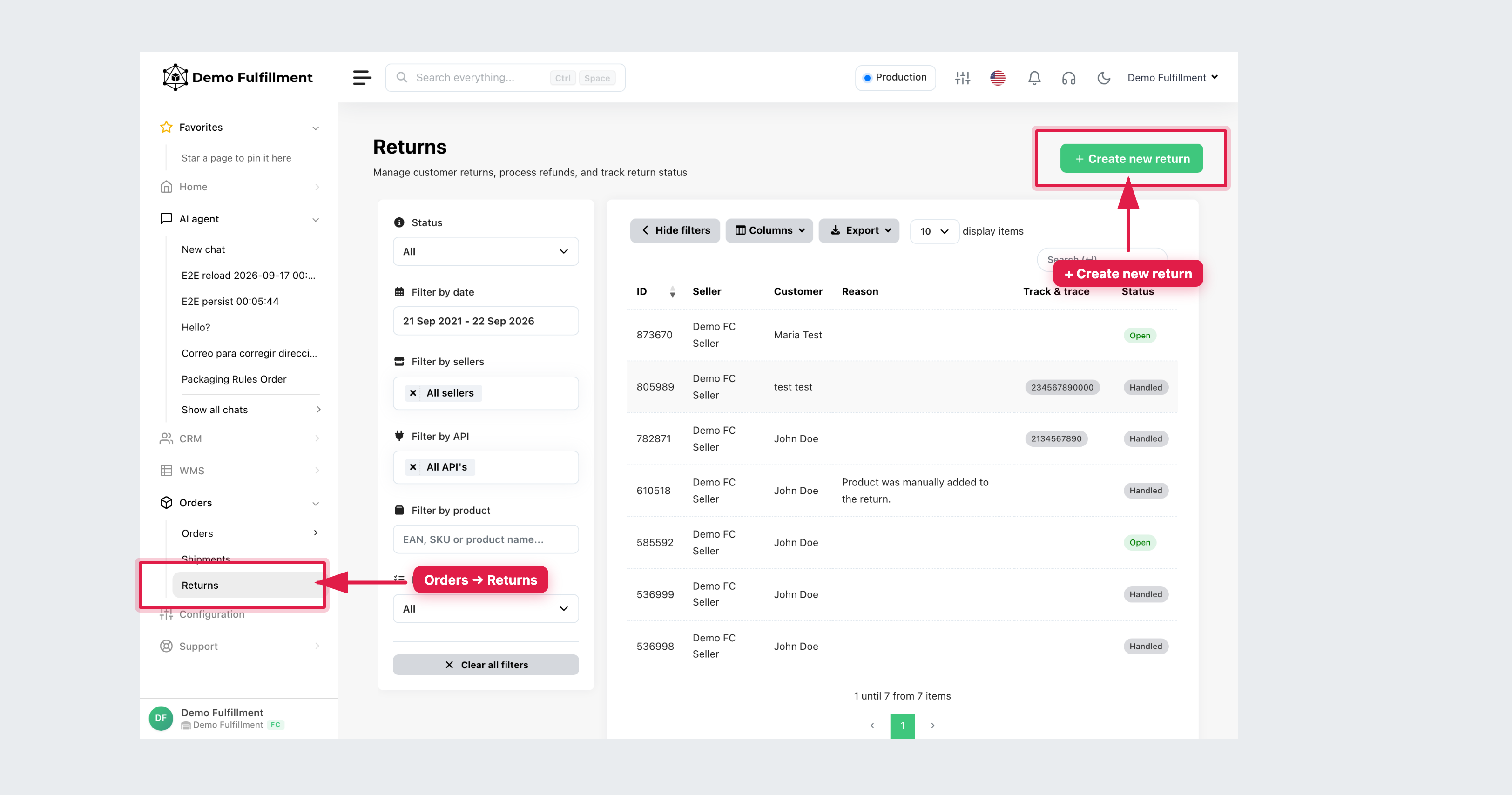
- Go to Orders → Returns. Filter by status (Open / Handled), seller, date, API or product. You can also create a return from an order: More actions → Create return.
- Open the return. Confirm Seller, CD return ID, linked CD order ID / Order ID, customer and Return comment.
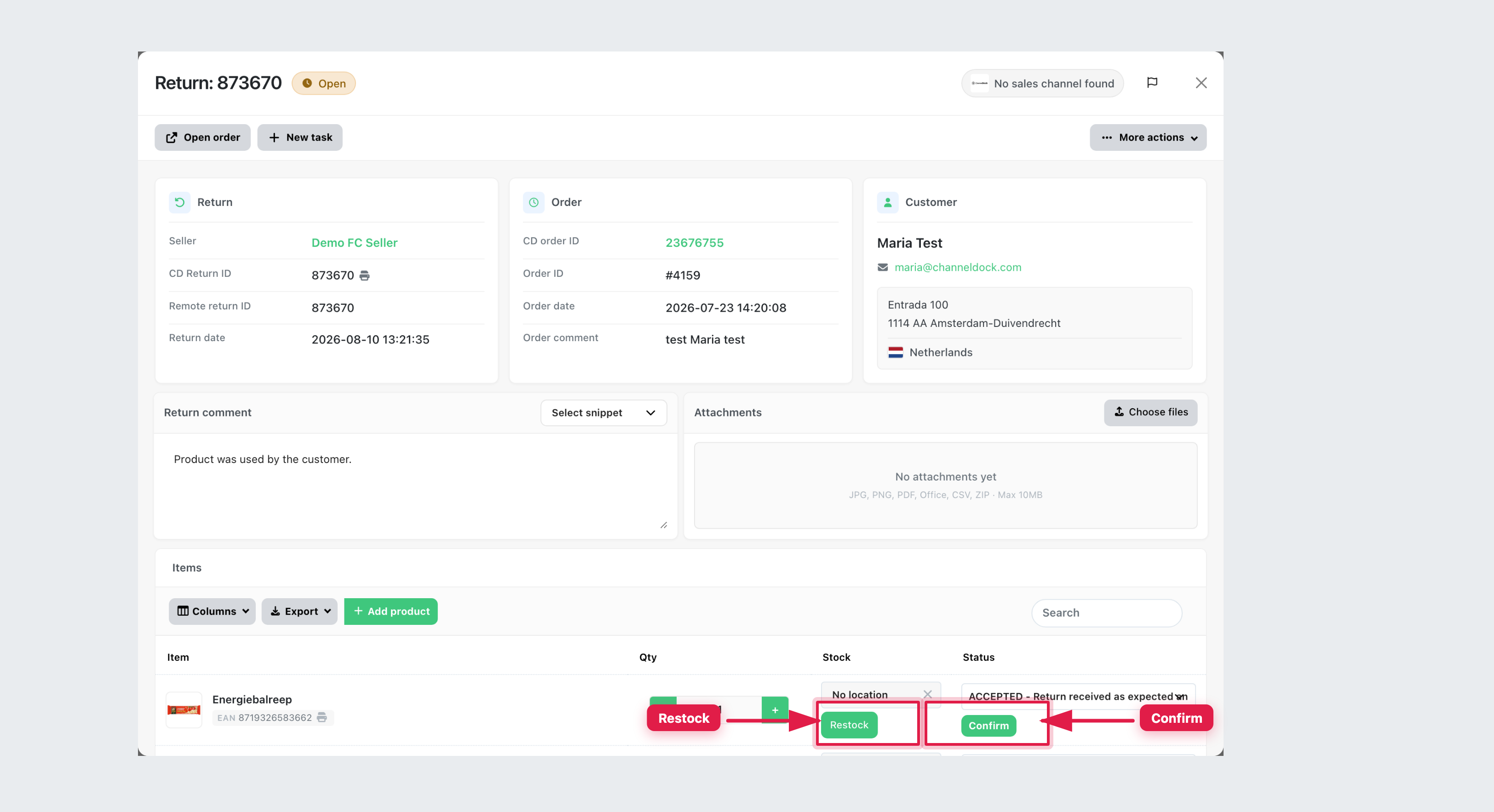
- Inspect each item: SKU/EAN, quantity, condition. Set quantity, choose a Restock location (or leave No location if your process holds goods). If serial numbers were shipped, match them in the return window; use Remove serial numbers before restock when required.
- Set the line status (for example ACCEPTED - Return received as expected) and click Confirm. Stock increases only after restock/confirm — not when the return is only Open.
- More actions → Handle return marks processing complete when your warehouse uses that step. Use Open order if you need the original order.
If you are unsure whether stock should increase, stop and ask.
Was this helpful?