Lesson 19 of 19 · Support
Troubleshoot common issues
How to: check filters and printers, then report with IDs.
Slow down. Repeating a successful click can create a second label or stock change.
Checklist
- Read the full error message.
- Confirm seller, CD Order ID / Order ID, product (EAN/SKU) and location.
- Check filters: Open orders vs All orders vs Back orders, dates, seller, batch.
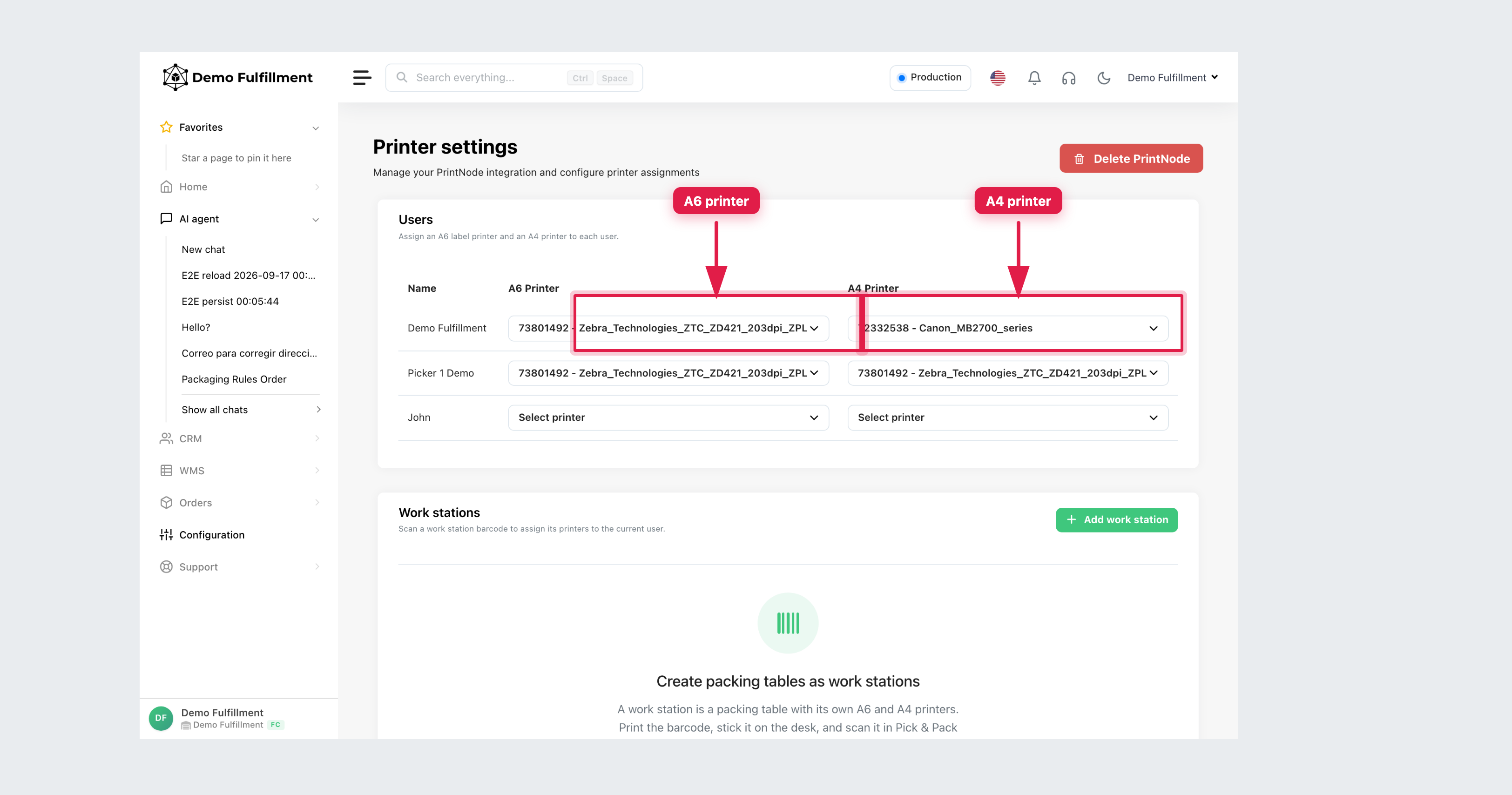
- Check scanner, then Configuration → Settings → Printers (your A6 / A4 assignment).
- Check whether the last action already succeeded on Orders → Shipments before you generate another label.
- Open the matching lesson below, or the in-app help chat. Create a support ticket only if your supervisor agrees.
- If it is still unresolved, contact your supervisor.
Matching lessons
| Problem | Lesson |
|---|---|
| Order not on the list | Find a missing order |
| Scan not recognised | Scanner and printer |
| Label did not print | Reprint or extra label |
| Stock does not match the shelf | Record stock changes |
| Unexpected shipping method | Shipping rules |
What to report
- Identifiers: CD Order ID, Order ID, seller, SKU/EAN, location, tracking if relevant
- What you intended to do
- What happened
- Checks you already did
- Error message or screenshot
Was this helpful?