Lesson 1 of 19 · Getting started
Set up your employee account
How to: sign in and open Configuration → Settings → Account.
Your supervisor creates your user under Configuration → Settings → Employees (Employee accounts, + Add Employee). You only sign in and use the screens your rights allow.
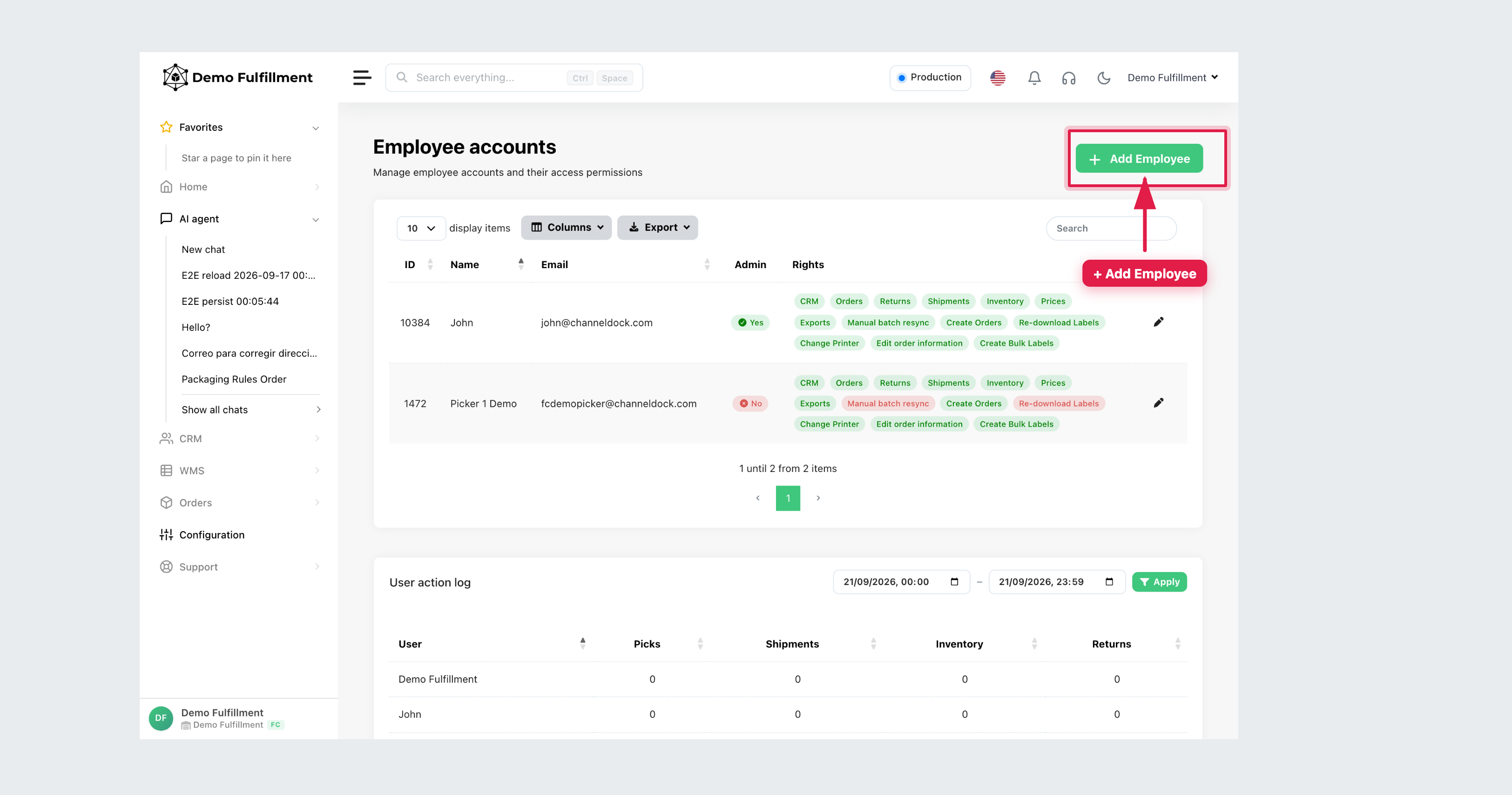
Rights on that page include CRM, Orders, Returns, Shipments, Inventory, Prices, and extras such as Change Printer or Create Bulk Labels. If a menu is missing, ask your supervisor — do not share another login.
Steps
- Get your email and password from your supervisor. Do not register a new company.
- Sign in at the ChannelDock login page.
- After sign-in you land in the warehouse app. Open Orders → Open orders to confirm you can see work.
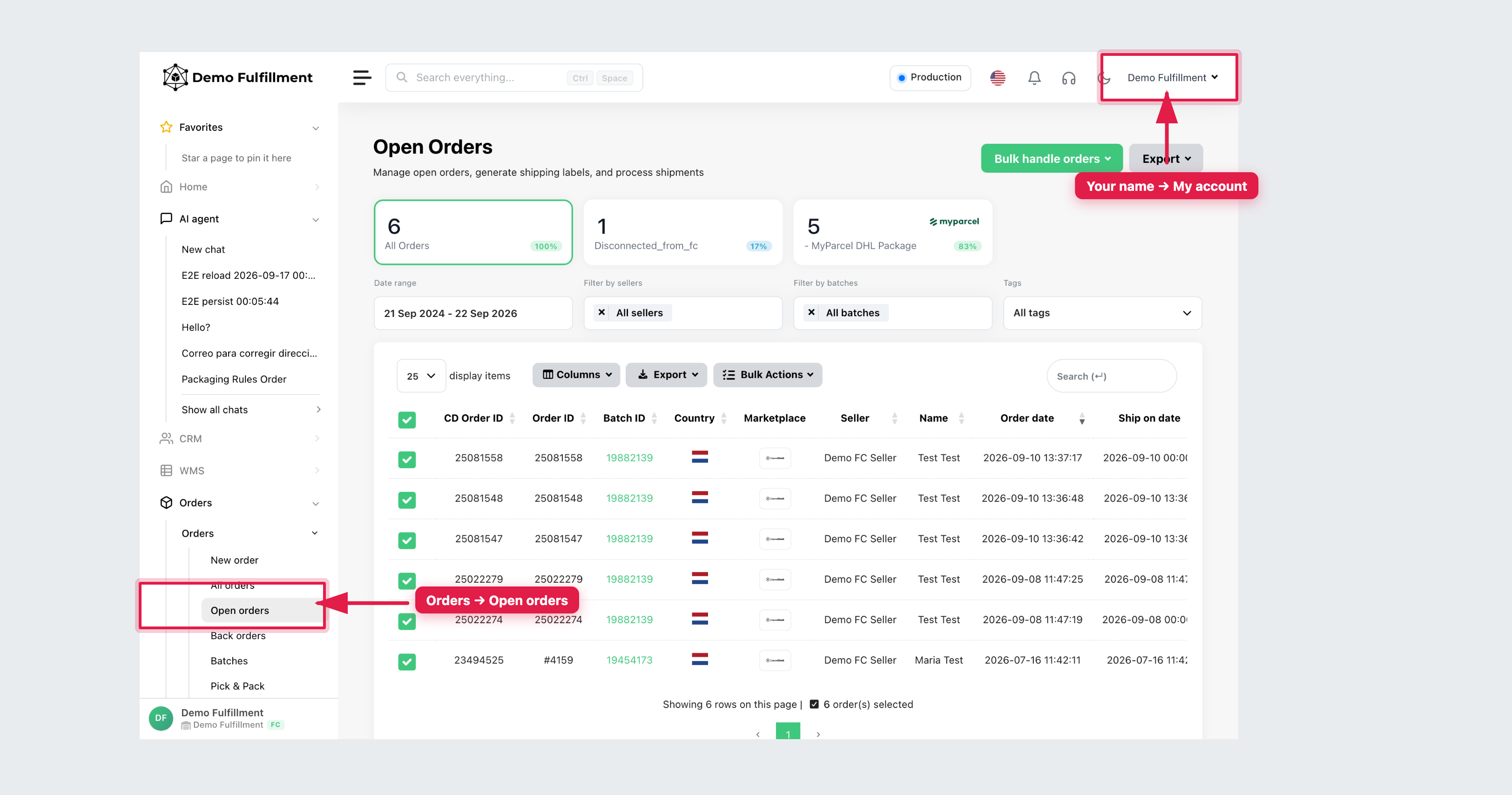
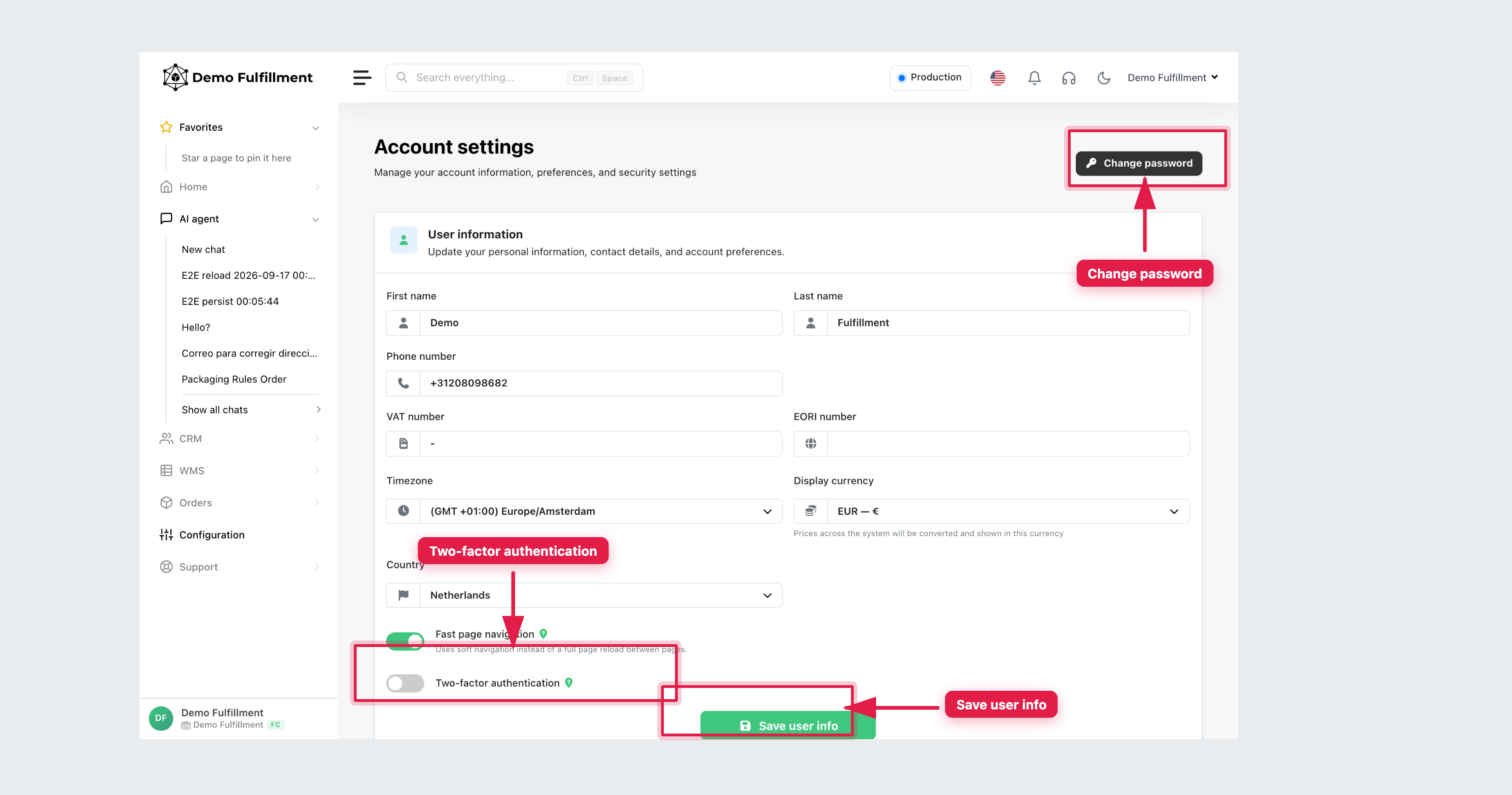
- Open My account: click your name (top right) → My account, or go to Configuration → Settings → Account. There you can edit name, phone, timezone, Change password, and Two-factor authentication. Click Save user info.
More help: Managing Employee Accounts · Install the app
Was this helpful?