Lesson 17 of 19 · CRM
Open a seller account
How to: Login as user — only if authorised — and what not to change.
Most warehouse work stays in your fulfillment account. You already see that seller’s products and orders under WMS and Orders.
Some accounts can open the seller’s own ChannelDock with Login as user. That is a different app (seller menu, seller stock, seller channels). Use it only when a supervisor asks — for example to check a listing, a webshop order, or a comment the seller sees.
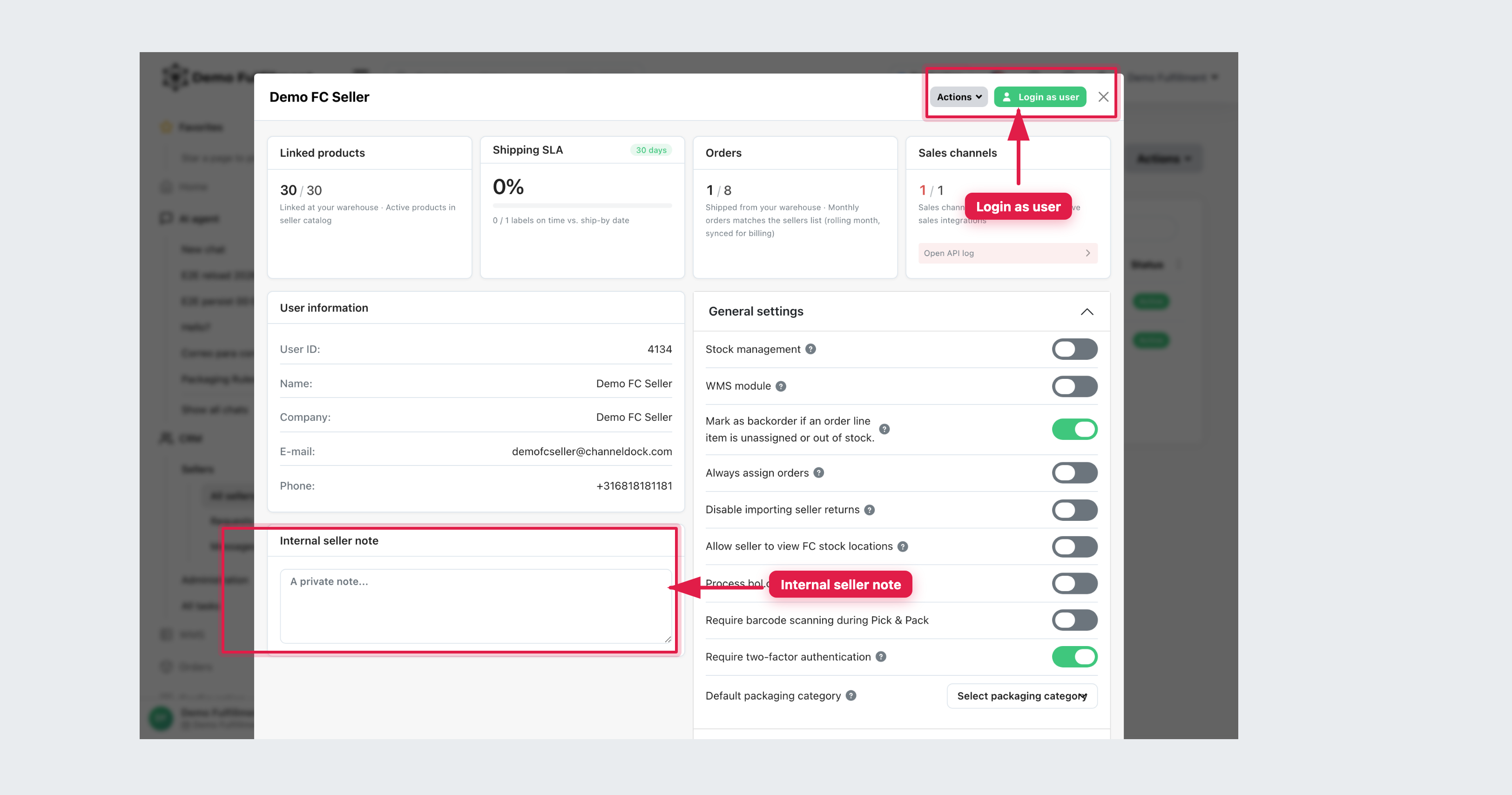
How to open it
- In the fulfillment app, go to CRM → All sellers.
- Open the seller.
- Click Login as user (top right of the seller window).
- You are now inside that seller’s account. The left menu changes (typically Inventory and Orders, not WMS / center screens).
- When you are done, Sign out or switch back to the fulfillment account. Do not stay logged in as the seller on a shared packing PC.
If you do not see Login as user, you are not meant to use it.
What is different on the seller side
| In the seller account you may see | Leave this to the seller or a supervisor |
|---|---|
| Orders → Open orders for that seller only | Connecting or disconnecting sales channels |
| Their product list and PIM | API keys, webhooks, billing |
| Channel listings and errors | Changing stock sync so the webshop overwrites the warehouse |
| Their shipping rules and sender address | Editing prices or inviting other users |
Warehouse receiving, locations and FC pick & pack stay in the fulfillment login. Do not receive an inbound or generate FC labels from the seller account unless your supervisor’s process says so.
Rules
- Do not give the seller your employee password.
- Do not change General settings on the CRM card (barcode rules, backorders, 2FA) unless authorised.
- After Login as user, treat every click as if you were the seller: a wrong stock edit or channel change is theirs.
Daily pick and receive: stay in the fulfillment menu and filter by seller.
Was this helpful?