Creating invoice exports
Last updated
Once invoicing profiles and rules are configured, you can generate invoice exports for any connected seller and date range.
Each export produces a PDF invoice and an XLSX specification you can send to clients or import into your accounting system.
Before you export
Confirm the billing period is complete:
- Orders processed — Activity for the period is in the expected status.
- Label prices imported — Carrier invoices and T&T price uploads are applied.
- Surcharges validated — Post-delivery fees are approved in Shipping surcharges.
- Correct profile — The seller uses the intended invoicing profile (or the center default).
Step 1: Request a new invoice
- Go to Administration > Invoicing.
- Click New invoice.
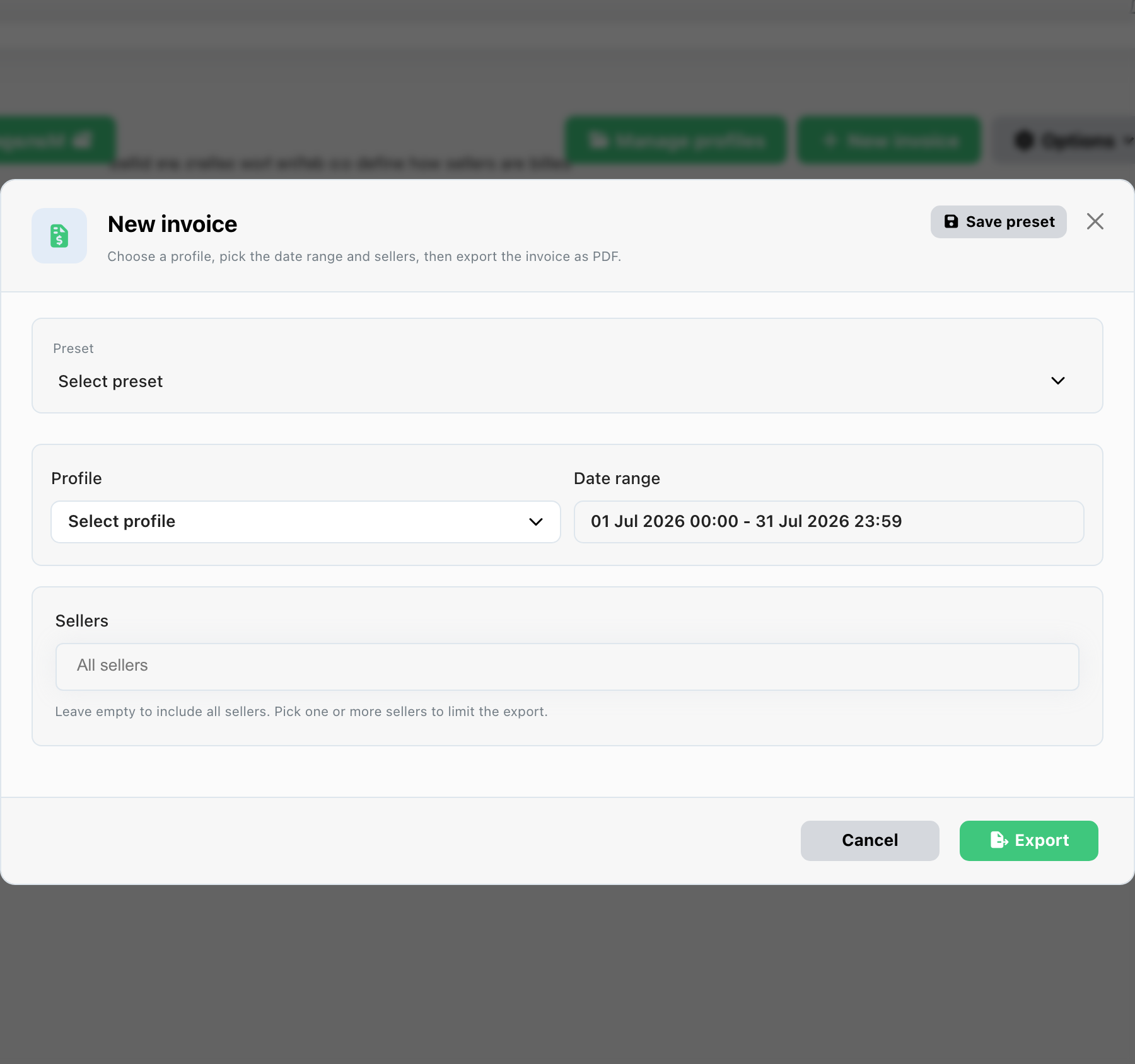
- Configure the export:
| Field | Description |
|---|---|
| Invoicing profile | Billing template to use (defaults to the center default) |
| Seller | Connected seller to invoice — or select all sellers for a batch run |
| Billing period | Start and end dates (e.g. 1–31 March) |
| Title | Optional label shown on the export (e.g. March 2026 — Acme Seller BV) |
- Click Generate invoice.
ChannelDock queues a background job. Each seller gets its own export row; batch runs share a batch ID in the portal.
Note: A center can have at most 100 pending exports at once. Wait for the queue to drain if you hit the limit.
Step 2: Monitor generation status
Open the export history on the Invoicing page. Timeline is the default view; switch to Table for a filterable list with bulk actions.
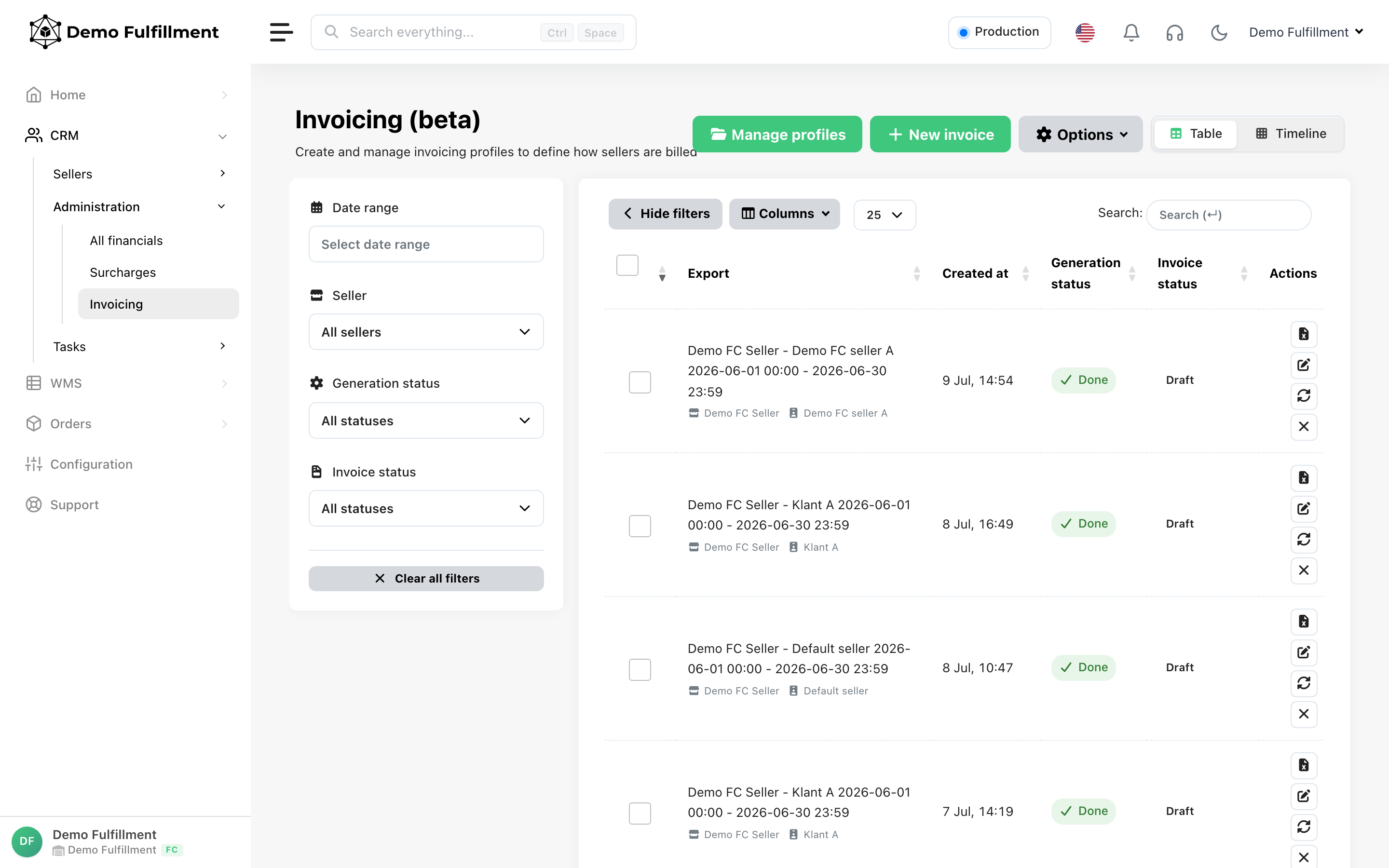
Coverage timeline (default view)
The timeline shows a seller × month grid for the last 12 months. Each cell represents whether a connected seller has been invoiced for that calendar month.
| Cell state | Meaning |
|---|---|
| Empty (gap) | No export overlaps that seller and month — not yet invoiced |
| Filled card | At least one export whose billing period overlaps that month |
Filled cells are color-coded by invoice status (draft, sent, viewed, paid, partially paid, overdue, cancelled, refunded). A spinner or warning icon indicates exports still processing or failed.
The summary above the grid reports missing months and how many sellers have gaps — for example 3 missing months / 2 sellers. When every seller is covered, it shows All connected sellers are covered for the last 12 months.
From a timeline card you can:
- Download PDF or XLSX directly
- Open in table to jump to the full export row
- Delete the export
Exports are placed on the timeline when their billing period overlaps the calendar month — partial-month and multi-month periods appear in every month they cover.
Table view
Switch to Table for filtering, sorting, bulk status updates, zip downloads, and regeneration.
| Generation status | Meaning |
|---|---|
| Pending | Queued |
| Processing | Files are being built |
| Done | Ready to download |
| Failed | Check the error message in the portal and retry |
| Invoice status | Meaning |
|---|---|
| Draft | Not sent to seller yet |
| Sent | Marked as sent (sent_at recorded) |
| Viewed | Seller opened the invoice |
| Paid / Partially paid | Payment recorded |
| Overdue / Cancelled / Refunded | Workflow states |
Generation status (file build) and invoice status (business workflow) are independent — an export can be Done while still Draft.
Step 3: Download and review
When generation status is Done:
| Format | Use for |
|---|---|
| Client-facing invoice | |
| XLSX | Detailed line-item specification for finance/ERP |
| HTML | Editable invoice body — save to regenerate the PDF |
Generated invoices use the profile VAT/sales tax rate and your center display currency.
Edit before sending: Open the HTML editor in-portal, adjust wording or layout, and save. ChannelDock sanitizes the HTML and regenerates the PDF.
Verify subtotals for pick & pack, storage, shipping, tasks, and validated surcharges match your expectations.
XLSX sheets
The workbook has an Overview sheet and one sheet per cost category that has lines. Verified surcharges appear on their own sheet when that profile toggle is on.
Unmatched shipments lists shipments in the period that have no Shipment costs fee. Pick & pack and other fees can still be on the invoice. Each row includes a reason and the rules that did apply:
- No Shipment costs rule was applied — other rules matched, but none of them is a Shipment costs fee.
- No invoicing rules matched this shipment — nothing on the profile matched.
VVB and Amazon EasyShip labels stay off this sheet, because the seller already pays those labels. They are listed only when no invoicing rule matched the shipment at all.
Workflow overview
Payment details
Set your center’s bank details once via Options > Payment details on the Invoicing page (IBAN, BIC, beneficiary name). They appear on generated PDF invoices.
Bulk operations
In Table view, select multiple exports to:
- Update invoice status in bulk (e.g. mark as sent or paid)
- Download XLSX zip (max 100 files / 250 MB)
- Regenerate or delete exports
Export presets
Save reusable combinations of profile + relative date range + sellers via Options > Manage presets (for example Last month — all sellers — Standard profile).
Recurring monthly workflow
- Close the period — import all carrier surcharges and label price files.
- Validate surcharges in Administration > Surcharges.
- Request exports per seller (or batch all sellers).
- Review the Timeline for missing months before sending.
- Review PDF/XLSX when status is Done.
- Send to sellers and update invoice status to Sent.
- Mark Paid when payment is received.
Troubleshooting
Totals look too low
- Check the billing period dates include all activity.
- Confirm label prices and validated surcharges are in the period (
validated_atfor surcharges). - Verify the correct invoicing profile was selected.
Totals look too high
- Look for overlapping rules or duplicate fee configuration in All financials and invoicing rules.
- Review rule priority — two rules may both apply unintentionally.
Export stuck on Processing
- Wait a few minutes for large sellers. If it persists, check for Failed status and regenerate.
Simulation total differs from invoice
- Test profile (simulation) excludes verified surcharges by design. The real invoice includes them when the profile toggle is on.
Timeline shows a gap but I did invoice that month
- Check the export billing period dates — a March invoice with period 15 Feb–14 Mar may not overlap all of March in the grid.
- Filter the Table view by seller and date to find the export, then use Open in table from the timeline card next time.
Reverted labels missing from invoice
- Reverted/cancelled labels are excluded by default. Enable Include reverted labels on the invoicing profile if your contract bills those labels.
Related articles
- Getting started with Smart Invoicing
- Setting up billing profiles and rules
- Invoicing fees and charge types
- Billing storage costs
- Billing inbound, returns, and load carriers
- Managing shipping surcharges
Contact ChannelDock support if an export does not match your contract after reviewing rules and data imports.
Was this helpful?