Setting up billing profiles and rules
Last updated
Invoicing profiles and rules define how each seller is billed. A profile is a billing template; rules inside that profile specify what to charge and under which conditions.
This guide walks through creating profiles, configuring rules, and testing your setup before the first real invoice export.
Step 1: Open invoicing profiles
- Go to Administration > Invoicing.
- Click Manage profiles.
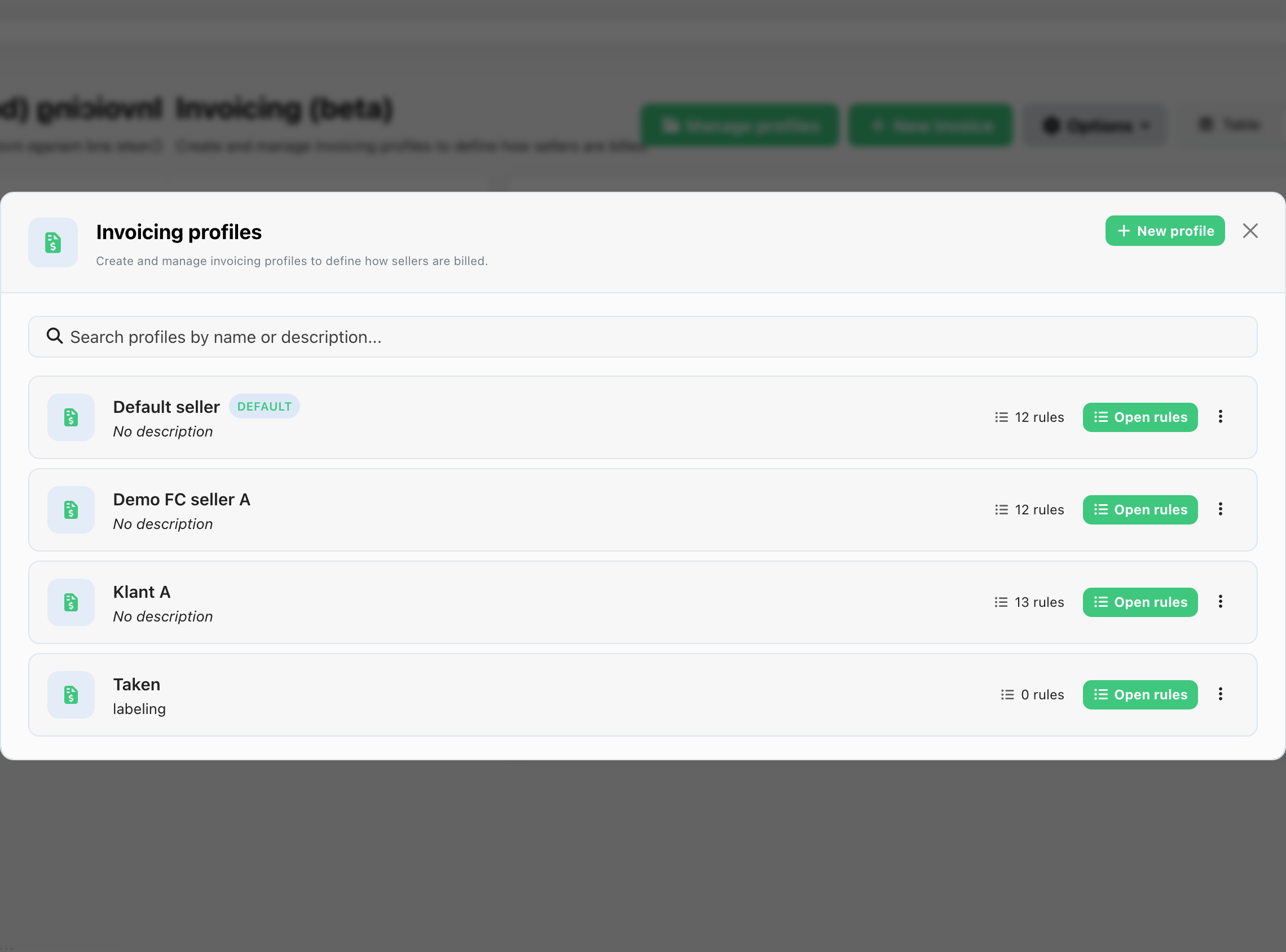
- Click New profile to create a profile, or open an existing one to edit it.
- Enter a name (for example Standard fulfillment or Premium EU) and an optional description.
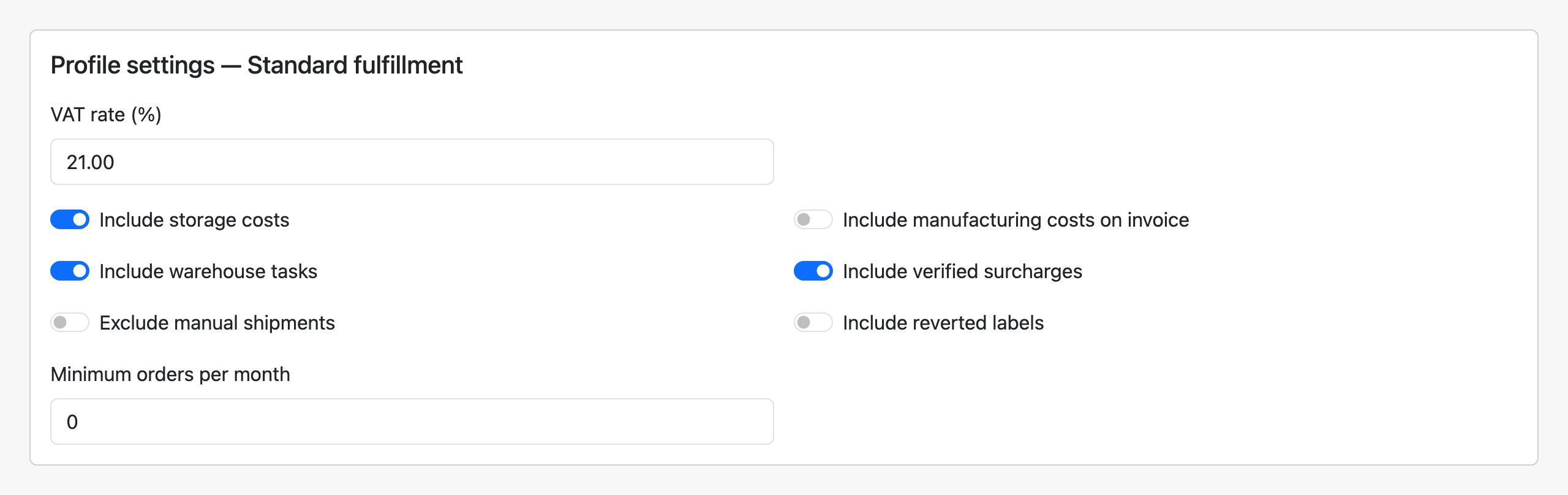
- Set VAT rate (%) or Sales tax rate (%) — defaults to 21% for EU centers. The label adapts to your center country.
- Set profile toggles:
| Toggle | When to use |
|---|---|
| Include storage costs on invoice | Bill storage for mapped warehouse stock. See Billing storage costs. |
| Include manufacturing costs on invoice | Bill per-unit manufacturing costs from product settings (set on each product under Warehouse > All products) |
| Include packaging costs on invoice | Bill the packaging catalog price of the assigned box or envelope, multiplied by the number of labels (parcels) on the shipment. Leave this off when a rule already bills packaging. |
| Include tasks on invoice | Bill completed tasks in the invoice period |
| Include verified surcharges on invoice | Add validated carrier surcharges to the invoice |
| Exclude manual shipments from invoicing | Skip shipments created manually, without a carrier integration |
| Include reverted labels | Bill reverted labels. They are excluded by default. |
| Minimal amount of orders per month | Used by the FC audit simulation to match this profile to sellers who reach this monthly order volume. It does not change which profile an invoice export uses — you still pick the profile when you create the invoice. |
- Mark one profile as Default — it is pre-selected when you create a new invoice export.
Tip: Use Duplicate profile to copy an existing profile with all its rules, conditions, and fee tiers—useful when onboarding a seller on a similar contract.
Note: Manufacturing costs are controlled by the profile toggle and per-product values—not by invoicing rules. Do not add a separate manufacturing rule.
Step 2: Add billing rules
- Open a profile from Manage profiles and click Rules (or open the profile row).
- Click New rule.
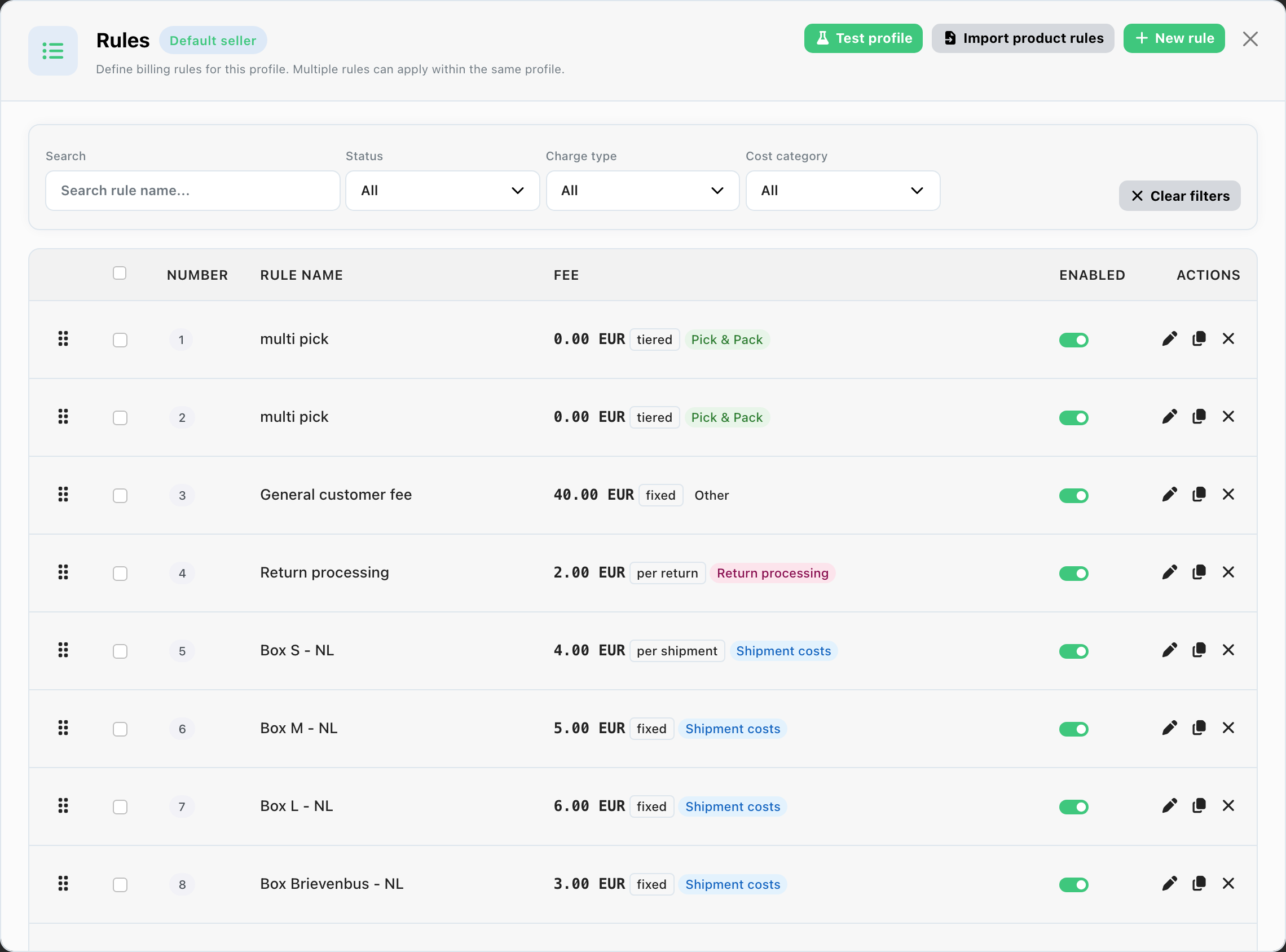
- Configure the rule:
| Field | Description |
|---|---|
| Name | Internal label, e.g. Pick & pack per order |
| Cost category | What kind of fee this is: Pick & Pack, Shipment costs, Storage, Inbound / Outbound processing, Return processing, or Other |
| Charge type | How the amount is calculated. The list changes with the cost category. |
| Amount / tiers | Fee value or tier breakpoints |
| Priority | Sort order — lower numbers run first |
The charge types, percentage bases, and tier modes are documented in Invoicing fees and charge types. Storage rates are documented in Billing storage costs.
- Save the rule and repeat for each fee in the contract.
Example rule set:
| Priority | Rule | Charge type |
|---|---|---|
| 10 | Pick & pack | Per order — €3.95 |
| 20 | Extra item | Per item — €0.85 |
| 30 | Shipping labels | Pass through carrier rate per shipment |
A percentage of the shipping label price is an alternative when the contract is a markup on the label, rather than the exact label price. When both a pass-through rule and a percentage rule match the same shipment, both amounts are added.
Step 3: Define conditions
Conditions control when a rule applies.
- Open a rule and go to Conditions.
- Build a condition group with AND / OR logic. Nest groups for complex contracts.
- Each condition uses: entity + field + operator + value.
The entities you can choose depend on the rule’s cost category. A storage rule offers Storage and Seller. A per-invoice-export fee offers Seller only. The full map is in Invoicing rule conditions.
Common condition entities
- Order — channel, country, weight, status
- Order product — SKU, EAN, quantity
- Shipment — carrier, service, destination
- Product — packaging category, dimensions
- Seller — for edge cases within a shared profile
- Package — packaging type on the order
Example: (carrier = DHL AND country = NL) OR (carrier = DPD AND weight > 20 kg)
Extra shipment labels: Second and third labels on an order (the EXTRA_SHIPMENT line) may inherit packaging and label price from the first label on the same order during invoicing evaluation. Pick & pack rules keyed on packaging can therefore match on those labels too.
- Save conditions and use Test profile to validate against a date range before invoicing.
Rule priority and bulk actions
- Rules run in priority order — number them 10, 20, 30… so you can insert rules later.
- Drag to reorder when no filters are active.
- Bulk actions: enable/disable, delete, copy rules to other profiles, or bulk-apply fees/conditions.
Import product rules
For SKU- or EAN-specific pick fees, use Import product rules in the rules modal to upload a spreadsheet instead of creating rules one by one.
| Column | Content |
|---|---|
| A | EAN or SKU |
| B | Cost per item |
Each row becomes one invoicing rule matched on SKU or EAN, charged per item. You can optionally replace existing single-SKU / single-EAN rules in the profile before import.
Linking to classic Administration settings
Some costs are configured in All financials (pick costs per seller/product, packaging, carrier overrides, storage on warehouse sections).
Invoicing can bill from the same warehouse activity, or you can model fees entirely in invoicing rules. Pick one approach per fee type to avoid duplicate charges.
Checklist before your first export
- [ ] At least one invoicing profile exists with a default set
- [ ] VAT/sales tax rate set per profile
- [ ] Each contract fee has a matching rule (or manufacturing toggle enabled with product costs filled in)
- [ ] Conditions tested with Test profile
- [ ] Rule priorities set (specific before general)
- [ ] Verified surcharges imported for the period (if billing surcharges)
- [ ] Warehouse sections mapped (if billing storage)
Next: Creating invoice exports
Related articles
Was this helpful?