Getting started with Smart Invoicing
Last updated
Invoicing helps fulfillment centers bill connected sellers automatically based on warehouse activity—pick & pack, storage, shipping labels, surcharges, and any custom fees you define in a contract.
Instead of building invoices manually in spreadsheets, you configure invoicing profiles and rules once. ChannelDock then calculates charges from real operational data and lets you export client-ready PDF and XLSX invoices per seller and period.
Where to find Invoicing
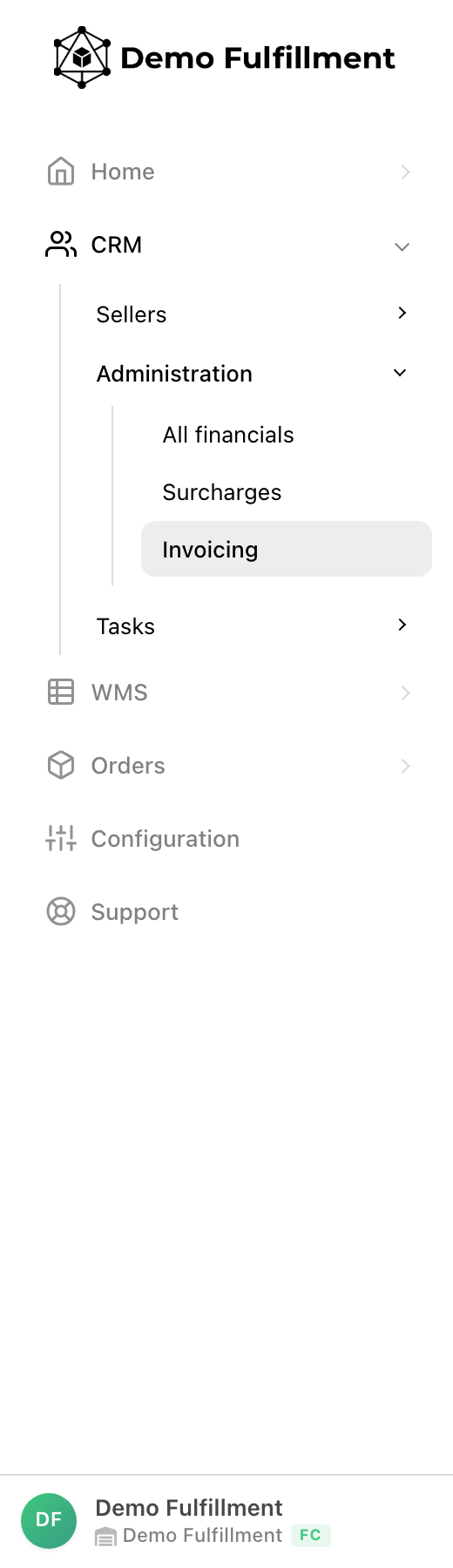
Invoicing lives under Administration in the fulfillment center portal. You need center admin permissions to access it.
- Log in to your ChannelDock fulfillment center account.
- In the left menu, open Administration.
- Click Invoicing — or go directly to Invoicing (beta).
The Administration menu also contains:
- All financials — operational fee overview per seller
- Surcharges — carrier adjustments to import and validate
- Invoicing — profiles, rules, and invoice exports
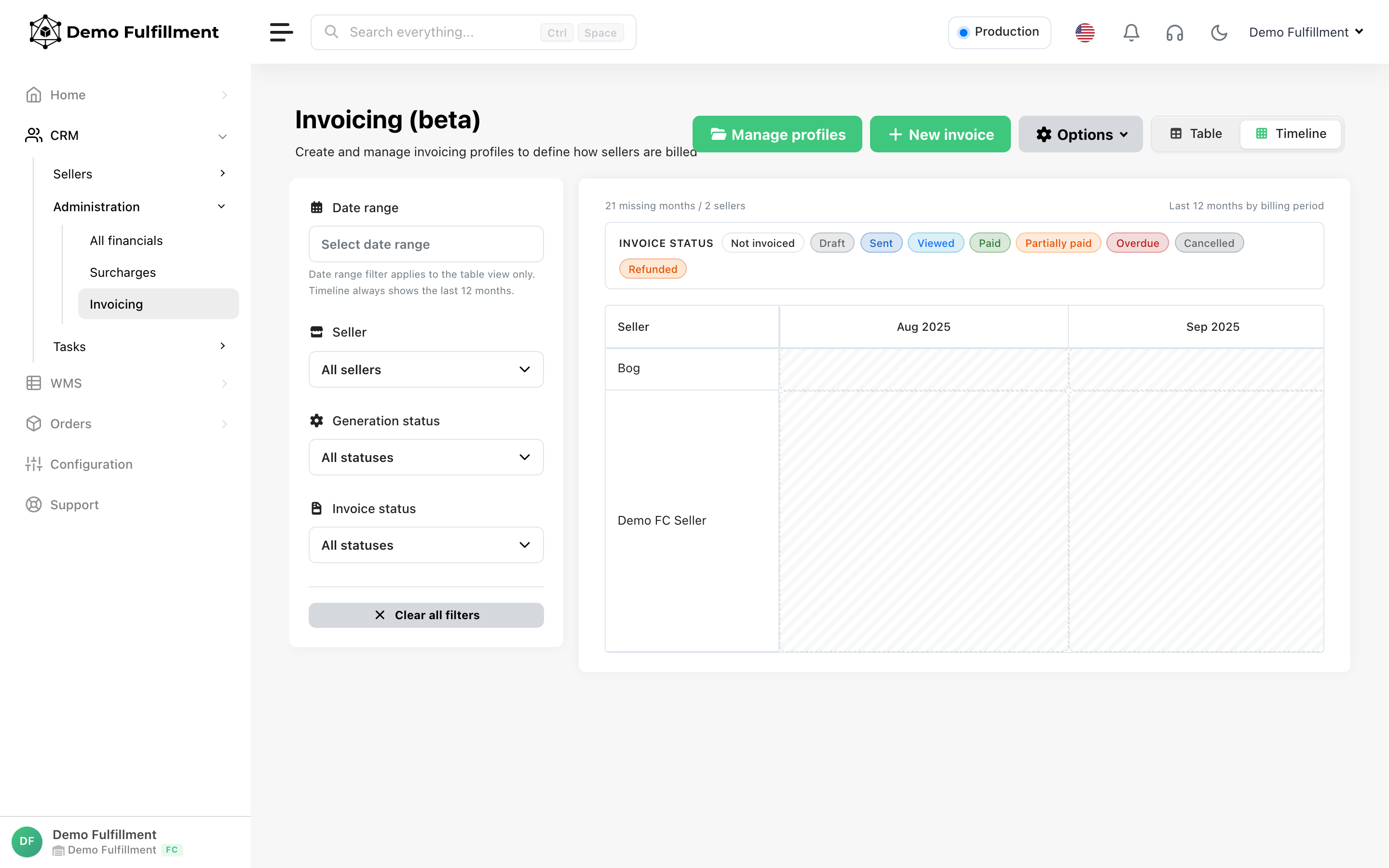
Invoicing overview
The Invoicing page is your billing cockpit:
- Manage profiles — create and edit invoicing profiles and their rules
- New invoice — request a PDF/XLSX export for a seller and billing period
- Options — payment details (IBAN/BIC) and export presets
- Export history — Timeline (default) shows a seller × month coverage grid for the last 12 months; Table is a filterable list of all exports
What Invoicing covers
Invoicing is designed for the costs you pass on to seller clients:
| Cost area | Examples |
|---|---|
| Fulfillment | Pick & pack, order options, packaging, storage, tasks |
| Manufacturing | Per-unit production costs on shipped products (profile toggle) |
| Shipping | Label prices, pass-through carrier rates, country tiers |
| Surcharges | Validated post-delivery carrier adjustments |
| Custom fees | Monthly minimums, percentage markups, tiered volume rates |
Operational data flows in from orders, shipments, warehouse scans, and label creation. Your invoicing rules decide what to charge and when each rule applies.
How invoicing works (4 steps)
- Create invoicing profiles — Group billing setups (for example Standard vs Premium EU). Assign a default profile for new exports.
- Add rules to each profile — Choose a cost category, then a charge type and amount. The charge types you can pick depend on the category. See Invoicing fees and charge types.
- Set conditions on each rule — Filter by order, shipment, product, seller, carrier, packaging, and more. Which filters appear depends on the cost category. See Invoicing rule conditions.
- Create invoice exports — Generate PDF and XLSX files for a seller and date range. Edit the HTML invoice in-portal if needed, then send to your client.
Continue with:
- Setting up billing profiles and rules
- Invoicing fees and charge types
- Invoicing rule conditions
- Billing storage costs
- Billing inbound, returns, and load carriers
- Creating invoice exports
Before you get started
Before you start billing sellers, make sure the underlying data is in place:
Connected sellers
Each seller you bill must be connected to your fulfillment center. See All sellers.
Fulfillment fee configuration
Pick & pack costs, packaging, order options, and storage can also be configured in All financials. Invoicing rules can bill from the same warehouse activity—or you can model fees entirely in invoicing rules. Avoid configuring the same fee twice.
Shipping and labels
Configure carrier rates under Settings > Carriers. Import post-delivery fees via Managing shipping surcharges or upload label prices with track & trace.
Warehouse mapping (for storage)
Storage billing requires mapped warehouse sections. See Warehouse mapping.
Manufacturing costs (optional)
If you bill production costs, set Manufacturing costs per product under Warehouse > All products. Enable Include manufacturing costs on invoice on the invoicing profile to add a per-unit line item for each shipped product.
Profile settings
Each invoicing profile includes switches and tax settings that shape what appears on the invoice:
| Setting | Default | Effect |
|---|---|---|
| VAT rate (%) / Sales tax rate (%) | 21% (EU) | Tax rate applied on generated invoices. Label adapts to your center country (VAT for EU/UK, sales tax for US). |
| Include storage costs on invoice | On | Bills storage for the period. See Billing storage costs. |
| Include manufacturing costs on invoice | Off | Bills per-unit manufacturing costs from product settings |
| Include packaging costs on invoice | Off | Bills the packaging catalog price of the box or envelope on each shipment label, multiplied by the number of labels (parcels). Leave this off when a rule already bills packaging. |
| Include tasks on invoice | On | Bills completed warehouse tasks in the period |
| Include verified surcharges on invoice | On | Adds validated carrier surcharges |
| Exclude manual shipments from invoicing | Off | Skips shipments created manually, without a carrier integration |
| Include reverted labels | Off | Bills reverted labels. Off by default; turn on only when those shipments were actually sent. |
| Minimal amount of orders per month | 0 | Used by the FC audit simulation to match this profile to sellers who reach this monthly order volume. The invoice export still uses the profile you select. |
Invoices use your center display currency (configured in center settings). PDF and XLSX exports include the profile VAT/sales tax rate.
See Setting up billing profiles and rules for details.
Tips for a smooth rollout
- Start with one profile — Validate the export against a manual calculation before rolling out to all clients.
- Use clear profile names — Names like Standard EU or Premium + pass-through shipping help finance teams pick the right export quickly.
- Keep rule priorities intentional — Lower priority numbers run first. Place specific rules above general fallbacks.
- Simulate before billing — Use Test profile in the rules modal to dry-run fees over a date range.
- Align billing periods — Most centers invoice monthly. Match your export date range to the contract period your sellers expect.
Related articles
- Setting up billing profiles and rules
- Invoicing fees and charge types
- Invoicing rule conditions
- Billing storage costs
- Billing inbound, returns, and load carriers
- Creating invoice exports
- Managing shipping surcharges
- Administration (pick & pack, packaging, carriers)
If you need help configuring a complex pricing agreement, contact ChannelDock support.
Was this helpful?